
Online Course:
Client Portal Template
Drip content as your course unfolds
Set modules to inactive until you're ready to release them. Students can see what's coming but only access the current material. It keeps things focused and gives your course a sense of progression.
Include genuinely useful resources
The template includes content pages for things like a client red flags guide and a curated resource library - built entirely inside Client Portal. Your students get reference material they'll actually come back to.

Organize your course materials in one place
Session recordings, worksheets, templates, and bonus resources - students can find everything without digging through emails. Upload new materials as the course progresses and your students always know where to look.
Let students upload their work
Worksheets, exercises, homework - students can upload completed work directly to the portal. No more attachments getting lost in email threads or buried in shared drives.
Download the template using the button above or click here to see a preview.
This template is designed for coaches, course creators, and anyone running an online program who needs a central place for their course materials. Rather than sending session recordings and worksheets over email (where they'll inevitably get lost), everything lives in one portal your students can come back to.
The template is structured around a four-module coaching program with a Getting Started section, per-module materials, and a bonus resources section. Inactive modules show students what's coming without giving access to everything at once. It's a good starting point for any coaching program, group course, or membership - and straightforward to adapt to your own structure.
How to import the Online Course template into Client Portal
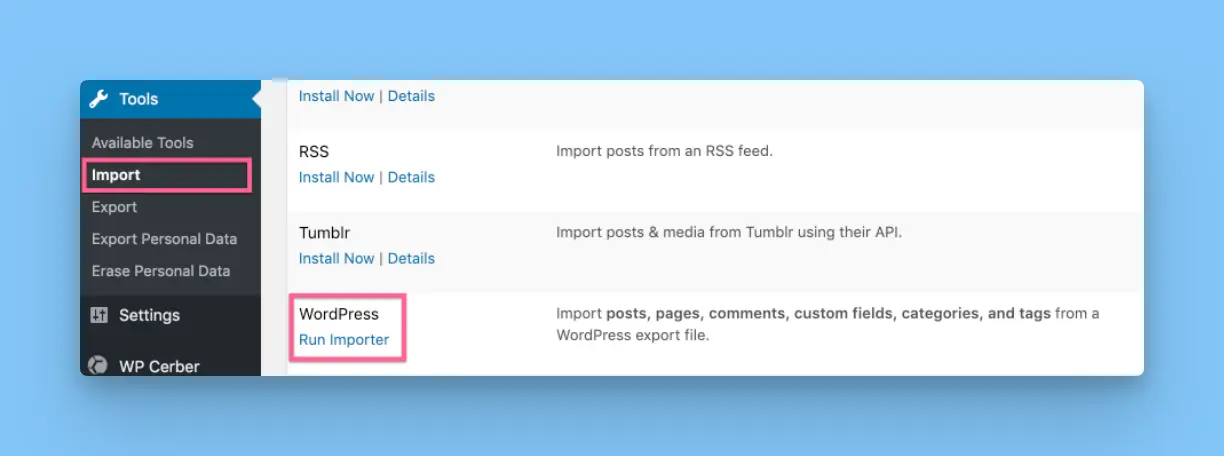
Once you've downloaded the .xml file above, navigate to your WordPress dashboard and go to Tools -> Import.
Next, choose "WordPress" and click "Run Importer".
Upload the .XML file you downloaded earlier. Then click "Upload file and import".
Tip: You may want to keep the "Download and import file attachments" box unchecked, since you will likely be replacing any file attachments with your own. This will help keep your website leaner.
That's it! For more detailed instructions on importing portals, click here.
Check out even more portal templates that are free for you to download and use in Client Portal

I started setting up my first portal and I have to say: wow! This is so cool. I can't believe how easy it is to add, change, and remove sections on the backend. And WOAH does that front end look professional. You made a very cool thing. Thank you. –Alli Blum, SaaS Onboarding Consultant
Not using Client Portal yet? Sign up now and get this template for free!
Take the headache out of keeping clients in the loop with a simple way to store project deliverables on your WordPress website.
“I finally feel like a proper agency now I have Client Portal. It’s something I’ve always wanted but I’ve never been able to find anything close to it.”
