Table of contents
5.11 was mostly small day-to-day requests. 5.12 has more of those, including a couple people have been asking about for years, plus a change to how portal files are stored. I'll cover the features first; the file change is further down, with a link to the step-by-step guide.
Website Header, edited in Client Portal
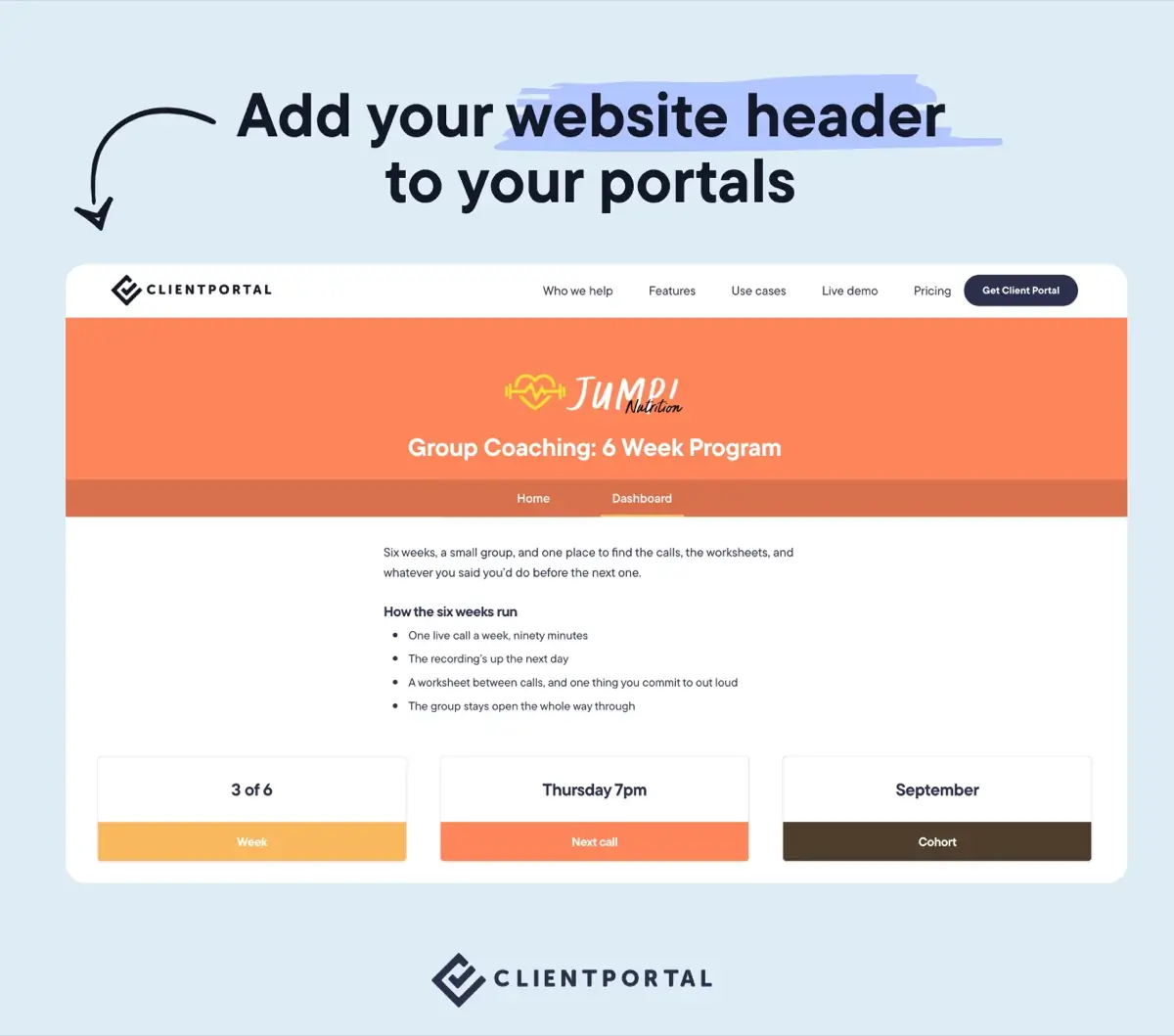
You can now edit your Website Header from Client Portal under Branding, including the logo, links, socials, and spacing for the nav and buttons.
Before, you had to go into the Site Editor, which was fine if you knew where to look and slightly annoying if you didn't. If you'd already set up a header, it's still there: open Branding, change what you need, and save.
Hidden modules
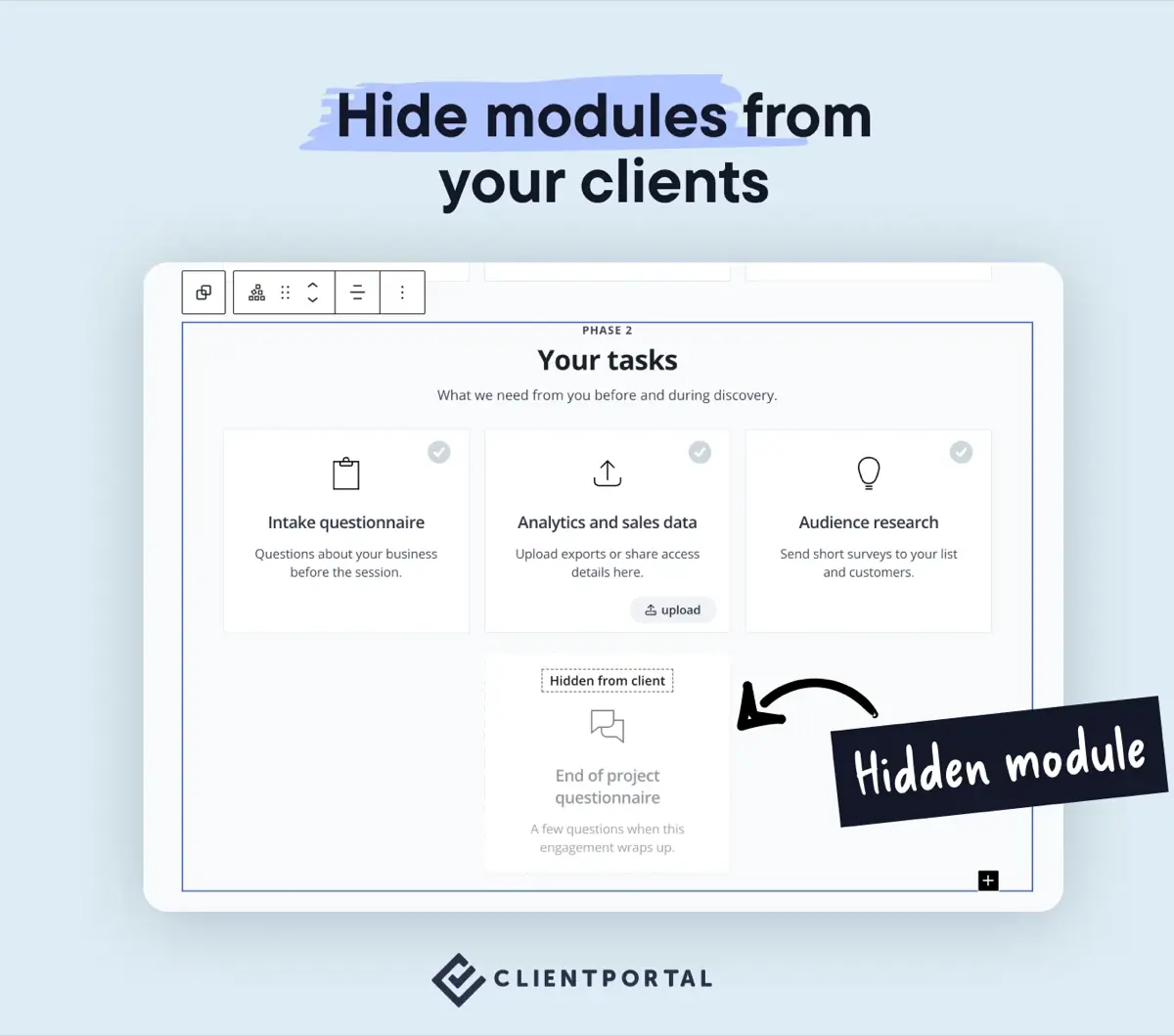
You can now hide a module on a Five portal without deleting it. Set it to Hidden when it isn't ready for the client, or when you want to keep it for later. You'll still see it in the editor; your client won't see it on the portal.
Preview files in the lightbox
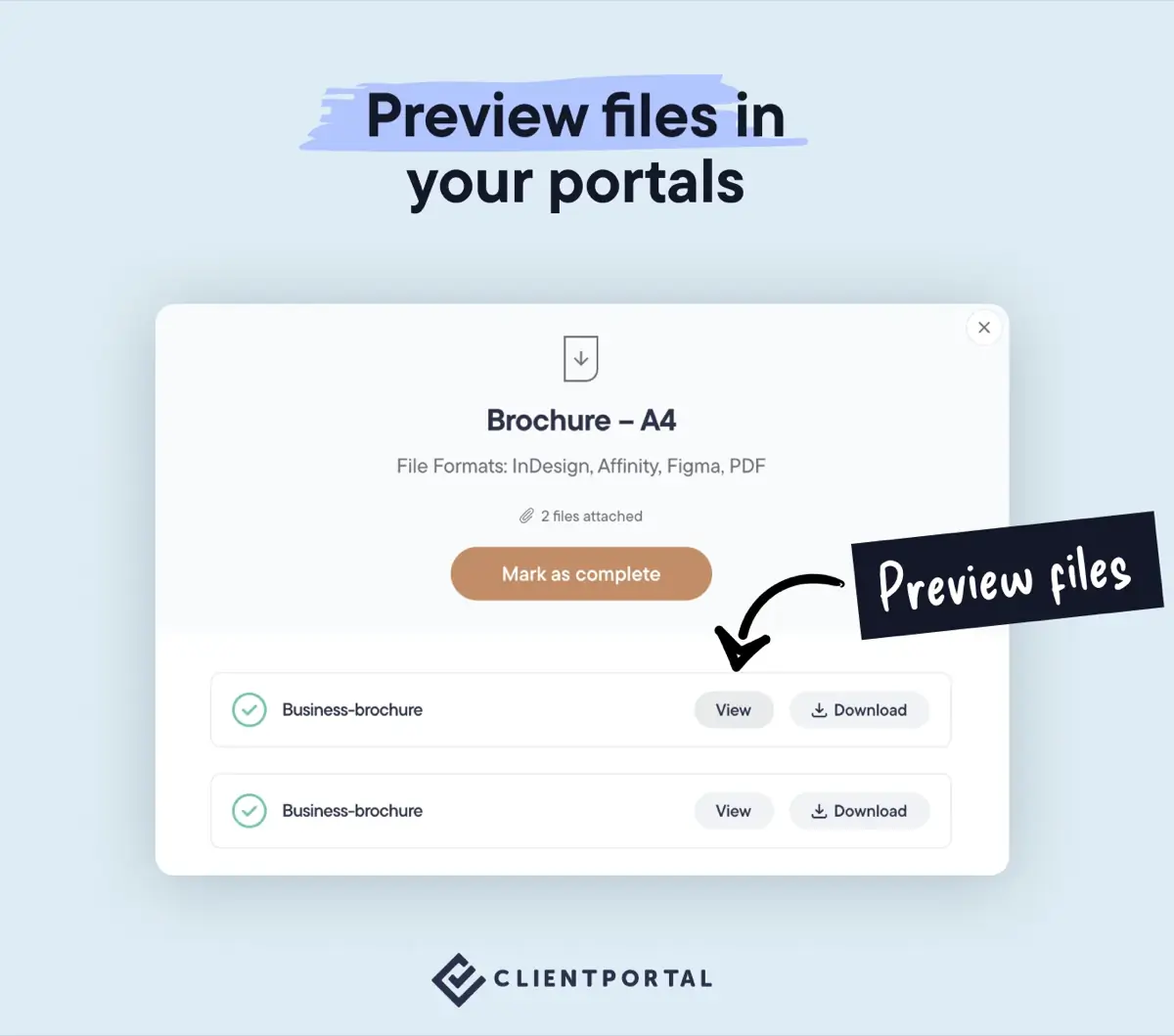
Previewable files now open in the lightbox, so clients can see what something is before downloading it. It works like the lightbox you already use for links, images and Text & Media. Newly added files also appear at the top of a module's list, so the thing you just uploaded is easy to find.
Change the fonts in your portals
There are now typography controls under Branding. Client Portal can pick up your website's font where possible, or you can set a custom family. It's a small thing, but it makes a portal look like it belongs to your site without writing CSS for it.
Extra security on your files
This is the bigger change in 5.12, even if nobody will notice it day to day.
Portal files have always been private. Clients need to be logged in and assigned to a portal before they can open them, and that part hasn't changed. What we've done is tighten how those files are stored. New uploads stay out of the media library by default, so there's no public media URL sitting next to the portal download, and we've closed the gaps that come from WordPress keeping files in a place that was never really built for private client work. Security is a big priority for us, and this is one of the ways we're taking it further.
If you still want a file in the media library (for example because you use it elsewhere on your site), you can choose that. The portal download still goes through private storage, and clients with access open their files the same as before. The difference is under the hood.
I know some of you look for uploads in the media library, so a proper way to browse what's been uploaded to each portal is part of the next release (more below).
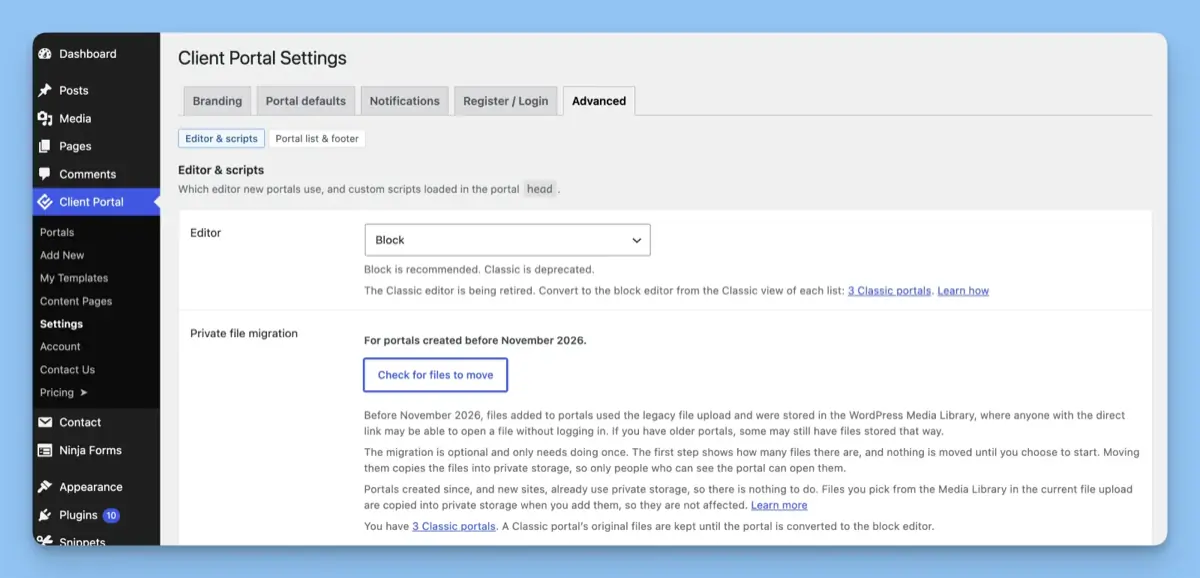
If your site is new, or all your portals were made after this change, you're already set up and there's nothing to do. If you have older portals or templates with files in them (Files, Private Files, Image Slider or Client Uploads), there's an optional upgrade under Client Portal → Settings → Advanced. You can run a check first to see what would move. Nothing is copied or deleted until you start it, and portal links carry on working during and after.
The full walkthrough is here: Upgrade older portal files to private storage. Take a backup before you run it, as you would with any migration.
Do I need to do anything?
Only if you have portals with files from before 5.12 and want them on the tighter storage too. The upgrade is optional, and it's under Settings → Advanced.
Settings are a bit tidier
Settings are now split into Branding, Portal defaults and Advanced, so the things you change often (branding, header, fonts) sit apart from one-off tools like the file upgrade.
Other improvements
- When the Classic Editor plugin is active, Client Portal now uses the block editor anyway, and warns you before you save a block portal on a Classic site
- Bricks CSS no longer leaks into Client Portal templates or the editor
- Removing a client from a portal no longer leaves an out-of-date list on their user profile
- Portal archive headers no longer shrink and cut off the menu when you scroll
- File help links now go to the published support articles
- Smaller fixes and privacy improvements
Classic portals and bulk migration
If you've only got a few Classic portals, the existing move tool is still the way to go: Move your portals from the Classic editor to the block editor.
If you've got a lot, I'd wait. A bulk migration tool is coming soon, and moving a long list one portal at a time is a dull way to spend an afternoon. Reply to this post or contact support if you'd like help when it's out.
Classic support ends on 31 January 2027.
What's next
After the bulk migration tool, the next release is about Client Portal for people with lots of portals and lots of clients. Right now you get a list of portals and a list of content pages, which is fine when you have ten and harder going when you have a hundred and want to know what belongs to whom. So I'm working on making the plugin faster, and on making it easier to see what's going on and where.
There are two things I'm planning for that:
- Client groups. At the moment every person is a separate user, and you add each one to a portal individually. With groups, you'd set up a client (say, "Acme Ltd"), add as many people under it as you need, and then add the whole client to a portal in one go. You'd also be able to see at a glance which portals belong to which client.
- A file viewer. Now that portal files aren't in the media library by default, you'll want somewhere to see what's been uploaded where. This would show uploads by portal and let you open them from there.
That's the plan as it stands. Details may change as I build it, and I'll share more once it's further along. The public parts are on the roadmap, and you can add your own requests there.
Already a customer? Update from your WordPress dashboard, then clear your page cache if your site uses one.
Not using Client Portal yet? It's a WordPress plugin that gives each of your clients a private portal on your own site. Have a look at Client Portal.