
Move your portals from the Classic editor to the block editor
You can move each Classic portal to the block editor in three steps: convert it to make a block copy, check the copy, then move your clients over. Your clients keep the same portal link, nobody gets an email, and the Classic version stays as a backup until you delete it.
Not sure which editor you use? If you bought after April 2024, you're probably using the block editor and you don't need to do anything. If you bought before that date, you may still be on the Classic editor and will need to migrate your portals. To check, go to Client Portal > Portals. If you don't see the text 'Classic' in the Editor list, you have no Classic portals.
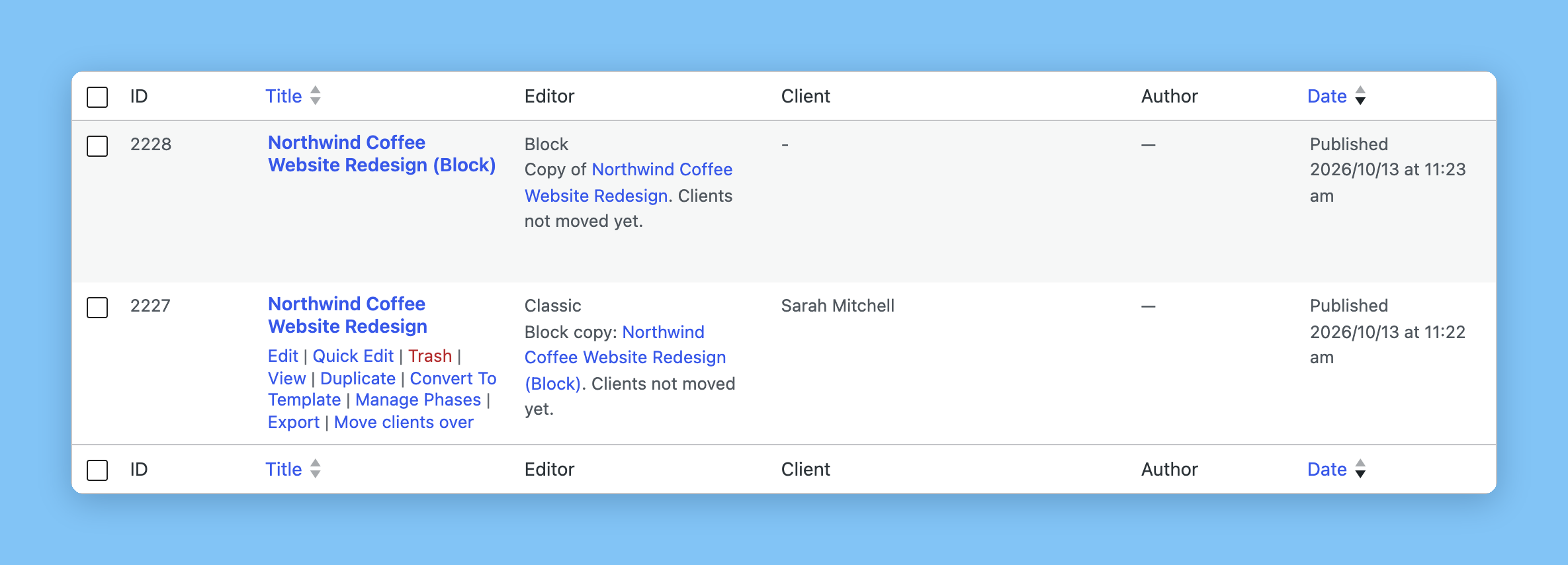
Why move to the block editor
The Classic editor is being retired. We build new features only for the block editor, and we'll stop supporting Classic portals on these dates:
When | What happens |
|---|---|
Now | Classic portals keep working. Move them to the block editor whenever you're ready. |
31 January 2027 | Support ends. Classic portals keep working, but we no longer fix Classic editor bugs. Security fixes continue. |
April 2027 | We remove the Classic editor from Client Portal. When you update, we convert any Classic portals you have left and move their clients over for you. |
Converting doesn't change or delete your Classic portals, so you can move one portal at a time and check each one before your clients see it.
Before you start
Do this in your WordPress admin, under Client Portal > Portals.
If your Editor setting in Client Portal > Settings is still Classic (deprecated), an administrator needs to do the first conversion. The first click of Convert to block editor only switches that setting to Block. It does not convert any portal yet, and your Classic portals stay Classic until you click Convert to block editor again on each one.
After that first click, your Editor setting is Block while your portals may still be Classic. Editing a Classic portal with the Block setting can break the editor: modules can be hard to change, file uploads can fail, and saves can look wrong. Either finish converting the portal, or set Editor back to Classic (deprecated) until you're ready to migrate.

Step 1: Convert a portal
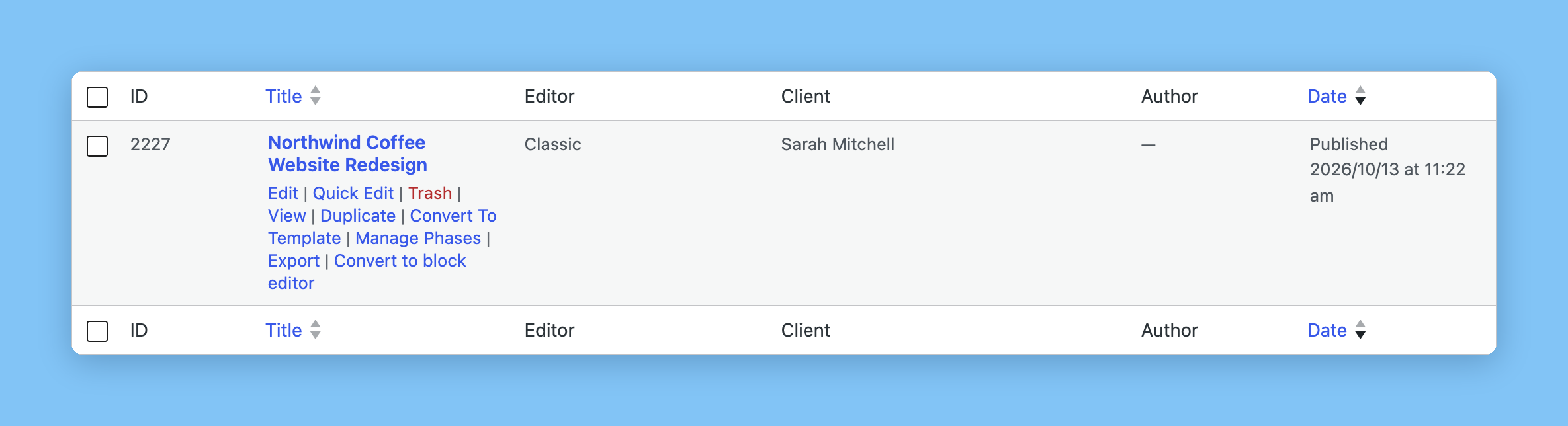
Go to Client Portal > Portals and click Classic above the list to see your Classic portals.
Hover over the portal and click Convert to block editor.
We make a block editor copy with (Block) at the end of its name and open it for you. Your clients still see the Classic version.
Step 2: Check the block copy
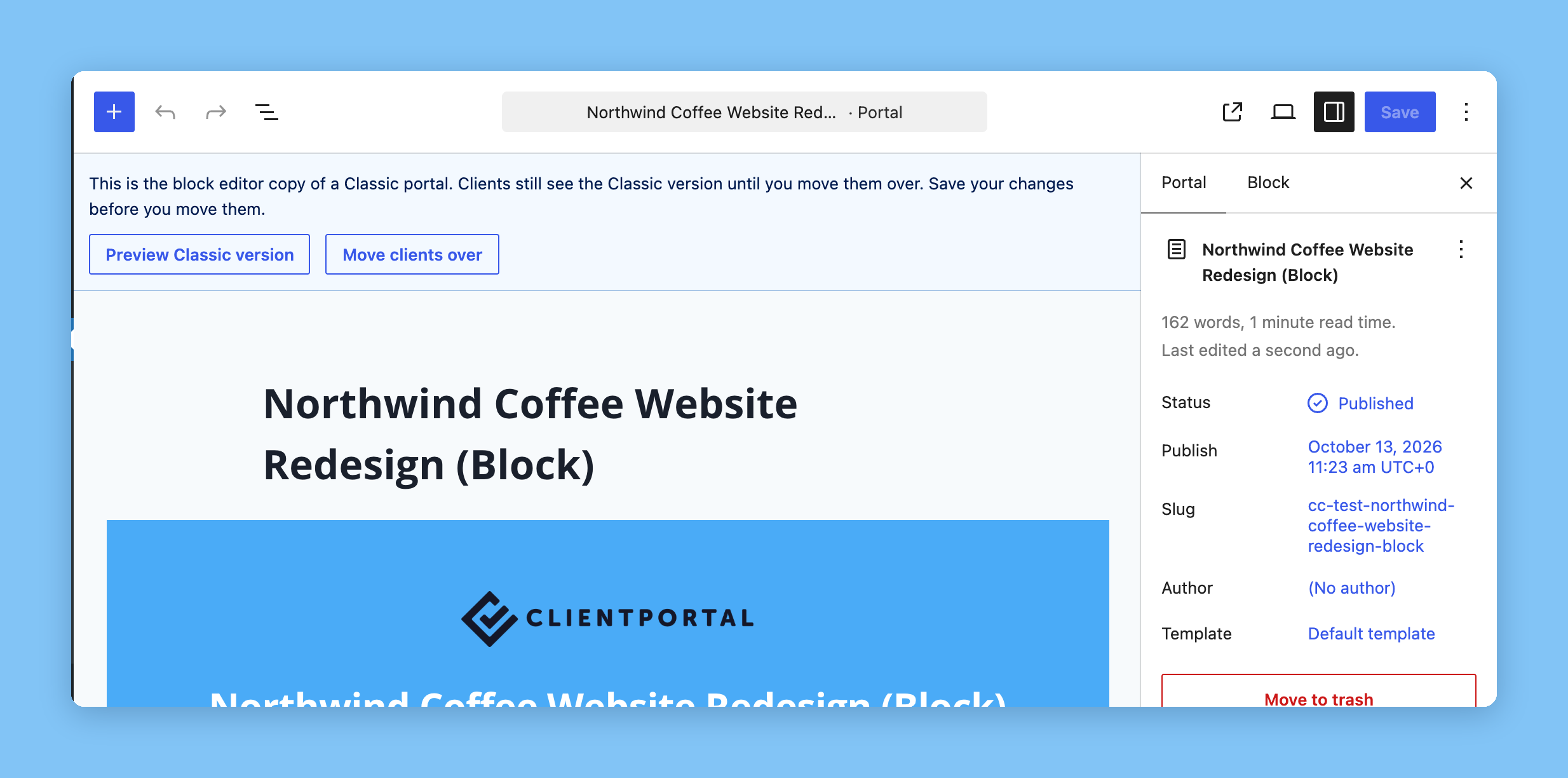
Look through the copy and fix anything that didn't carry over the way you want. Click Preview Classic version at the top of the editor to compare the two, and save your changes before you move on.
Step 3: Move your clients over
Click Move clients over at the top of the block copy, or hover over the Classic portal in the list and click Move clients over.
Click OK to confirm.
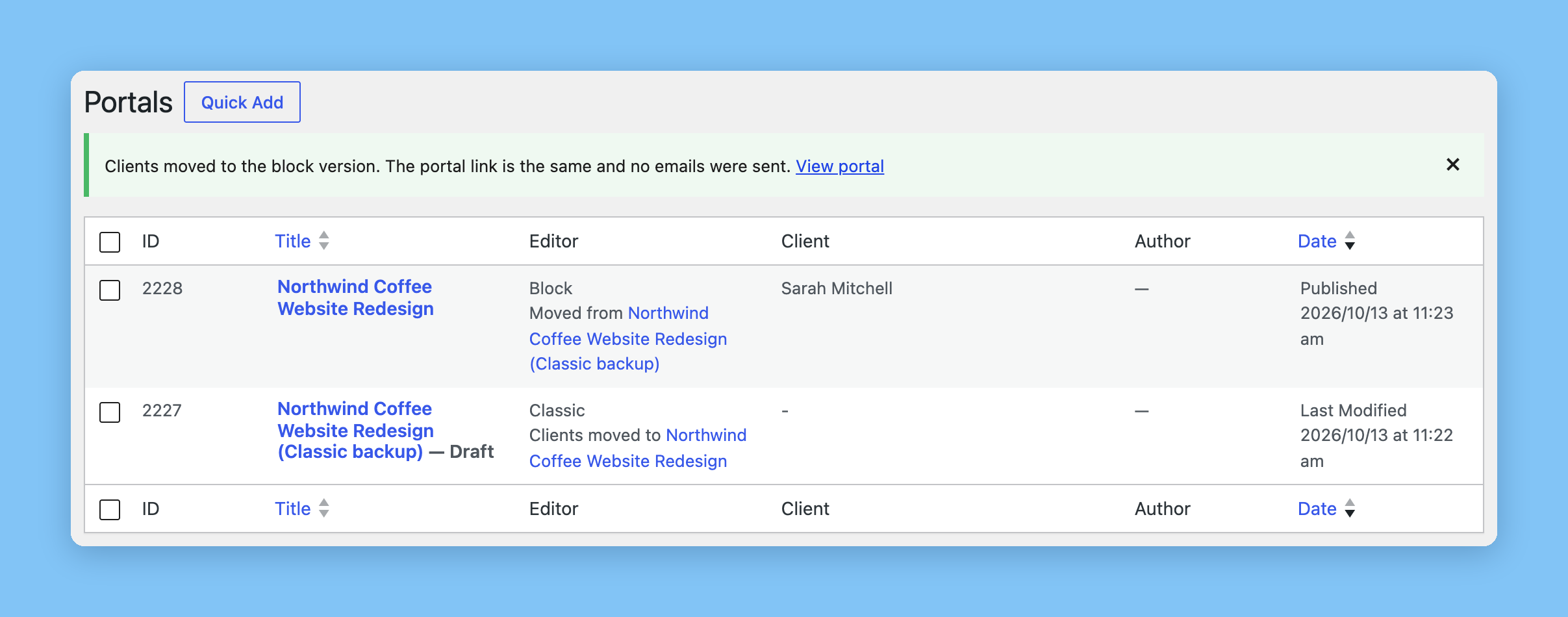
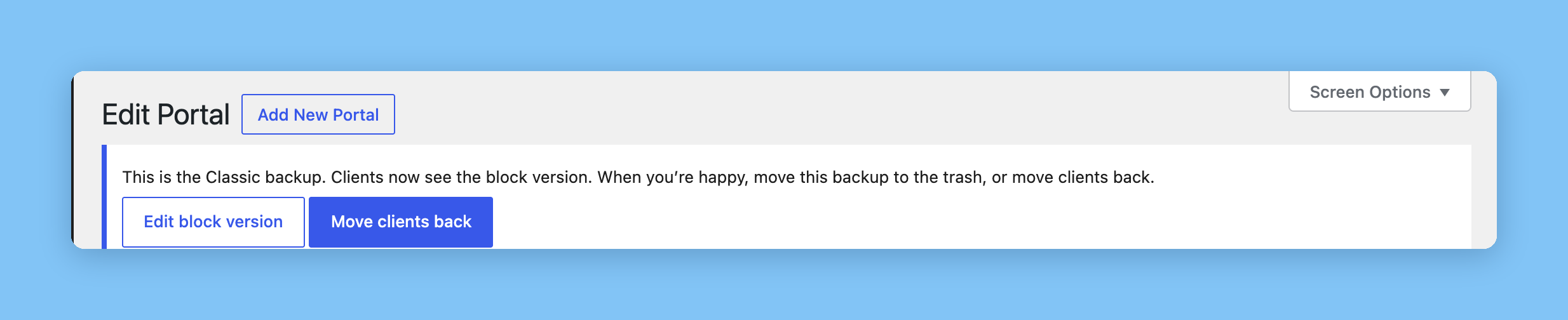
Your clients now see the block version at the same link. The block copy takes the portal's original name, and the Classic version becomes a draft called Classic backup.
Step 4: Delete the Classic backup
When you're happy with the block version, open the Classic backup and move it to the trash. The migration notices on both portals go away as soon as it's in the trash, so you don't need to empty the trash.
If something isn't right, click Move clients back on the Classic backup instead. Your clients see the Classic version again, and you can try again later.
Moving the Classic backup to the trash ends the migration for that portal. You can no longer move clients back to it.
Moving portal templates
Classic templates work the same way, from Client Portal > My Templates. Instead of moving clients, click Replace with block version. New portals made from that template then use the block version, including portals created from your registration form or WooCommerce products. To undo it, click Restore Classic version.
If Classic portals broke after you started migrating
The first click of Convert to block editor can leave your site mid-migration: Editor is Block, but portals still show Classic in the list. Clients still see the Classic portal at the same URL. Only your admin editing experience is affected.
Pick one path:
Keep working in Classic for now: go to Client Portal > Settings, set Editor to Classic (deprecated), and click Save Changes. Edit your Classic portals as usual, then come back to this migration when you're ready.
Finish the move: click Convert to block editor again on each Classic portal, check the block copy, then move clients over using the steps above.
If you see Switch to Block to keep editing
That banner appears when you open a block portal (or template) while Client Portal > Settings > Editor is still set to Classic (deprecated). The portal itself uses the block editor, but the site setting does not match.
That usually happens if you flipped Editor back to Classic so you could keep editing Classic portals mid-migration, then opened a portal that was already on the block editor (including a block copy you converted earlier).

With that mismatch, module and file changes in the block editor can fail to save. Click Switch to Block on the banner (administrators only), or go to Client Portal > Settings, set Editor to Block, and click Save Changes.
Switching the setting does not convert any Classic portals. They stay Classic until you run Convert to block editor on each one. New portals and content pages follow the Editor setting.
If you are not an administrator, ask someone who is to switch the setting for you.