
Troubleshooting nginx issues
If your WordPress site runs on Nginx instead of Apache, Client Portal can hit a few server-specific issues. This guide covers the most common problems, including how to protect private files without breaking downloads.
Common issues and solutions
Admin warning about private files folder

You will see an error message at the top of your Client Portal pages in WordPress admin if your site runs on Nginx. This happens because:
Apache uses .htaccess files to lock down the private files folder automatically.
Nginx does not support .htaccess files, so the folder cannot be locked automatically.
Without proper configuration, private file uploads may be accessible through direct URLs.
Before taking action, test whether your private files are actually exposed. They may already be protected by your hosting environment.
Test your private files security
Follow these steps to check if you need to make changes:
Upload a file to the Private Files module in any client portal.
Copy the direct URL from the Media Library. It will look like
/wp-content/uploads/leco-cp/filename.pdf.Open an incognito or private browser window.
Paste the URL and try to access the file while logged out.
If you see a 403, 404, or similar error, your files are already protected and you do not need to do anything.
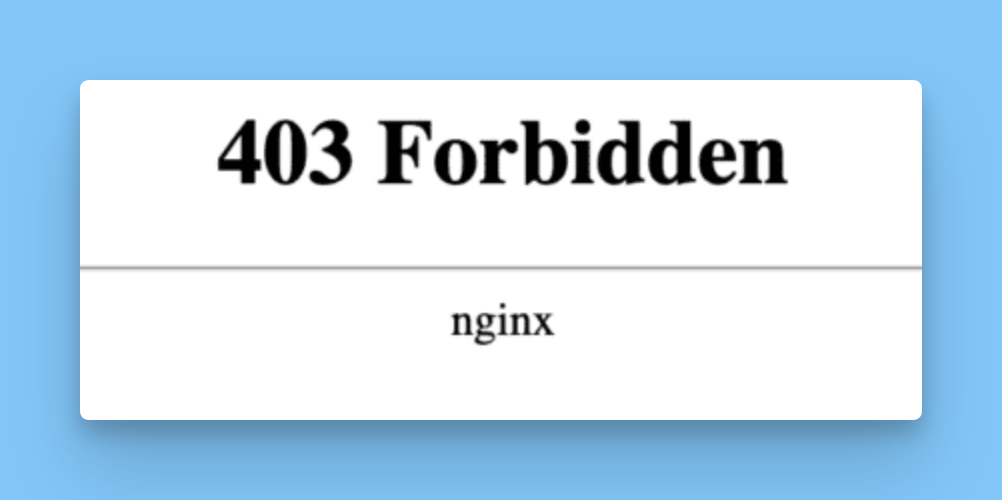
If the file opens, continue to the next section.
Add Nginx configuration rules
If you have access to your Nginx server configuration, add this rule to your site-specific Nginx configuration file:
location ~* ^/wp-content/uploads/leco-cp/ {
    deny all;
}
This rule uses ~* instead of ~ for broader compatibility by matching the path case-insensitively.
Reload Nginx after saving the change:
sudo nginx -s reloadVerify the configuration
After you reload Nginx, verify both of these behaviors:
Open the direct URL for a file inside
/wp-content/uploads/leco-cp/in an incognito window. It should return a 403 or 404 error instead of showing the file.Log in to a portal and click the Download button for a private file. The file should still download normally.
Managed hosting limitations
Some managed hosting providers use global Nginx configurations that cannot be customized per site. If you are on managed hosting and cannot add custom rules:
Your host may already have protections in place, so test your files first.
Consider using regular files instead of private files if strict access control is not required. Regular files are still protected by a login wall, but could potentially be accessible if a direct link was found. Learn more about the differences in Private files vs regular files: which should you use?.
Contact your host and ask them to add the rule for you. Below is an email template you can send directly to them.
Email template to send to a managed hosting provider
Subject: Request to add Nginx rule for private files directory
Hi,
Could you add the following rule to my site's Nginx configuration?
location ~* ^/wp-content/uploads/leco-cp/ {
    deny all;
}
It blocks direct URL access to a folder used by the Client Portal WordPress plugin. The plugin serves files through PHP at a separate URL, so this rule won't affect normal downloads.
It needs to be added at the server level rather than via .htaccess, and Nginx will need a reload for it to take effect.
More detail here if useful: https://client-portal.io/support/troubleshooting-nginx-issues-l3ms7
Thanks,
[Your name]
403 Forbidden errors on portal pages
If clients or you see 403 Forbidden errors when opening portal pages or files, try these solutions in order:
Check file and folder permissions
Incorrect permissions are the most common cause. Your WordPress folders and files should have these permissions:
Directories: 755
Files: 644
Contact your hosting provider or use FTP or SSH to verify and correct permissions on your /wp-content/uploads/ folder.
Review security plugins
Security plugins can sometimes block legitimate portal access. Temporarily deactivate security plugins to test whether they are causing the issue. If the error disappears, check the plugin settings and whitelist Client Portal URLs.
Check Nginx index directive
Make sure your Nginx configuration includes index.php in the index directive:
index index.php index.html index.htm;Without this, Nginx may not process WordPress requests correctly.
For broader 403 troubleshooting in WordPress with Nginx, see this step-by-step guide.
Login loops or form refresh issues
If clients get stuck in login loops or forms keep refreshing without submitting, the problem is usually caching.
Exclude portal URLs from cache
Your Nginx cache or caching plugin needs to exclude dynamic Client Portal pages. Add these URLs to your never-cache list:
/client/*
/client-portal-login/
Any custom portal slug you created
Full instructions are in Exclude Client Portal from cache.
Need more help?
If you still have issues:
Check your Nginx error logs for specific messages, usually in
/var/log/nginx/error.log.Contact your hosting provider with details about the specific error.
Submit a support ticket with screenshots of the error and details about your hosting environment.
For general Nginx and WordPress configuration guidance, SpinupWP provides a complete Nginx configuration kit.