
Notification settings
Client Portal emails you or your clients when something changes in a portal. You choose which events send an email, who receives it, and what it says.
Looking to batch notifications into scheduled digests? See Collate notifications into digests to reduce email volume.
Available notification types
Each event has its own settings. Turn off any you do not use.
New client account. Sent when a new client account is created.
Portal assigned. Sent when you assign a client to a portal, with a link they can open.
Module activated. Sent when you change a module's status to Active.
Module completed. Sent when a module is marked Completed.
Client file upload. Sent when a client uploads or deletes files. The email waits 10 minutes after the last change.
New comment. Sent when someone comments on a content page.
Files added. Sent when you add files to a Files or Private Files module, unless that module is Inactive. It is on by default and goes to the client. The email waits 5 minutes after your last save, so several files can go out together. Deleting a file does not send an email.
Reminder. Sent before a module's due date. See Add due dates and reminders.
Customizing a notification
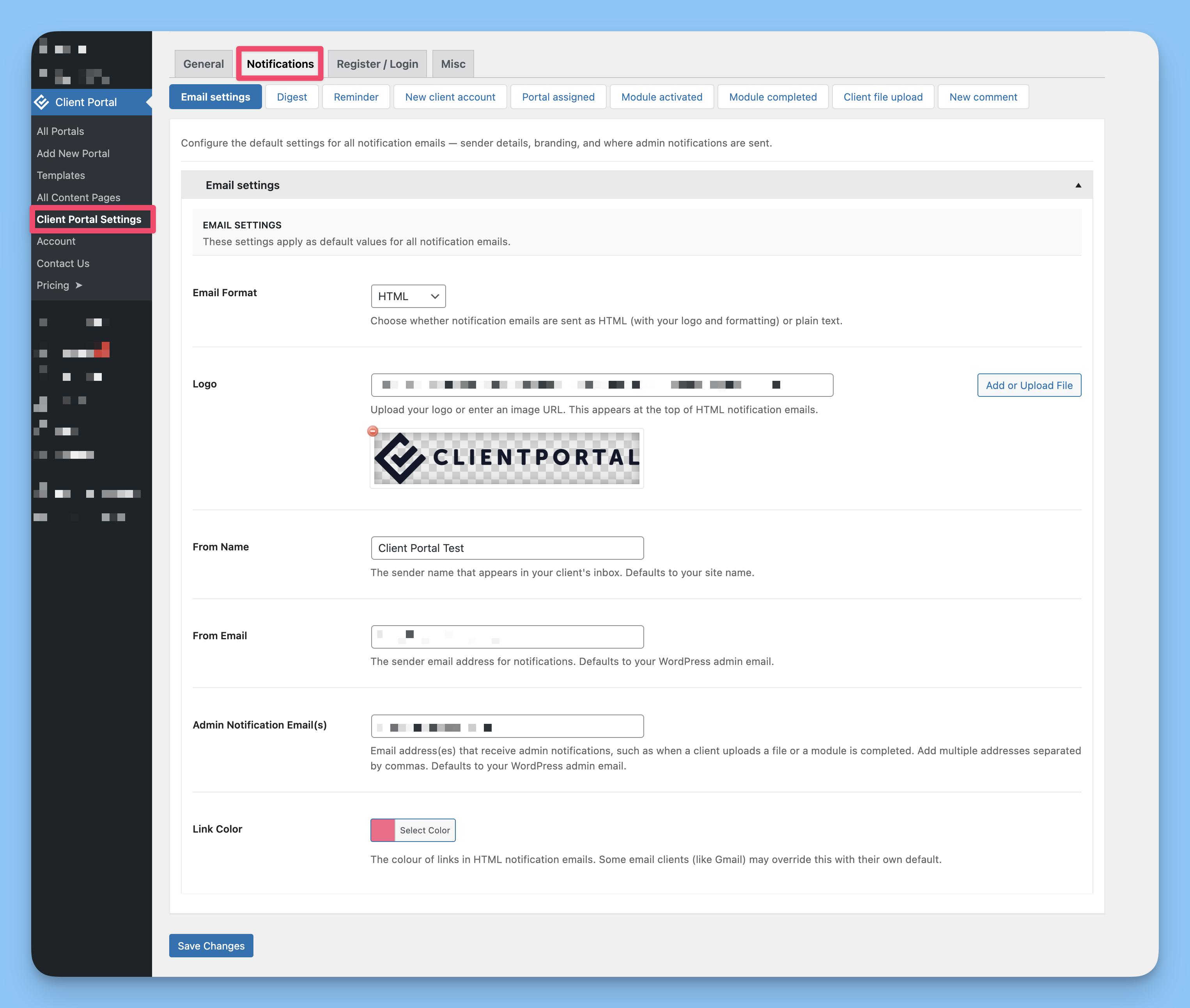
Each notification type has its own settings tab. Here's how to customize any notification:
Navigate to Client Portal Settings → Notifications
Click the tab for the notification type you want to edit (for example, Module activated)
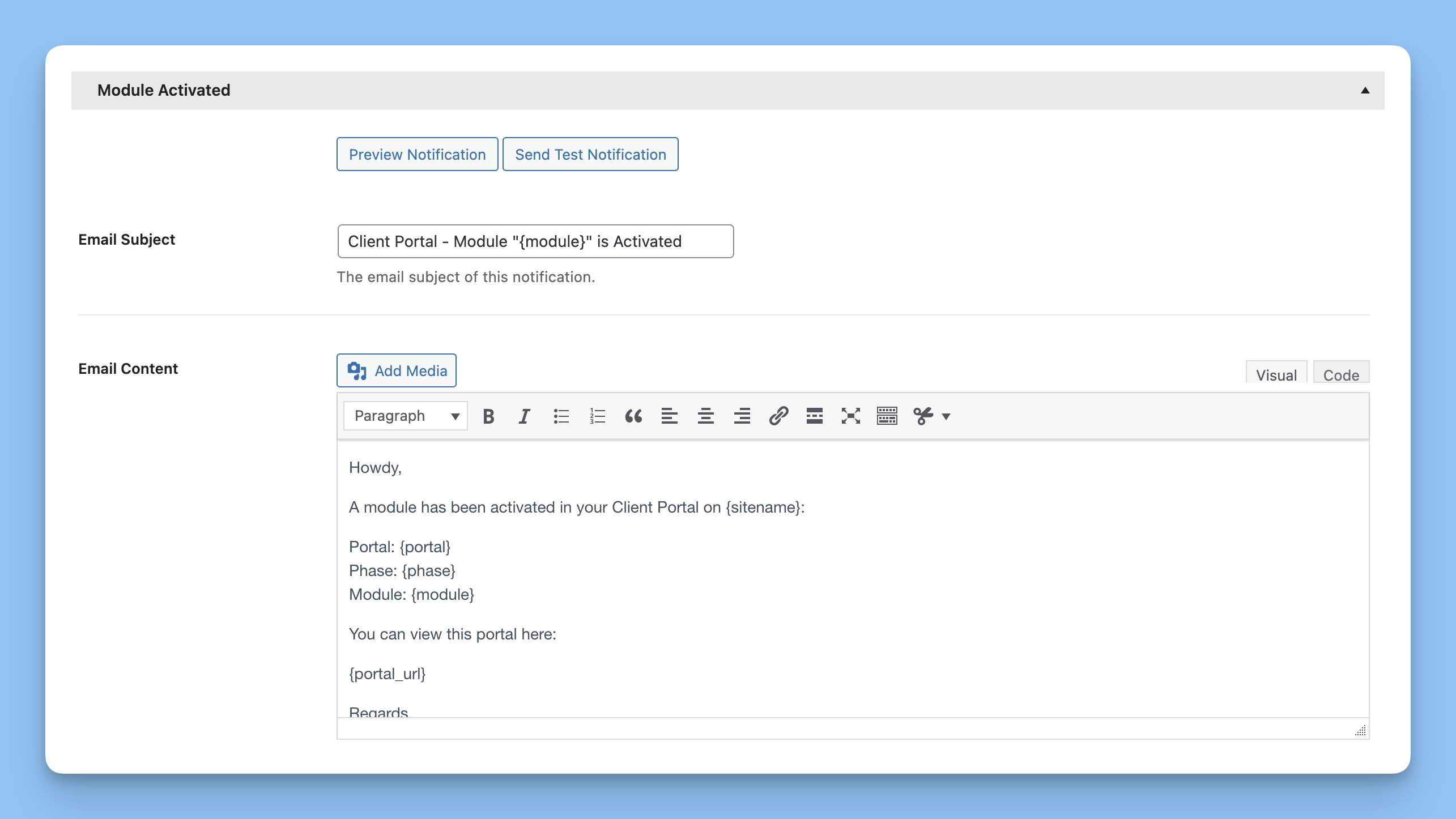
Edit the Email Subject field to change what appears in the subject line
Modify the Email Content using the editor. This is the message body
Use template tags (shown below the editor) to insert dynamic information like portal names, client names, or links
Choose who should receive this notification:
Client(s) on this portal . Sends to the client(s) assigned to the portal
Admin (you). Sends to you or anyone else you specified in your Email Settings
Click Preview Notification to see a preview, or Send Test Notification to receive a sample email
Save your changes
Common template tags
Template tags insert dynamic information into your emails. Available tags vary by notification type, but common ones include:
{sitename}. Your website name{portal_url}. Direct link to the portal{login_url}. Client login page{client}. Client name{module}. Module name{files}. List of files on the Client file upload email{file_list}. List of files on the Files added email
The full list of available tags appears below the Email Content editor for each notification type.
Always include {portal_url} or {login_url} so recipients can quickly access the portal from the email.
Customizing notifications per portal
You can override global notification settings for individual portals, including email content, subjects, recipients, and digest schedules. This is useful when different clients need different communication styles or when you want to disable notifications for specific portals.
To set up custom portal notifications:
Edit the portal you want to customize
In the Notifications panel (sidebar), uncheck Use default notifications
Click Customize notifications to open the per-portal settings page
For each notification section you want to customize, check Override default settings for [Notification-Type]
Edit the email subject, content, recipients, or digest schedule as needed
Save your changes
For detailed instructions, including how to disable specific notifications per portal and manage digest schedules, see Customizing notifications for individual portals.
Public portals (portals not assigned to specific clients) do not send client-facing notifications, even if notifications are enabled. Notifications require a client email address to send to.
Testing notifications
Before relying on notifications, send test emails to verify they look correct:
Navigate to the notification type's settings tab (for example, Notifications → Module activated)
Make any edits to the subject or content
Click Send Test Notification
Check your inbox for the test email
Test emails use sample data for template tags, so you'll see placeholders like "Sample Portal" or "Sample Client" instead of real names.
Troubleshooting
If notifications aren't sending, see Troubleshooting email notifications for common issues and solutions. The most common problems involve WordPress cron jobs, email server configuration, or recipient checkboxes being unchecked.