
Collate notifications into digests
Digest notifications batch multiple email alerts into a single scheduled message, reducing inbox clutter for you and your clients. Instead of receiving individual emails every time a module activates or a file uploads, recipients get one consolidated email at their preferred frequency.
Reminder notifications are never included in digests. They're always sent immediately to ensure time-sensitive alerts aren't delayed. See Add due dates and reminders for more on reminders.
Enabling digest notifications
Navigate to Client Portal Settings → Notifications
Click the Digest tab
Check the box labeled Activate Email Digest
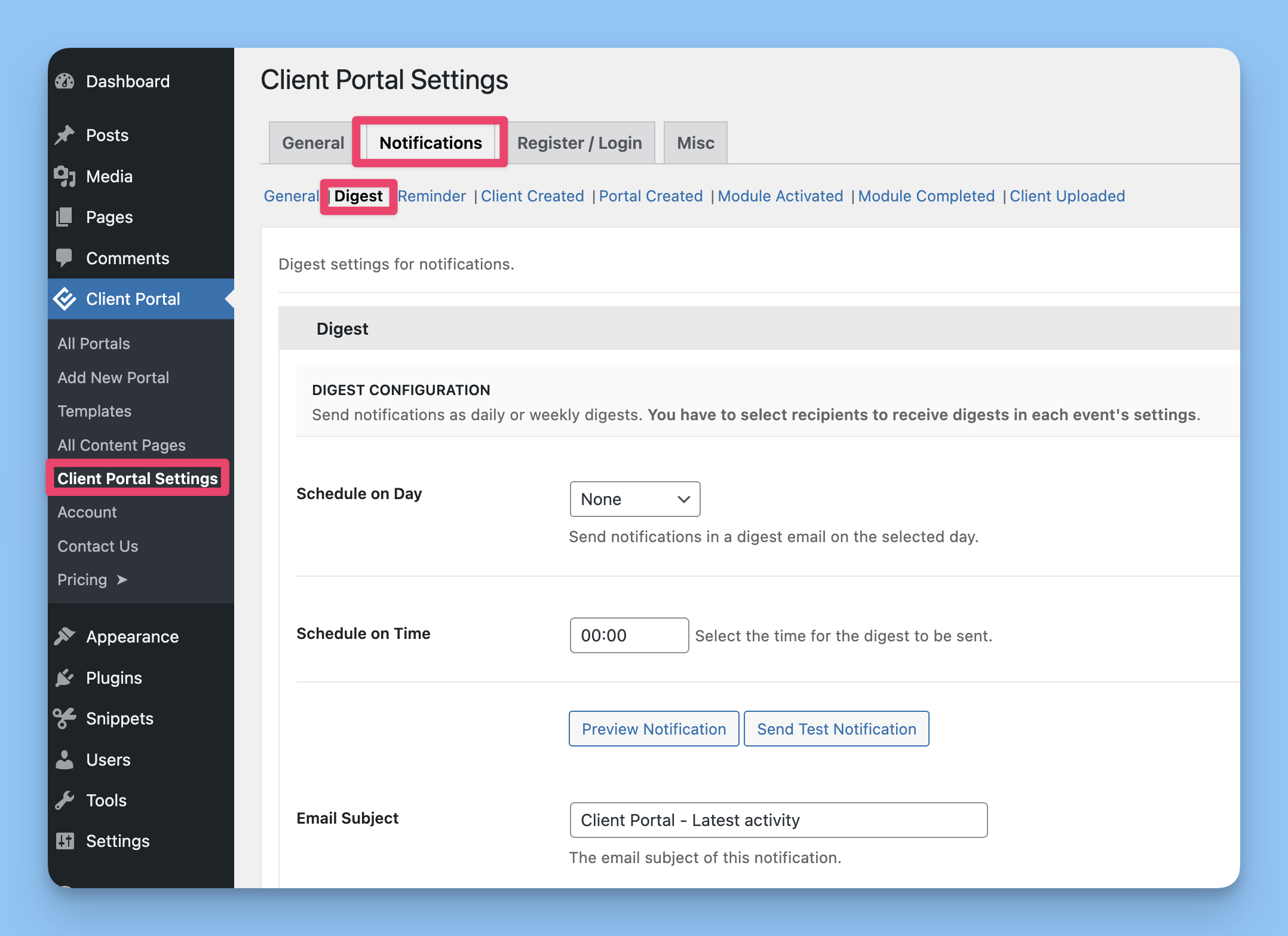
Choose your digest frequency:
Daily — Sends once per day
Weekly — Sends once per week on a specific day
Monthly — Sends once per month on a specific date
Set the delivery schedule:
For Daily: Choose the time of day (e.g., 9:00 AM)
For Weekly: Choose the day of the week and time
For Monthly: Choose the day of the month and time
Customize the Email Subject and Email Content using the editor and template tags
Choose who should receive digest emails:
Send notification to client(s) — Sends to clients assigned to portals
Send notification to administration email address — Sends to your WordPress admin email
Save your settings
Once activated, Client Portal queues eligible notifications and sends them in a batch at the scheduled time. If there are no notifications to include, no digest email is sent.
What's included in digests
Digests can include these notification types:
Client created
Portal created
Module activated
Module completed
Client uploaded
Each notification type must be enabled in its own settings tab to appear in digests. For example, if you disable "Module activated" notifications globally, they won't appear in digest emails either.
You can still customize individual notification content in their respective tabs. The digest groups these together but doesn't override their content.
Template tags for digests
Use these tags in digest emails to insert dynamic information:
{sitename}— Your website name{digest_content}— The compiled list of notifications included in this digest{login_url}— Client login page
The {digest_content} tag is required — it's where the individual notification summaries appear. Without it, your digest will be empty.
Structure your digest email to include a brief intro, the {digest_content} tag, and a closing with {login_url} so recipients can quickly access their portals.
Testing digest emails
Before relying on digests, send a test to verify the format and content:
Go to Notifications → Digest
Make any edits to the subject or content
Click Send Test Notification
Check your inbox for the test digest
Test digests use sample notification data, so you'll see placeholder events like "Sample Module Activated" instead of real activity.
How digest scheduling works
Client Portal uses WordPress cron to send digests at your scheduled time. Here's the workflow:
Throughout the digest period (daily/weekly/monthly), eligible notifications are queued instead of sent immediately
At the scheduled time, Client Portal compiles all queued notifications
If there are queued notifications, a single digest email is sent to configured recipients
If the queue is empty (no activity), no email is sent
The queue resets and the cycle starts again
Digest delivery depends on WordPress cron running correctly. If you're using a caching plugin or have disabled WP-Cron, digests may not send on schedule. See Troubleshooting email notifications for cron issues.
Digests vs. individual notifications
When digests are enabled, affected notification types are batched. When digests are disabled, those notifications send immediately.
Use digests when:
You manage many portals with frequent activity
Clients prefer a daily or weekly summary over real-time alerts
You want to reduce total email volume
Use individual notifications when:
You need immediate alerts for every event
You manage a small number of portals with infrequent activity
Clients expect instant updates
You can switch between digest and individual modes anytime without affecting the content or settings of individual notification types.
Reminder notifications always send immediately, even with digests enabled, so time-sensitive alerts are never delayed.
Per-portal notification overrides
If you've overridden notification settings for specific portals (see Customizing notifications per portal), those overrides affect which notifications are queued for digests. For example, if a portal has "Module activated" disabled via override, that portal's module activations won't appear in digest emails.
The digest schedule and content settings remain global — only the inclusion of specific notifications varies per portal.