
Using Google Sheets with Client Portal
You can integrate Google Sheets into your client portals by embedding interactive spreadsheets or linking to them. Sheets update automatically when changes are made in Google, making them perfect for project budgets, timelines, deliverable checklists, or shared data that changes frequently.
Embedded sheets are view-only for clients. They can see data and interact (like sorting or filtering if enabled), but cannot edit directly in the embed.
Two Ways to Add Google Sheets
Choose the method that fits your needs:
Embed a sheet — Display an interactive, auto-updating spreadsheet directly in a content page. Clients see and interact with the sheet without leaving the portal. Best for budgets, timelines, or data clients need to reference often.
Link to a sheet — Add a clickable link using the Links/URL module. Opens the sheet in a new tab. Best for large spreadsheets, sheets clients need to download, or when you want to keep the portal page simple.
Before You Start
For both methods, you'll need to configure your Google Sheet's sharing settings correctly:
For embedding: The sheet must be published to the web (not just shared)
For linking: The sheet must be shared with "Anyone with the link" can view
Make sheets view-only unless you want clients to edit the original (not recommended for most use cases)
Published sheets are publicly accessible and can be indexed by search engines. Don't publish sheets containing sensitive client data, passwords, or confidential information. Use summary tabs or sanitized data for public embeds.
Method 1: Embed a Google Sheet
Embedding displays the spreadsheet directly in your portal. Clients can view, sort, and interact with the data without leaving the page.
Step 1: Publish Your Sheet to the Web
In Google Sheets, navigate to File → Share → Publish to web.
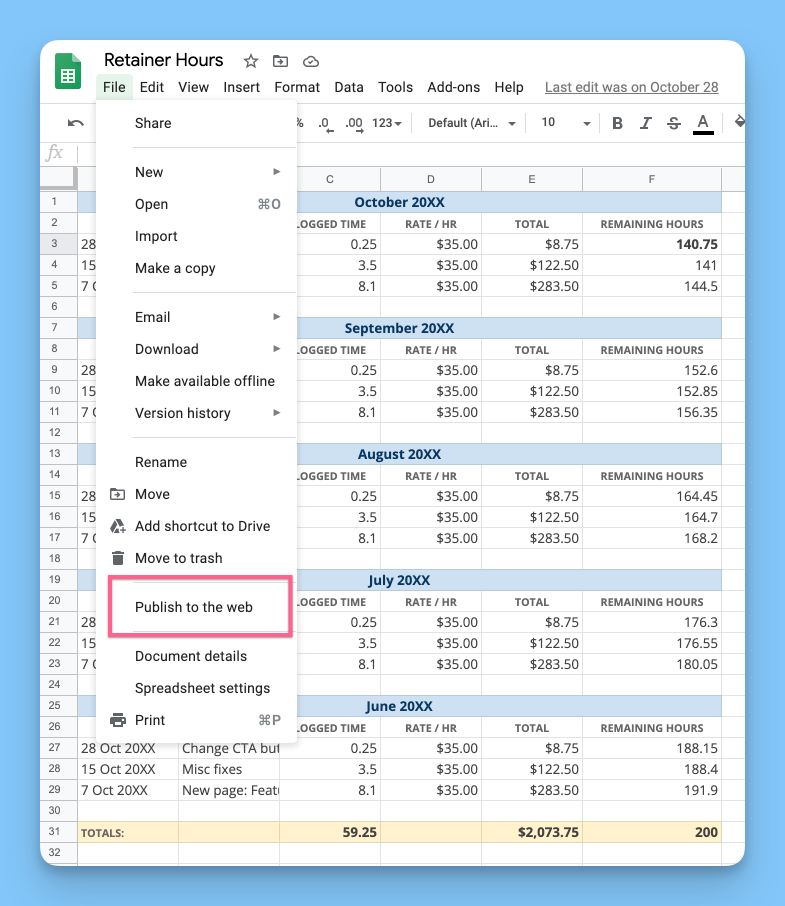
In the dialog:
Click the Embed tab
Choose what to publish from the first dropdown:
Entire document — All sheets/tabs visible
Specific sheet — Only one tab visible (recommended to keep embeds focused)
Check "Automatically republish when changes are made" so updates appear instantly
Click Publish, then confirm
Copy the embed code (it starts with
<iframe)
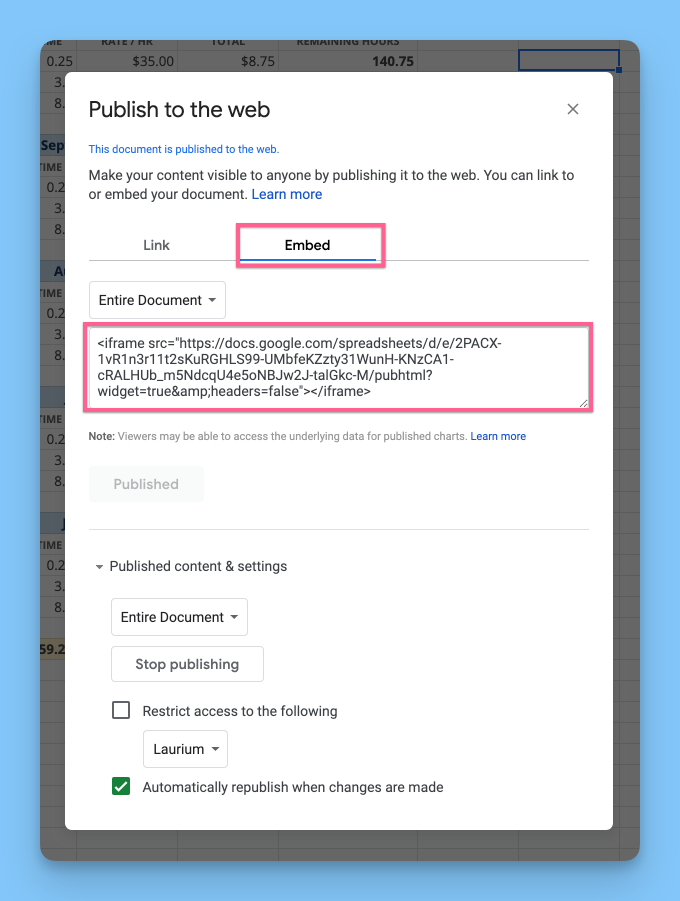
Publishing a specific sheet tab keeps your embed clean and focused. Create separate tabs for different clients or projects, then publish only what each portal needs.
Step 2: Add the Embed to a Content Page
In Client Portal, create or edit a Content Page module where you want the sheet to appear.
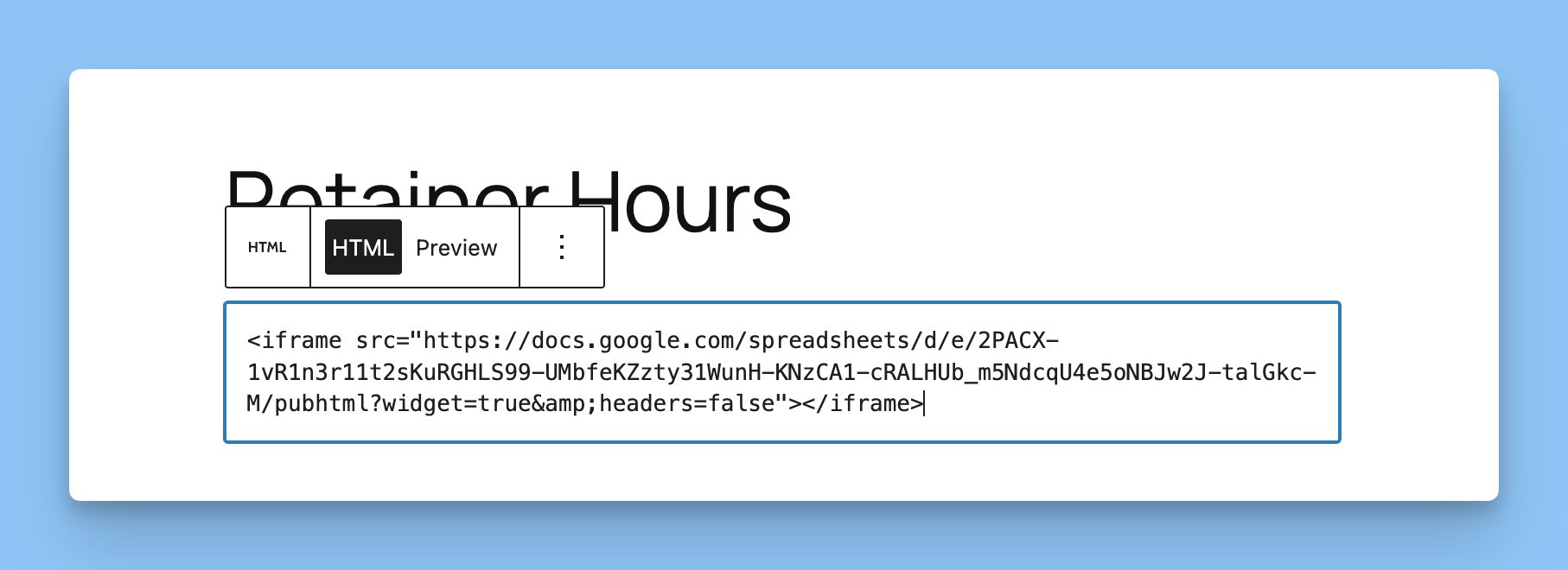
Open the content page editor (it opens in WordPress)
Type
/htmlto add a Custom HTML blockPaste your Google Sheets embed code into the HTML block
Preview or publish the content page
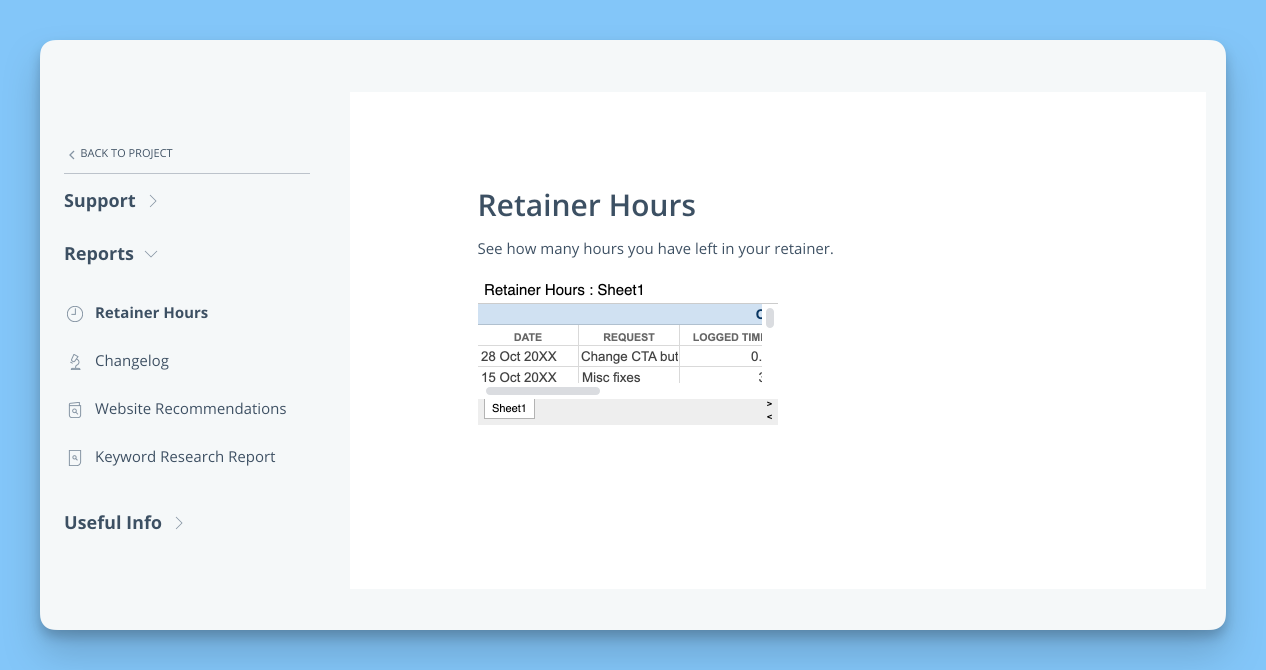
Your sheet will now display in the portal:
Step 3: Customize the Embed Appearance (Optional)
The default embed often needs adjustments. Here are recommended modifications to make your sheet look cleaner and fit better in the portal:
Change Dimensions
Add or modify the width and height attributes in your iframe code:
<iframe src="YOUR-SHEET-URL" width="100%" height="500px"></iframe>Width: Use
100%to fill the content area, or a fixed pixel value like800pxHeight: Set based on your content—
400pxfor small tables,600pxor more for longer sheets
Remove Sheet Selector and Title Bars
To hide Google Sheets UI elements, add parameters to the end of your iframe's src URL:
<iframe src="YOUR-SHEET-URL/pubhtml?widget=false&chrome=false" width="100%" height="500px"></iframe>widget=false— Removes the sheet selector tabs at the bottomchrome=false— Removes the title bar showing the spreadsheet name
Your final embed code should look like this:
<iframe src="https://docs.google.com/spreadsheets/d/YOUR-SHEET-ID/pubhtml?widget=false&chrome=false" width="100%" height="500px"></iframe>Display Full-Width (Remove Sidebar)
For wide spreadsheets, remove the Client Portal sidebar to give more horizontal space:
In the content page editor, open the Settings sidebar (top right)
Scroll to Display Sidebar and toggle it off
Set Container Width to
100%
This gives your sheet the full portal width:
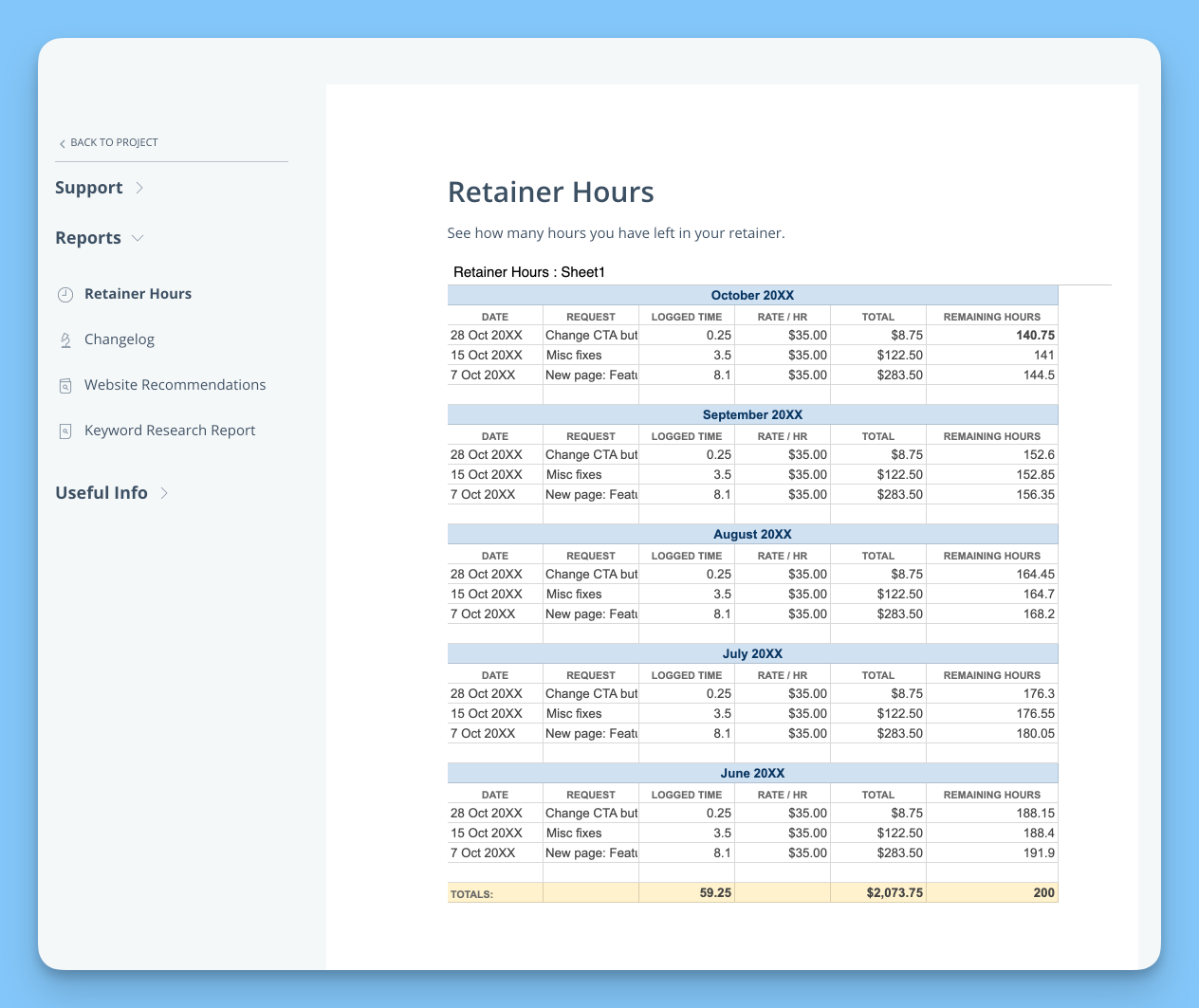
Method 2: Link to a Google Sheet
If you prefer clients to open the sheet in a new tab (useful for large sheets or when you want them to download a copy), use the Links/URL module instead.
Step 1: Make Your Sheet Accessible
In Google Sheets, click Share (top right), then:
Under "General access," select Anyone with the link
Set permission to Viewer (clients can view but not edit)
Click Copy link
Setting the permission to "Viewer" prevents accidental edits. If you want clients to be able to download or make their own copy, this setting allows that while protecting your original.
Step 2: Add the Link to Your Portal
In your portal editor, add or edit a Phase where you want the link to appear.
Add a Modules block (or edit an existing one)
Click Add New Module
Select Links / URLs as the module type
Enter a label like "Project Budget" or "Timeline Spreadsheet"
Paste your Google Sheets link in the URL field
Check "Open in new tab" so the sheet opens without navigating away from the portal
Optionally set a due date or status if relevant
Click Add Module
The link will appear as a clickable module in your portal. Clients click it to open the sheet in Google Sheets.
Security and Privacy Considerations
When working with Google Sheets in client portals, keep these points in mind:
Published sheets are public. "Publish to web" makes the sheet accessible to anyone with the embed URL, even outside your portal. Search engines can index published sheets. Only publish non-sensitive data, or use a sanitized/summary-only version for embedding.
Shared links require the link to access. "Anyone with the link" is more private than publishing—only people with the URL can access it. However, clients can share that URL with others.
Domain restrictions require Google Workspace. Google Workspace accounts can restrict published sheets to "anyone in your organization," but this won't work for external clients who don't share your Google domain.
Portal login protects the page, not the sheet. The client portal page itself is login-protected, but if someone obtains the Google Sheets embed URL directly, they can access it outside the portal. For sensitive data, link to a login-required sheet instead of embedding a published one.
To stop a sheet from being publicly accessible, return to File → Share → Publish to web and click Stop publishing. Existing embeds will stop working.
Ideas for Using Google Sheets in Portals
Here are common ways businesses use Google Sheets with Client Portal:
Project budgets — Show clients a live breakdown of costs, hours, or expenses that updates as the project progresses
Timelines and milestones — Embed a Gantt chart or milestone tracker so clients see progress at a glance
Deliverable checklists — List tasks, deliverables, or requirements with status columns clients can monitor
Invoice or payment logs — Display a summary of invoices, payments, and balances (use sanitized data without account numbers)
Resource libraries — Organize links, assets, or documentation in a searchable sheet
Event schedules — Share class schedules, booking availability, or event calendars in table format
Data dashboards — Embed charts, analytics, or reporting sheets that auto-update from other sources
Common Issues and Troubleshooting
The embed shows "This content cannot be displayed in a frame"
This means the sheet wasn't published to the web. Go back to File → Share → Publish to web and complete Step 1 above. Simply sharing the sheet isn't enough for embedding—it must be published.
The sheet embed is too small or cut off
Adjust the width and height attributes in your iframe code (see Step 3 above). Use width="100%" to fill the container and increase the height value until all content is visible.
Changes I make in Google Sheets don't appear in the portal
Check that "Automatically republish when changes are made" was enabled when you published the sheet. If not, return to File → Share → Publish to web, click Published content & settings, and enable that option.
Changes can also take a few seconds to appear. Refresh the portal page after making edits in Google Sheets.
I want clients to edit the sheet, not just view it
Embedded sheets are always view-only. To allow editing, use Method 2 (link to the sheet) and set the share permission to Editor instead of Viewer. Be cautious—clients will be editing your original sheet, which could cause data loss or conflicts if multiple people edit simultaneously.
For collaborative editing, consider using Google Forms to collect input, or set up a separate sheet per client that feeds into a master sheet you control.
The sheet selector tabs still appear even with widget=false
Make sure widget=false is added to the /pubhtml URL, not a different URL format. The embed URL from Google should end in /pubhtml, not /edit or /view.