
Add text above or below a module
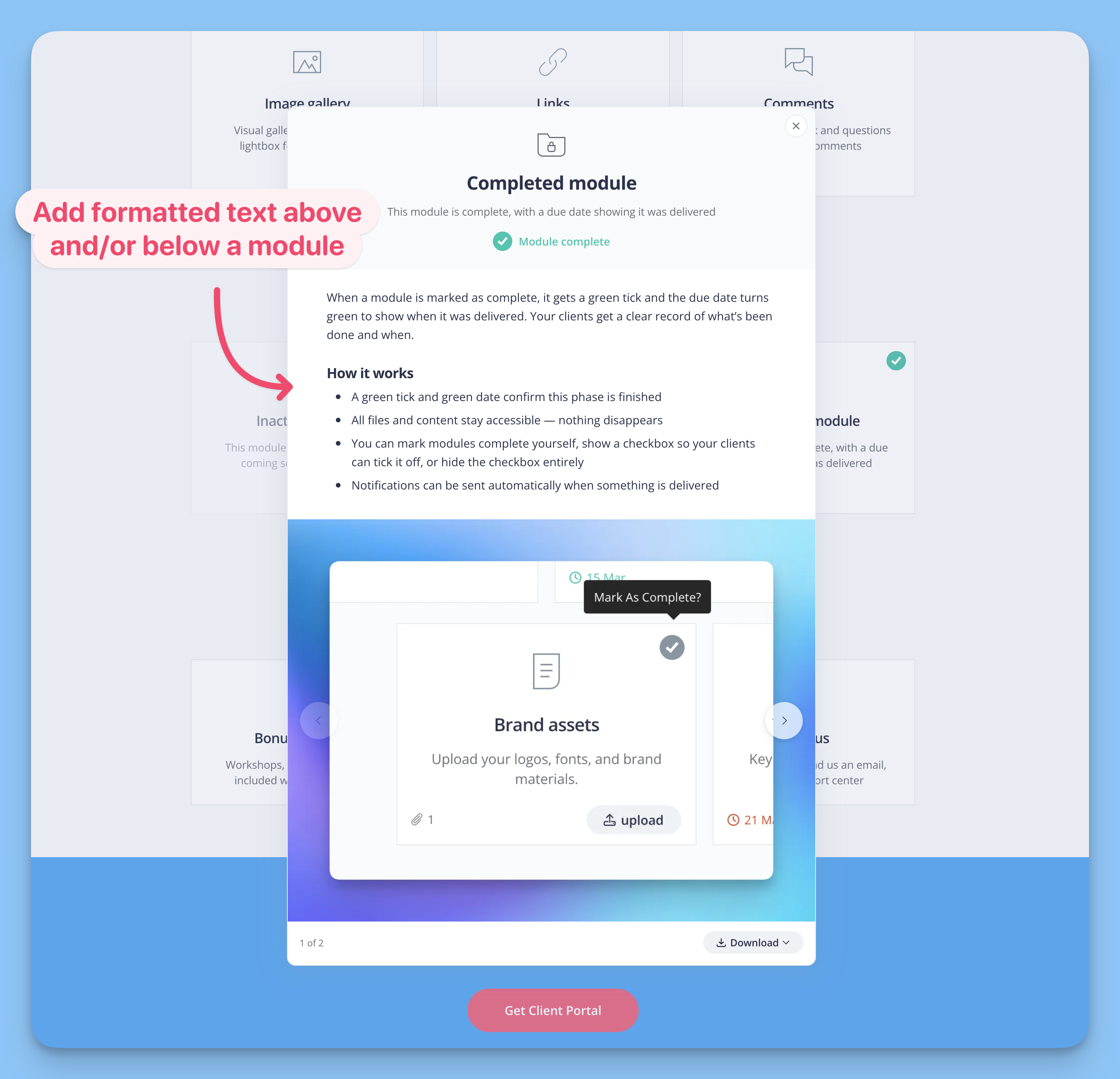
You can add formatted text above or below a module's content — its links, files, uploads, or image slider — from Module Settings in the block editor. The text belongs to the module itself, so it moves with the module and appears only to clients who open it.
Add text above or below a module
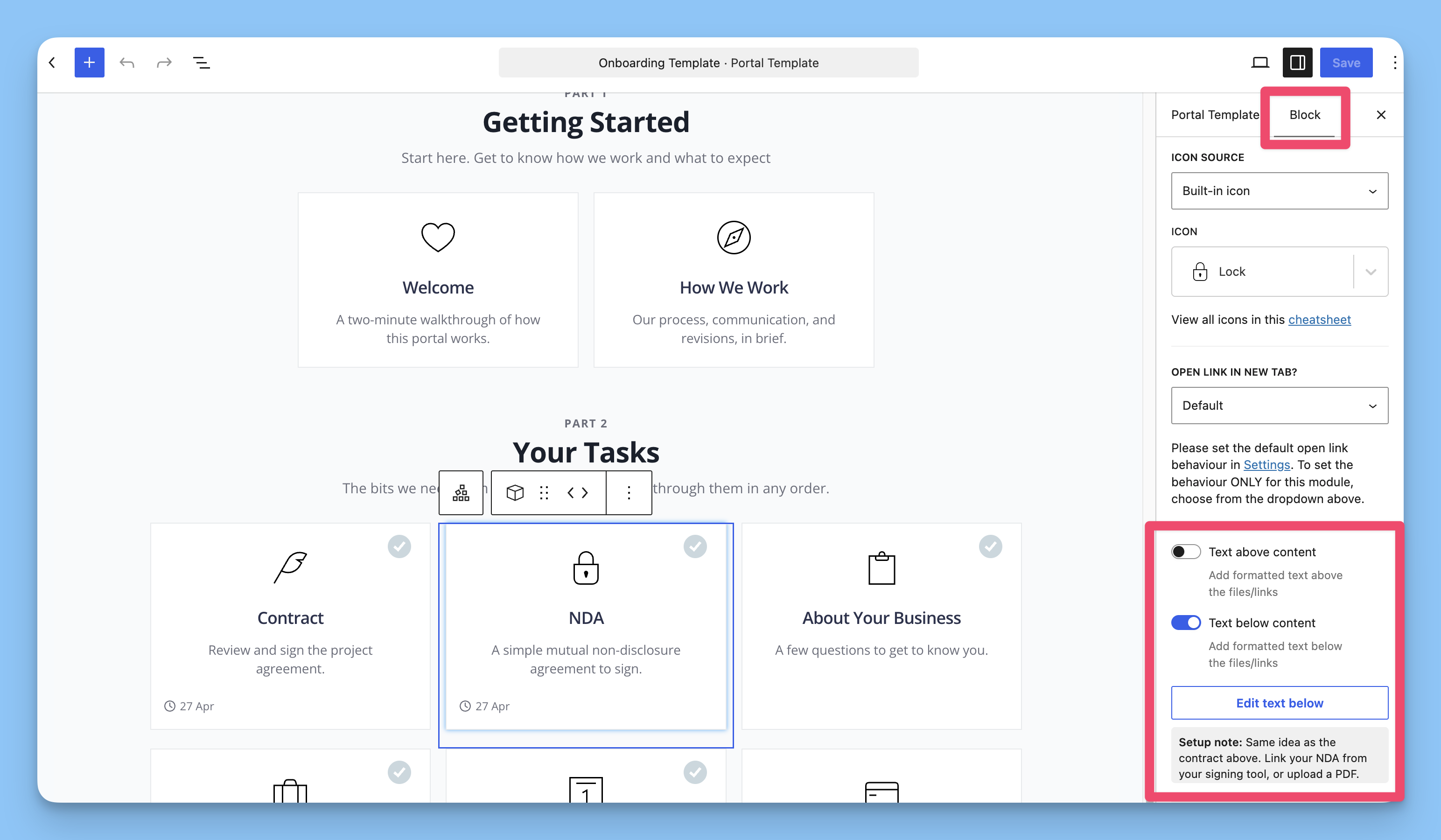
Both controls live in Module Settings for the selected module. They are off by default, and each edit button appears only after you turn its toggle on.
Edit the portal that contains the module.
Select the Modules block for the module you want to annotate.
Open Module Settings in the sidebar.
Turn on Text above content or Text below content.
Click Edit text above or Edit text below.
Enter your text in the editor and click Save.
Update or publish the portal.
You can turn on both toggles to add text above and below the same module; they render independently.
Format your text
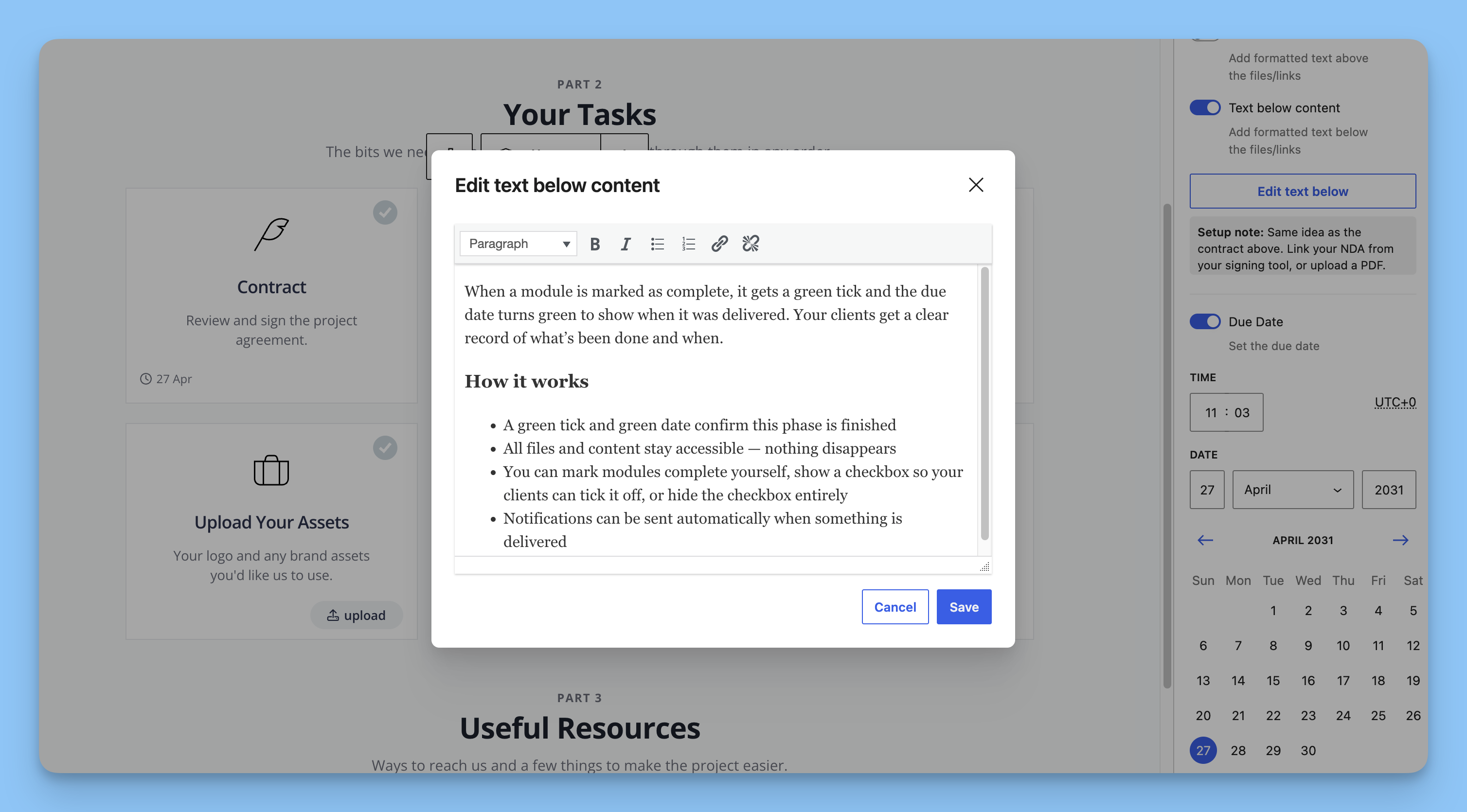
The editor is a formatted-text editor with the same toolbar for the above and below areas. You can apply:
Paragraph and Heading 2, 3, and 4
Bold and italic
Bulleted and numbered lists
Links and remove-link
Pasted text keeps its headings, lists, links, bold, and italic, while inline styling is stripped out.
Where the text appears
Above text renders before the module's links, files, uploads, or image slider, and below text renders after them. The text shows only when the toggle is on and the field has text, and it appears when a client opens the module rather than on the module card itself.
The feature applies to URL, Files, Private Files, Client Uploads, and Image Slider modules. It does not apply to Content Page modules, which use the WordPress block editor for their content instead.
Save or discard your edits
Save applies your text and closes the editor. Cancel closes it without saving your changes. When you have text saved, a preview of the first 120 characters shows under the edit button.
Related
Setting up your first portal — how phases and modules are organized
Using content pages — adding rich content with the WordPress block editor