
How to update the Client Portal plugin
Updating Client Portal keeps your portal secure and gives you the latest features and fixes.
Before you begin: Make sure your license is active. Plugin updates are only available with an active license. If you haven’t activated your license yet, follow the steps in How to install Client Portal.
Update from the WordPress dashboard
In WordPress, go to Plugins > Installed Plugins.
Find Client Portal and click Update now if an update is available.
Wait for the update to finish, then confirm your portal works as expected.
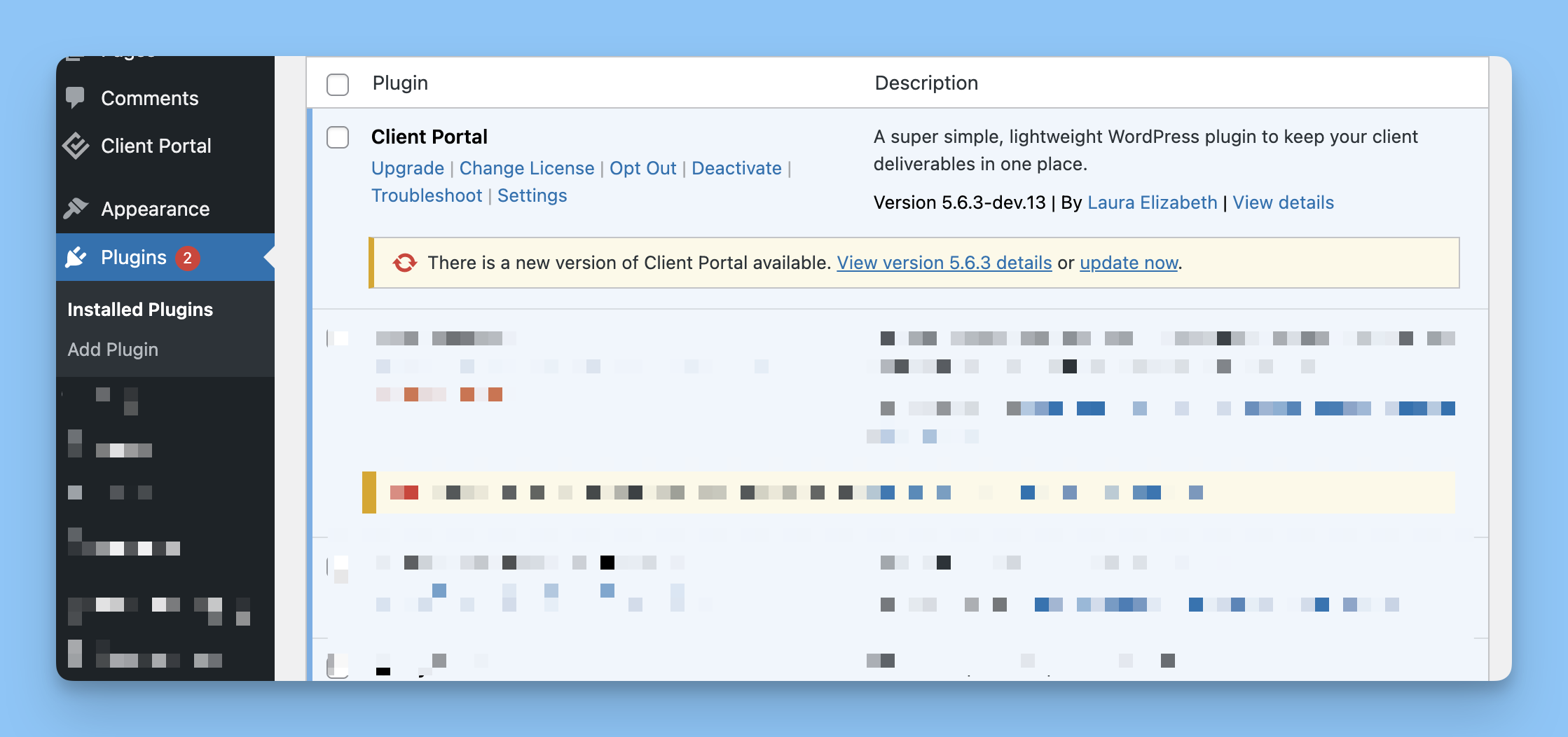
If you see “Download failed. Unauthorized,” your license is expired or inactive. Reactivate or renew your license to restore updates.
Manually update with the latest ZIP
Use this method if automatic updates are blocked or you need to reinstall the latest version.
Log in to your Client Portal account at client-portal.io/login.
Go to Downloads and download the latest version.
In WordPress, go to Plugins > Add New > Upload Plugin.
Choose the ZIP file, then click Install Now.
Click Activate Plugin if prompted.
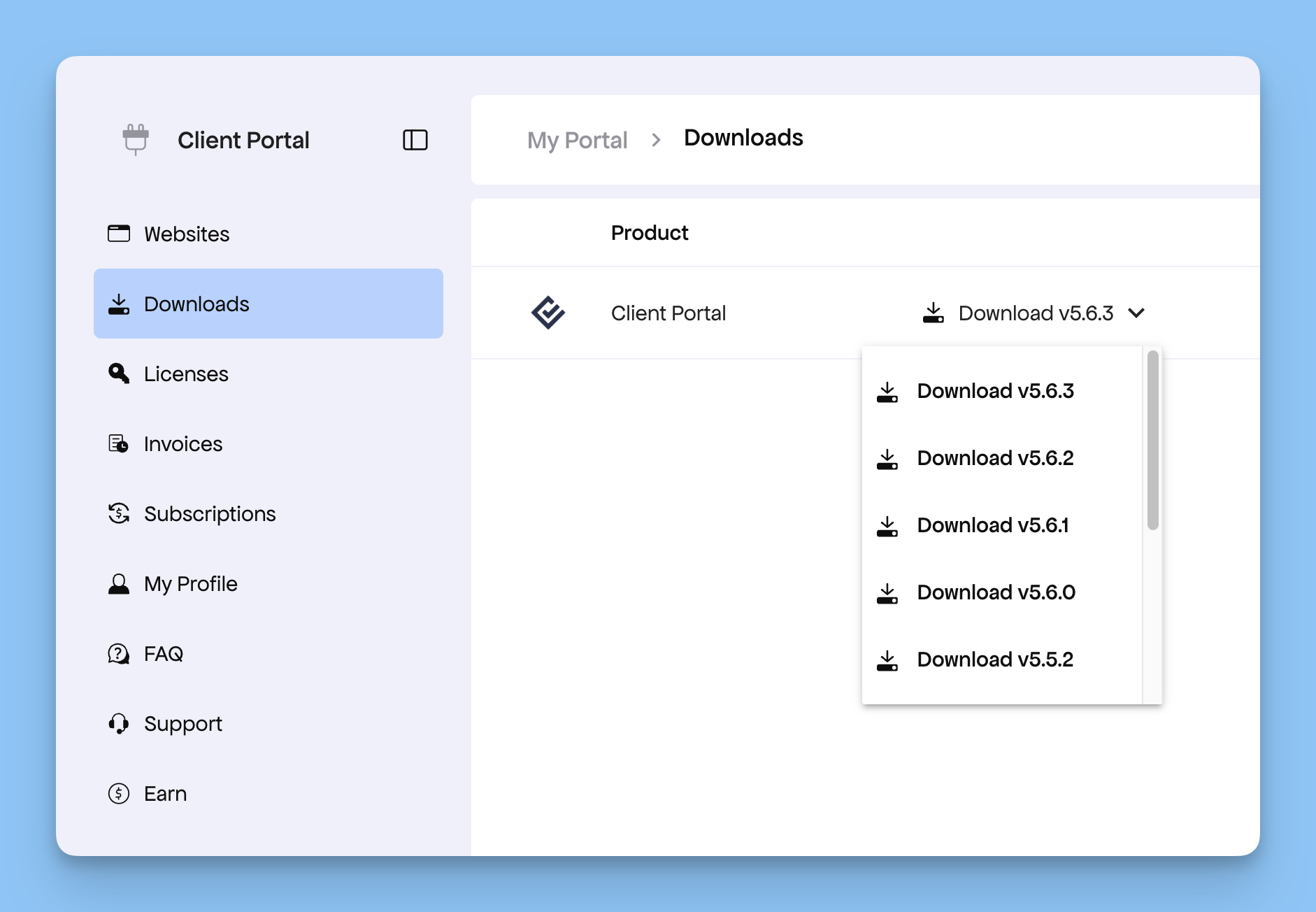
If you need to install a previous version, click the dropdown to select from available releases.
Manual installs overwrite the existing plugin files. Back up your site first if you’re updating on a live portal.
Install a test build (ZIP)
If support gives you a test ZIP, you can install it the same way as a manual update.
Download the test ZIP from the support reply.
In WordPress, go to Plugins > Add New > Upload Plugin.
Choose the test ZIP and click Install Now.
Activate the plugin if prompted.
Test builds are provided by support only. If you need one, reply to your ticket and request a test ZIP.
Troubleshooting update issues
License limits: Single-site licenses activate one production site and one dev site. Multi-site licenses are unlimited. See Frequently asked questions for details.
License activation: You can activate or deactivate your license in WordPress at Portals > Settings > License.
Still not updating: Download the latest ZIP and install it manually, then retry the dashboard update on the next release.
Your portals, files, and settings are completely safe when you update, deactivate, or even delete the plugin. Updates only replace the plugin files—all your portal content stays in your WordPress database. Even if you delete the plugin entirely, your portals and uploaded files remain intact and can be restored by reinstalling the plugin.