
Using content pages
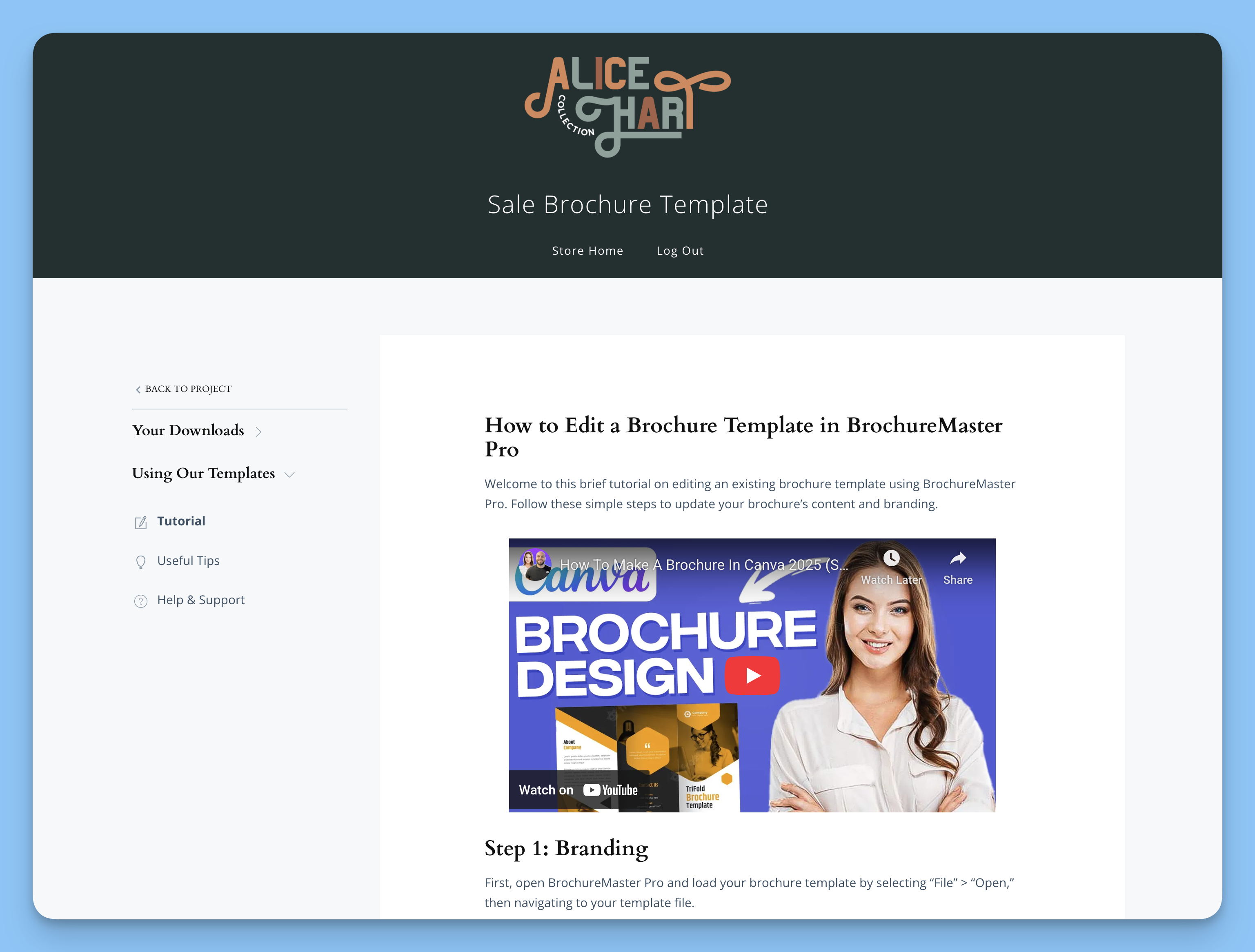
Content pages let you add text, images, videos, forms, calendars, and other content directly into your client portals. They work like standard WordPress pages but are designed specifically for portal modules.
What You'll Accomplish
You'll learn how to create content pages, customize their layout, link them to portals, and manage them for your clients.
Creating a Content Page
You can create content pages from the WordPress admin or directly while editing a portal.
From WordPress Admin
Go to Content Pages in your WordPress dashboard
Click Add New
Add your content using the WordPress block editor (Gutenberg)
Configure layout settings in the right sidebar
Click Publish
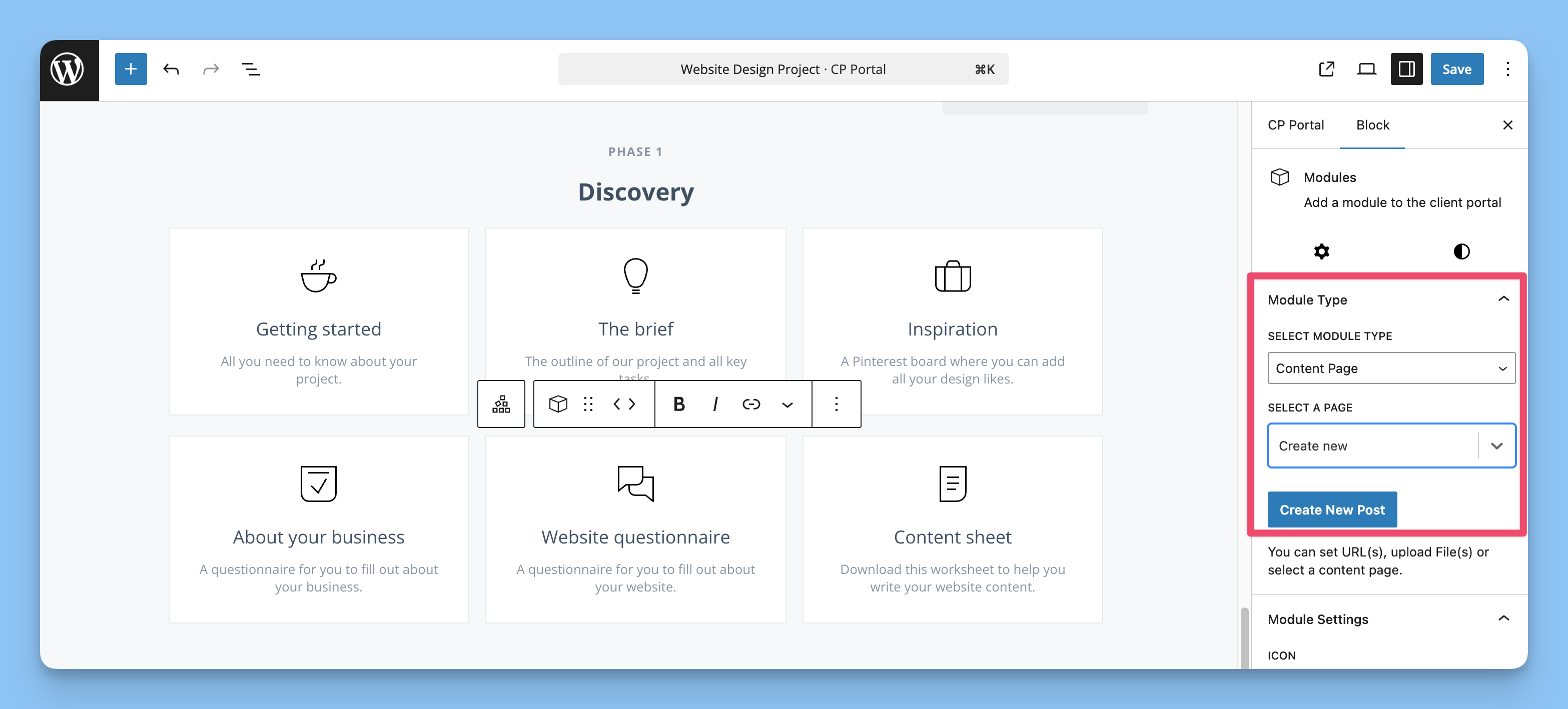
From Portal Editor
Edit your portal
Add or edit a Modules block
Set the module type to Content Page
In the "Select a page" dropdown, choose Create new
Enter a title and click Create New Post
Click the Edit button to open the content page editor
Creating from the portal editor automatically links the page to that portal and uses your module title and description as initial content.
Adding Content
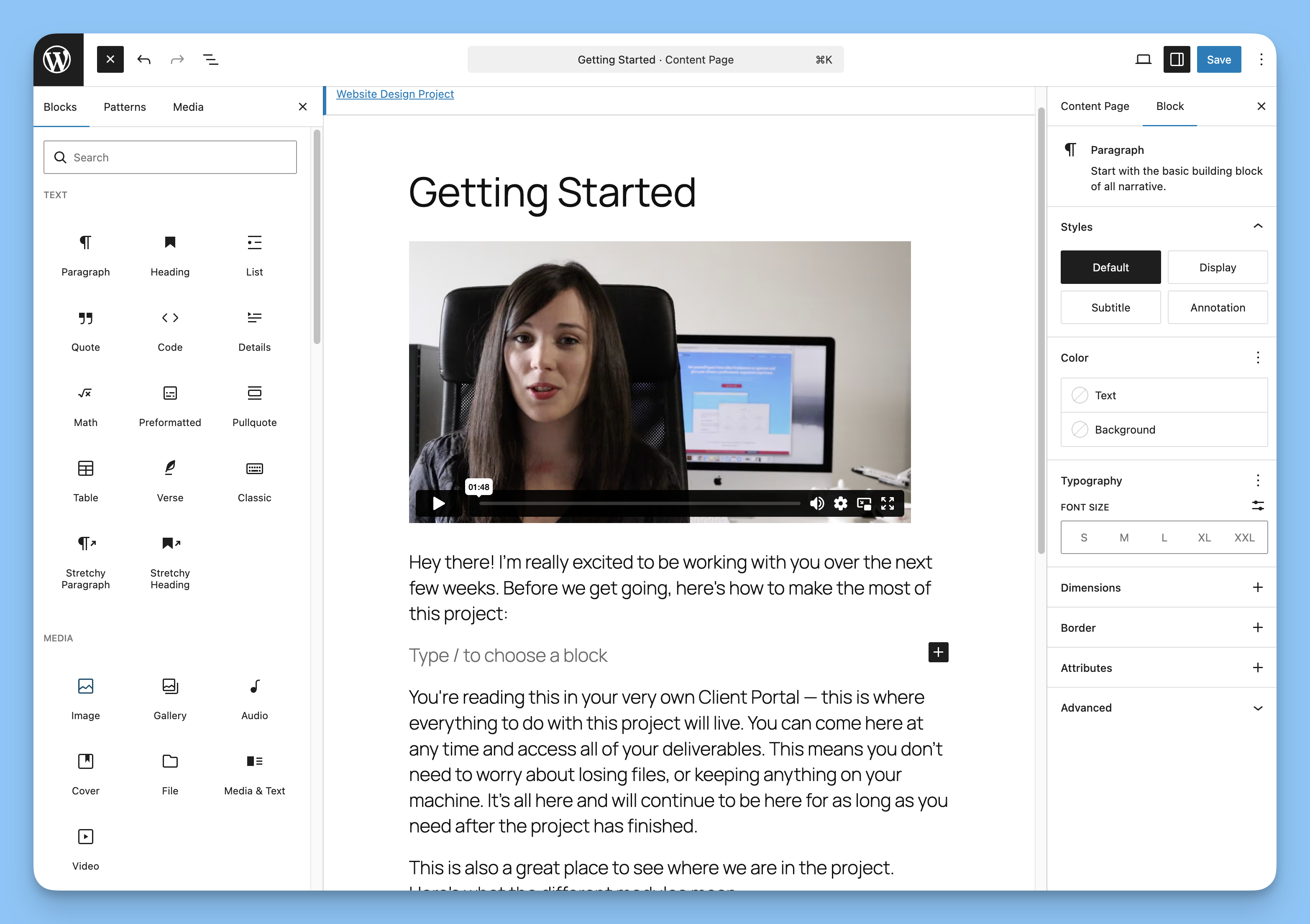
Content pages use the WordPress block editor. With v5.7.0, you can now add:
Text - Paragraphs, headings, lists
Quotes - Blockquote and pullquote blocks
Code - Code blocks for technical content
Callouts - Callout blocks with variations
Images - Standard or full-width images (full-width scrolls horizontally on mobile)
Gallery - Image galleries
Videos - Embed YouTube, Vimeo, or other supported platforms
Tables - Standard or full-width tables (full-width scrolls horizontally on mobile)
Accordion - Collapsible content sections
Separator - Visual dividers
Forms - Embed forms using the Custom HTML block
Calendars - Use oEmbed or HTML blocks for calendar embeds. See Embed a calendar in Client Portal for the full steps.
Other content - Any WordPress block or HTML
To embed external content like forms or calendars, use the Custom HTML block and paste your embed code.
Content pages work with the WordPress block editor (Gutenberg) only. Page builders like Elementor or Avada are not supported. If you need page builder content, create the page separately and link to it using a URL module instead.
Customizing Layout
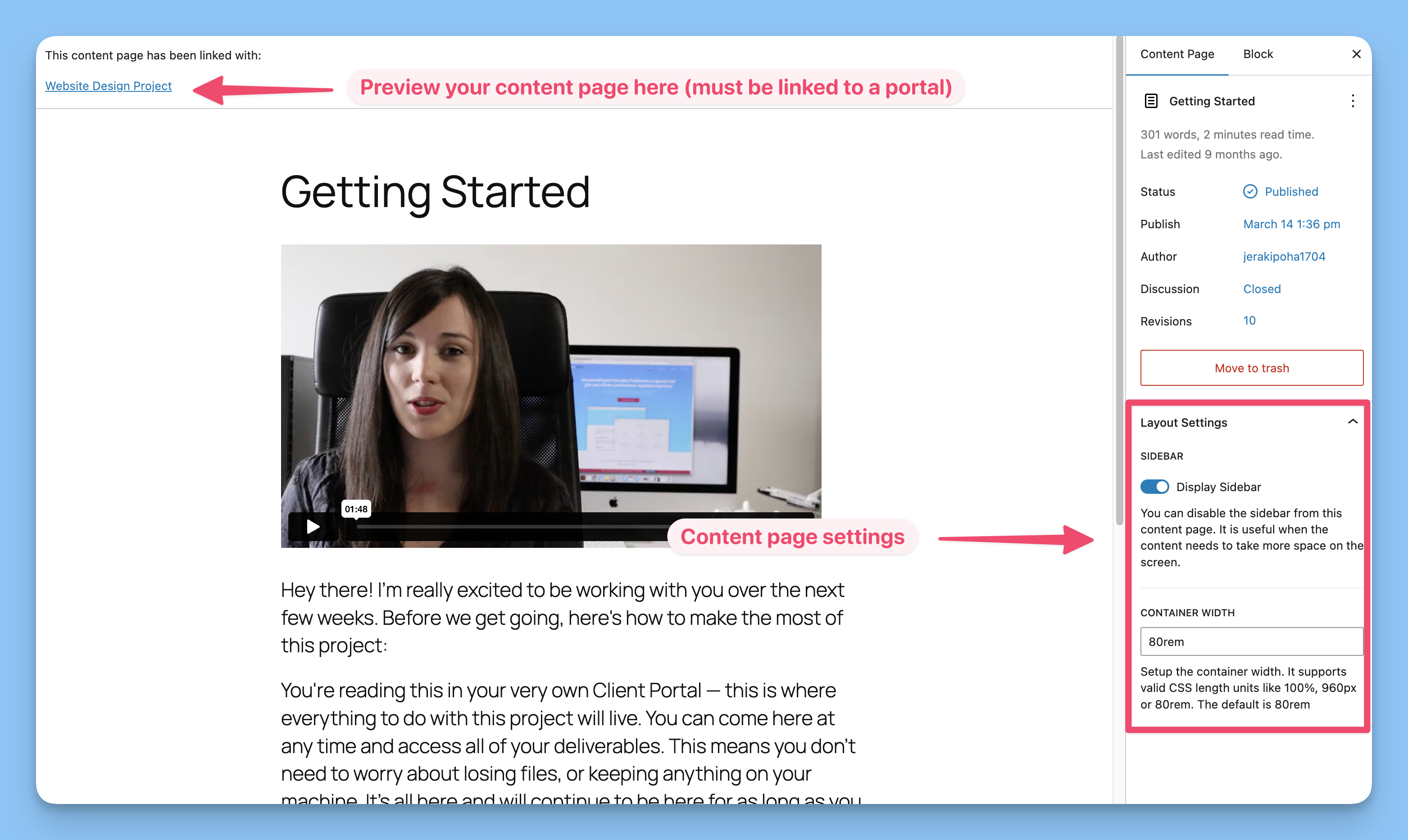
Each content page has layout options in the editor's right sidebar under Layout Settings.
Display Sidebar
Toggle this on or off to control whether the portal sidebar appears on the content page:
On (default) - Shows the portal navigation sidebar
Off - Hides the sidebar for full-width content
Container Width
Set the maximum width of your content. Default is 80em. You can use any CSS unit:
80em- Relative to font size (recommended)1200px- Fixed pixel width90%- Percentage of available space
Content pages inherit colors and branding from your portal settings. Layout options are the only page-specific customizations available.
Linking to Portals
Connect content pages to one or more portals as modules.
Edit your portal
In a phase, add or edit a Modules block
Choose Content Page as the module type
Select your content page from the dropdown
Add a module title, description, and icon
Update the portal
The same content page can be linked to multiple portals. When you edit the page, all linked portals display the updated content.
Previewing Content Pages
To view how a content page looks, it must be linked to at least one portal. After linking a page to a portal, you'll see a notice at the top of the content page editor that says:
"This content page has been linked to [Portal Name]"
Click the portal name in the notice to preview the content page as it appears to clients.
If you can't preview a content page, make sure it's linked to a portal first. Unlinked pages cannot be viewed on the frontend.
How Clients View Content Pages
When clients access their portal:
They see the content page as a module card showing the icon, title, and description you configured
Clicking the module opens the content page at
/portal-slug/module/page-slugThey can read the content and mark it complete using the checkmark
A "Back to Project" button returns them to the portal dashboard
Content pages are mobile-responsive and adapt to your WordPress theme automatically.
Managing Content Pages
View All Pages
Go to Content Pages in WordPress admin to see all your pages. You can:
See which portals each page is linked to in the CP Portals column
Filter pages by client using the dropdown
Search by title or content
Edit Existing Pages
Two ways to edit:
From the Content Pages list, click the page title or Edit
From a portal module, click the Edit button
Changes save immediately and appear in all linked portals.
Quick Edits
Hover over a page in the list and click Quick Edit to change:
Title
Publication status (Published, Draft, Pending)
Date
Custom URL Slugs
In v5.7.0, you can now set custom URL slugs for content pages:
Edit the content page
Open the sidebar (click the gear icon if hidden)
Look for the Custom URL Slug field in the content page editor sidebar panel
Enter your desired slug (use lowercase letters, numbers, and hyphens only)
Save or update the page
The content page will now be accessible at /portal-slug/module/your-custom-slug instead of the auto-generated slug.
Custom slugs are useful for creating cleaner, more memorable URLs or matching your content structure to client expectations. If left blank, the slug is still auto-generated from the page title.
Delete Pages
Deleting a content page automatically unlinks it from all portals. To delete:
Click Trash in the page list
Or select multiple pages and choose Move to Trash from bulk actions
Deleted pages move to trash first and can be restored. Permanently delete from the Trash view.
Common Issues
Cannot Preview Content Page
If you can't view or preview a content page, it's because the page isn't linked to a portal yet. Content pages must be connected to at least one portal to be viewable.
To preview:
Link the content page to a portal using a Content Page module
Look for the notice at the top of the content page editor that says "This content page has been linked to [Portal Name]"
Click the portal name in that notice to preview the page
Sidebar Missing on Content Page
If the portal sidebar doesn't appear when it should:
Check that Display Sidebar is toggled on in Layout Settings
Test with a default WordPress theme to rule out theme conflicts
Contact support if the issue persists with the default theme
Page Builder Not Working
Content pages only support the WordPress block editor. If you need to use a page builder:
Create your page as a regular WordPress page using your builder
In your portal, add a URL module instead of a content page module
Link to your page builder page
Cannot Find Content Page Option
If you don't see "Content Page" as a module type:
Verify the Client Portal plugin is active
Check that you're editing a portal (not a regular post or page)
Ensure you have the necessary permissions (admin or editor role)
Permissions
Only WordPress users with editor or administrator roles can create, edit, and delete content pages. Clients can only view pages linked to their assigned portals.
Next Steps
Now that you know how content pages work, explore other ways to enhance your portals:
Getting Started with Client Portal - Overview of all module types