
Add due dates and reminders
Due dates help keep projects on track by showing clients when tasks need to be completed. Client Portal displays due dates on modules and sends optional reminder emails before deadlines approach. Clients can also mark modules as complete when they're finished.
Reminder notifications require due dates to be set. If you want to send reminder emails, configure due dates first, then customize the reminder notification in Notification settings.
Adding a due date to a module
Edit a portal that contains modules
Locate the module you want to add a due date to
In the module's sidebar settings (right side), find the Due Date field
Click the calendar icon or type a date in the format shown
Select the date from the calendar picker
Update or publish the portal to save your changes
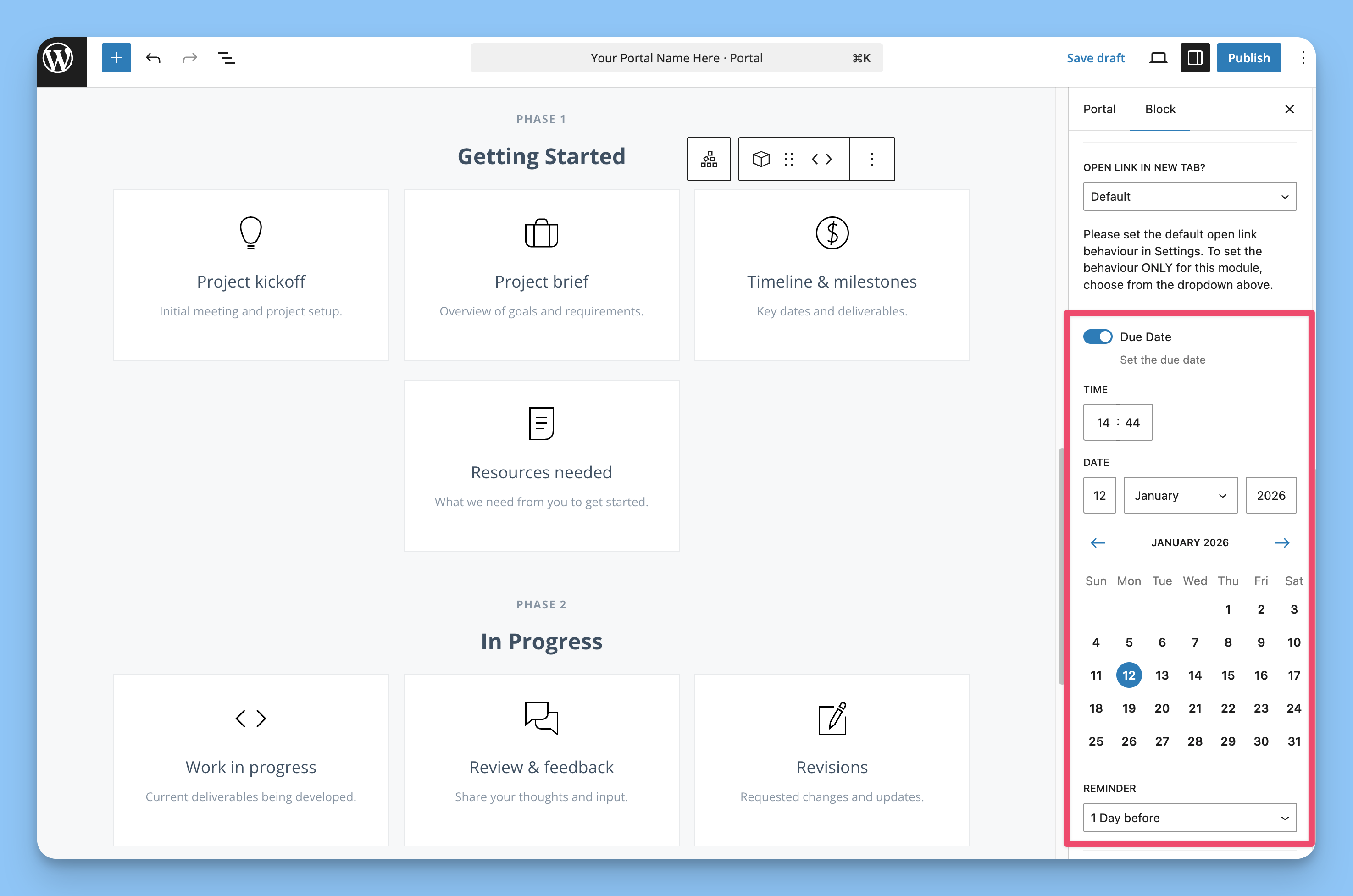
How clients see due dates
When clients view their portal, modules with due dates display a compact due date indicator with a clock icon in the top right corner of the module card. Hovering over the icon shows a tooltip with the full due date.
Mark as complete workflow
Clients can mark modules as complete directly from their portal. When enabled, here's how it works:
Client clicks the "Mark as Complete" button in the module card header
An inline branded confirmation appears within the modal (no browser popup)
After confirming, the module status changes to "Completed"
The portal admin receives a notification (if "Module completed" notifications are enabled)
This allows clients to signal when they've finished their part of a task without needing to email you or wait for manual status updates.
Enabling reminder notifications
Reminder emails are sent automatically before a module's due date. To enable reminders:
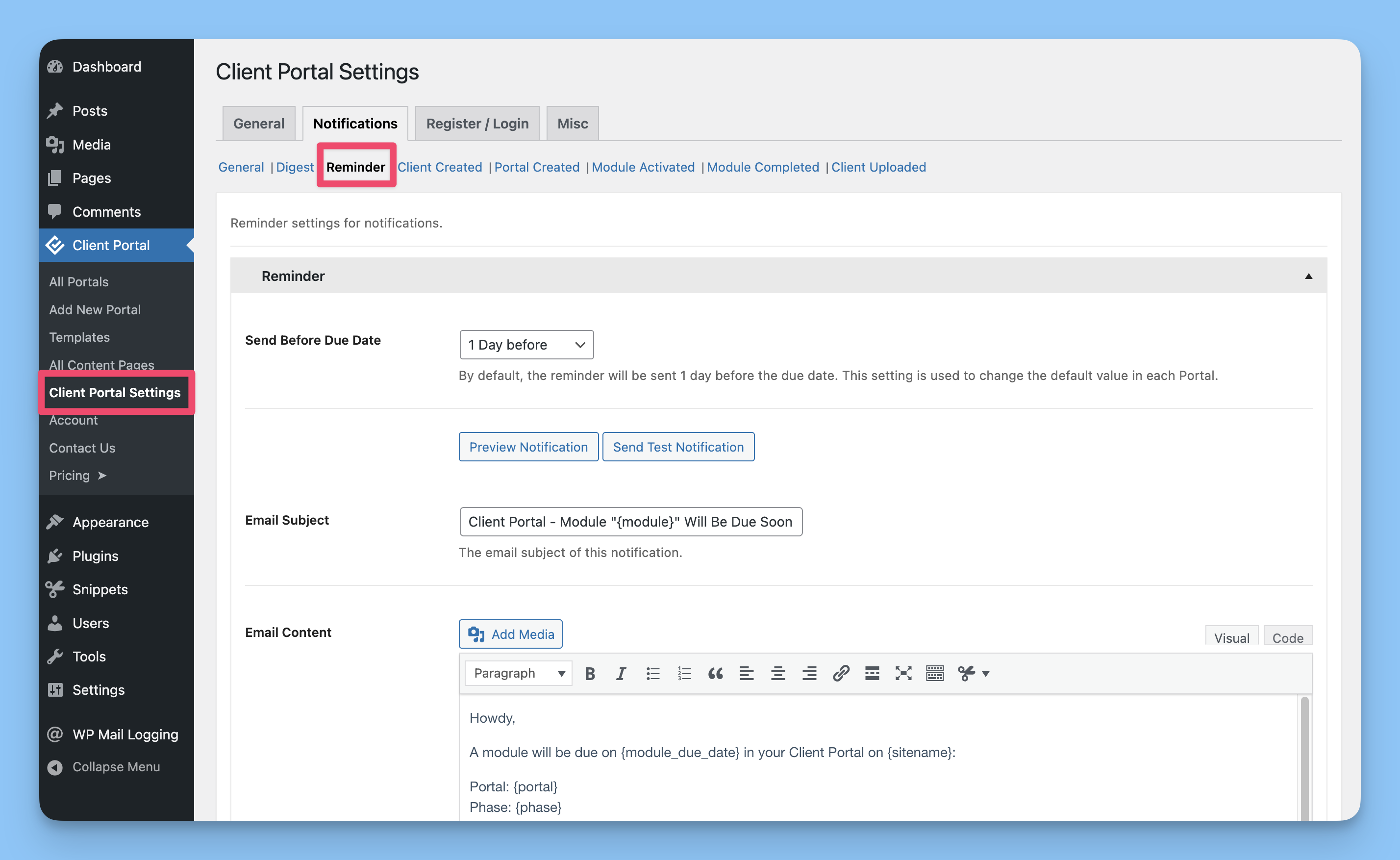
Go to Client Portal Settings → Notifications
Click the Reminder tab
Customize the reminder email subject and content using template tags
In the Reminder Offset dropdown, choose when the reminder should be sent before the due date:
None — No reminder sent
1 day before
2 days before
3 days before
1 week before
2 weeks before
Choose who receives reminders:
Send notification to client(s) — Sends to clients assigned to the portal
Send notification to administration email address — Sends to your WordPress admin email
Save your settings
Reminders are only sent for modules with due dates. If no due date is set, no reminder will be sent even if the reminder notification is enabled.
How reminders are triggered
Client Portal checks for upcoming due dates using WordPress cron (scheduled tasks). When a module's due date matches your reminder offset, the system:
Checks if the module status is "Active" (completed and inactive modules don't trigger reminders)
Verifies that a due date is set
Sends the reminder email to configured recipients
Reminders are sent once per module. If the due date passes and the module isn't completed, no additional reminders are sent automatically.
Reminder emails are always sent individually, even if you have digests enabled. This ensures time-sensitive alerts aren't delayed. For more on digests, see Collate notifications into digests.
Template tags for reminders
Use these tags in reminder emails to insert dynamic information:
{sitename}— Your website name{portal_url}— Direct link to the portal{login_url}— Client login page{client}— Client name{module}— Module name{due_date}— The module's due date
Include {module} and {due_date} so clients know exactly which task is coming up and when it's due.
Troubleshooting reminders
If reminder emails aren't sending:
Verify the module has a due date set
Confirm the module status is "Active" — completed or inactive modules don't send reminders
Ensure WordPress cron is running properly — reminders rely on scheduled tasks. See Troubleshooting email notifications
Test the reminder by clicking Send Test Notification in the Reminder settings tab