
Creating portal templates
Templates and patterns help you build portals faster by reusing content you've already created. While they sound similar, they work differently and serve distinct purposes in Client Portal.
What's the difference?
Before we dive in, let's clarify the difference between templates and patterns:
Templates are complete, reusable portal layouts that you can use as a starting point for new projects
Patterns are reusable sections (like phases) that you can mix and match within your portals
Templates duplicate entire portals. Patterns insert individual sections into your editor.
Working with templates
Templates allow you to create consistent portal experiences for similar types of projects. They're particularly useful when you:
Offer the same service to multiple clients
Want to allow clients to self-register for a portal
Sell access to portals through WooCommerce
Creating a template
There are two ways to create a template:
1. From an existing portal:
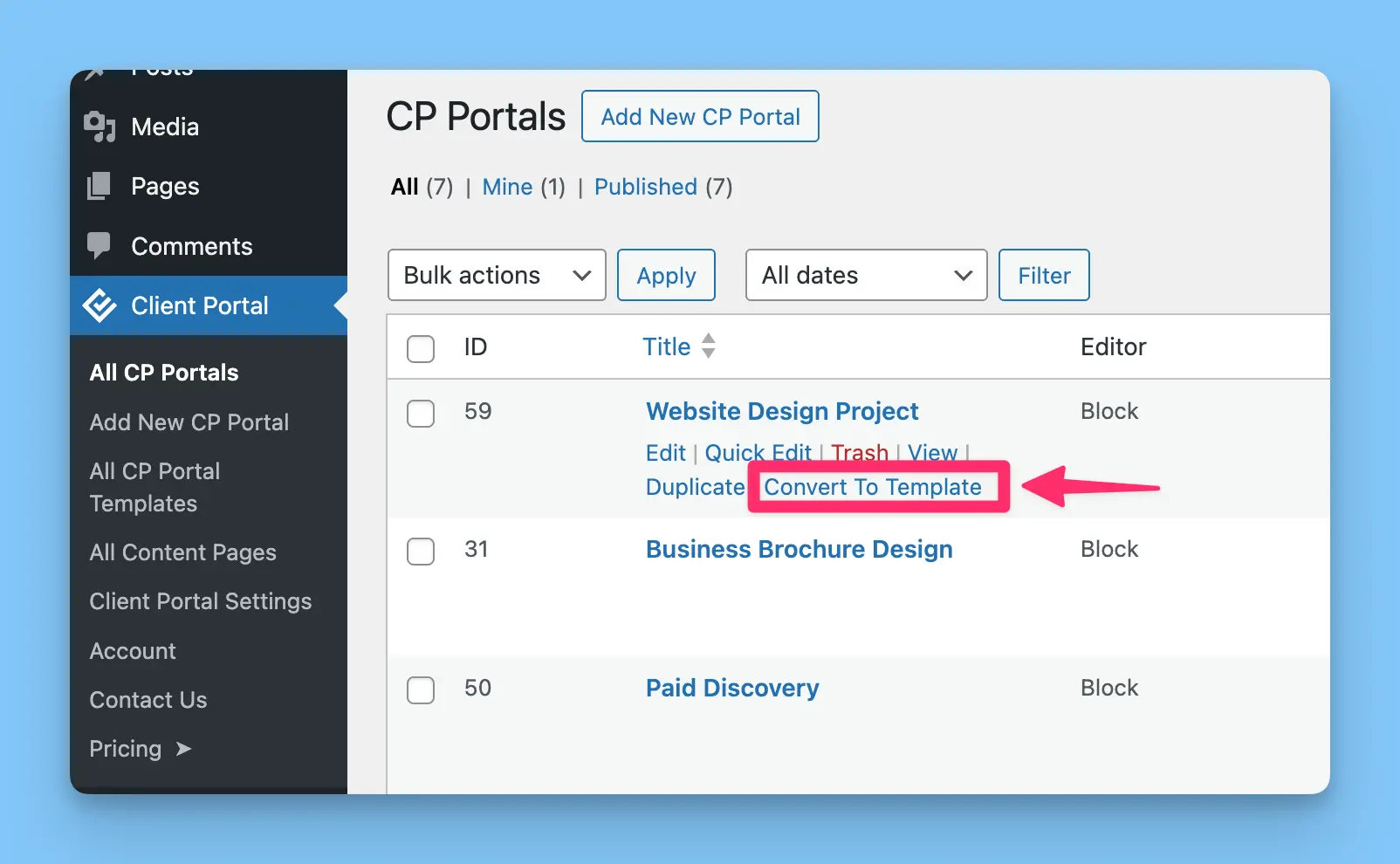
Go to All CP Portals
Hover over the portal you want to use
Click "Convert to Template"
2. From scratch:
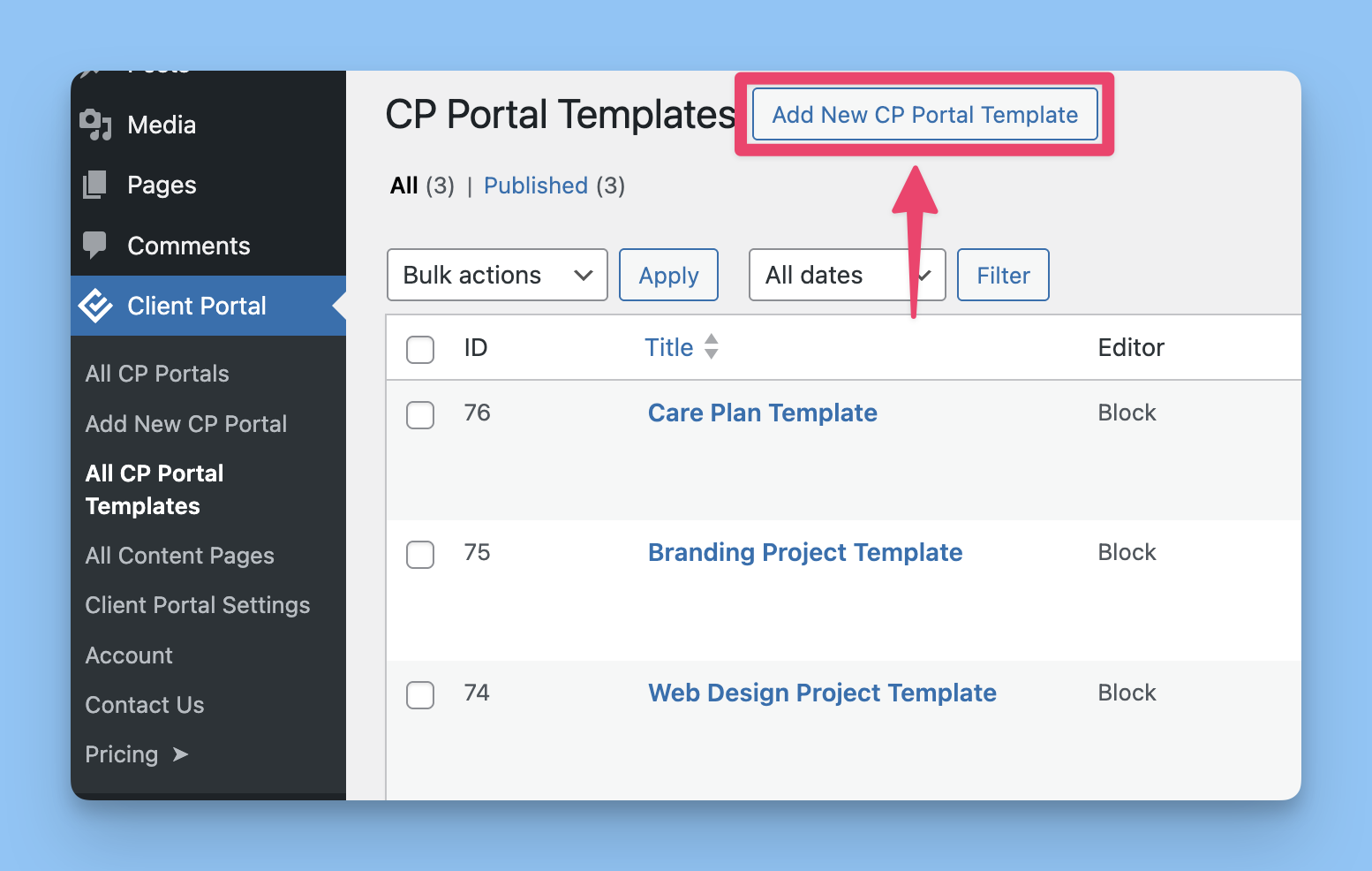
Go to CP Portal Templates in the sidebar
Click "Add New CP Portal Template"
Build your template just like you would a regular portal
Using a template to create a new portal
To create a new portal from a template:
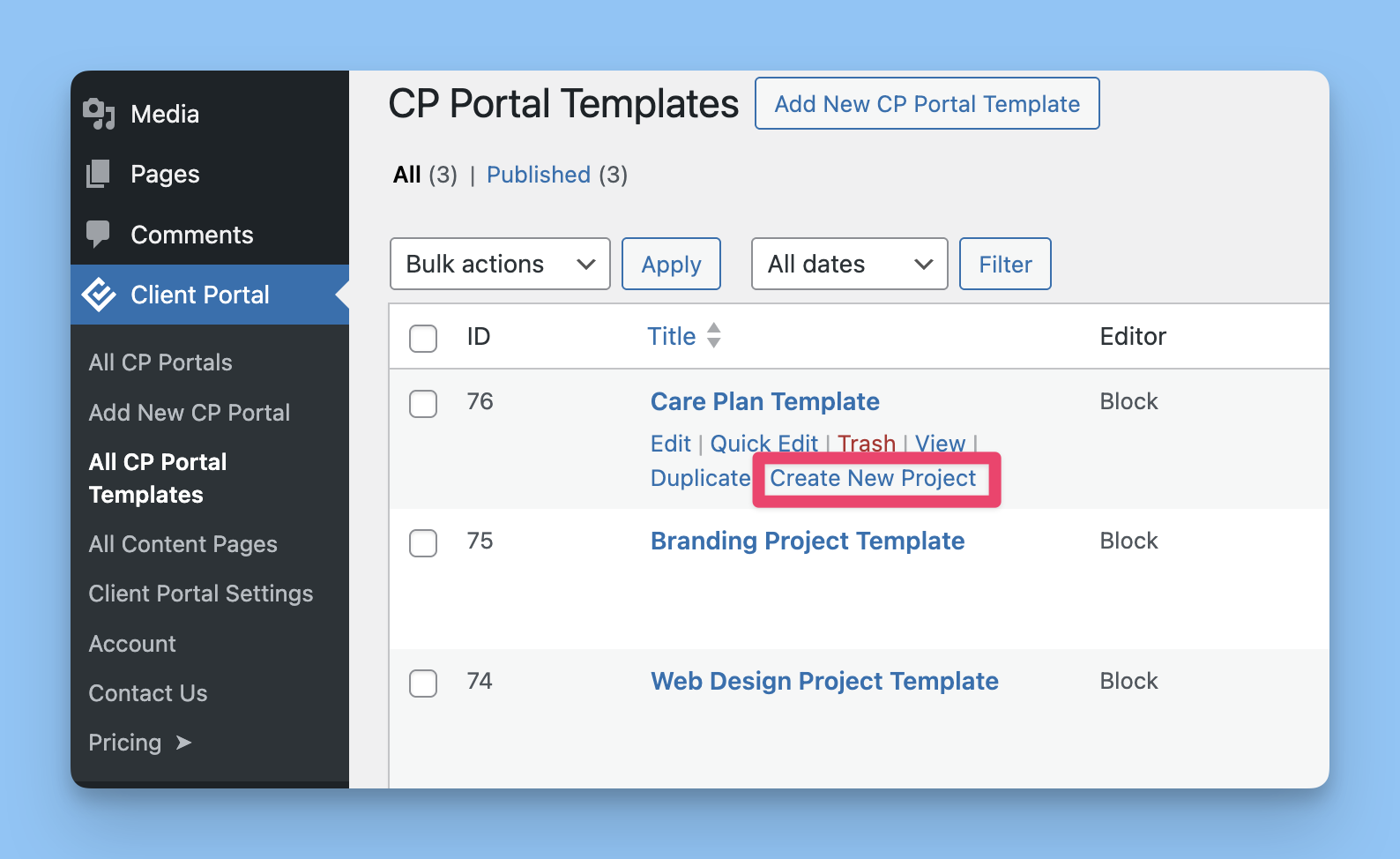
Go to All CP Portal Templates
Hover over your chosen template
Click "Create New Project"
Changes to a template don't update portals created from it. Each portal is independent after creation.
When to use templates
Templates work well when you:
Offer the same service package to multiple clients
Want clients to self-register for a specific portal type
Sell portal access through WooCommerce
Need consistent project structures across your business
Tips for success
Name templates by service type, not client type - "Website Design Project" works better than "Small Business Client" because you'll remember what's in it
Fill in your standard phases and module structure, but leave module content empty - The template should have the skeleton (phases like "Getting Started", "In Progress"), but actual files/links get added per client
Include placeholder text that reminds you what goes where - In General Information modules, add notes like "[Add project timeline here]" or "[Client's brand guidelines]" so you don't forget key details
Test your template by creating a dummy portal from it - Catch any weird formatting or missing pieces before using it for a real client
Create separate templates for different service tiers - Basic, Standard, Premium service levels often need different portal structures
Don't overthink it - Your first template doesn't need to be perfect. Create one, use it for a few clients, then refine based on what you're repeatedly changing
Use synced patterns inside templates for truly universal content - Your standard "How to Use This Portal" section or company contact details should be a synced pattern, so updates flow through even to portals created from old templates
Keep a "blank slate" template - Sometimes you need a portal that's completely custom. Having a minimal template (just header/footer/basic onboarding) saves time over starting from scratch
Related articles
Getting Started with Client Portal - Learn block editor basics and portal structure
Update Multiple Portals at Once with Pattern Syncing