
Use classic editor for WordPress but block editor for Client Portal
If you prefer the classic editor for your WordPress site but want to use the block editor for Client Portal, you can force the block editor for Client Portal portals, templates, and content pages while keeping the classic editor everywhere else.
We strongly recommend using the block editor for Client Portal. It offers better features, improved performance, and ongoing support. The classic editor option is legacy and will receive fewer updates over time.
Force block editor for Client Portal
To use the classic editor site-wide but keep the block editor for Client Portal:
Install a classic editor plugin (like the official Classic Editor plugin) to enable classic editing across your site
Add the code snippet below to force the block editor for Client Portal only
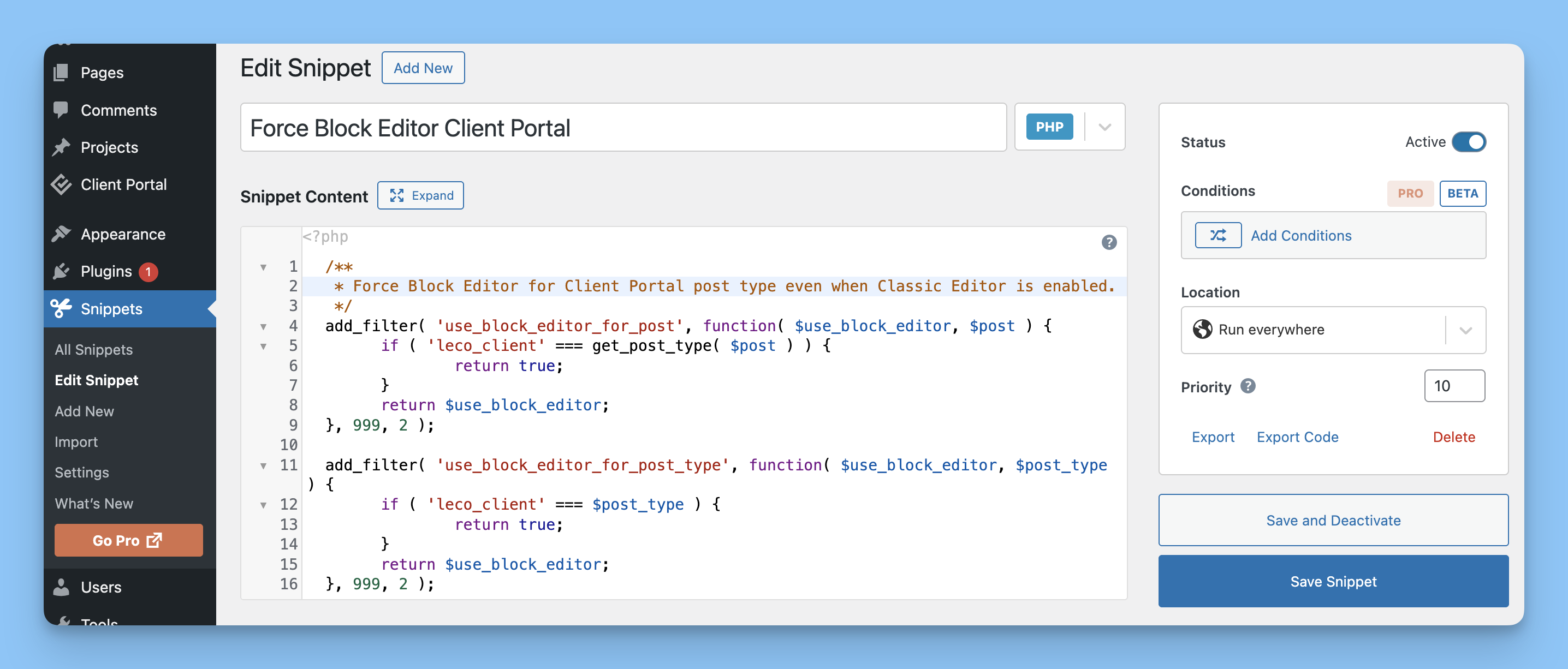
You can add this snippet using a plugin like Code Snippets or WPCode, or add it to your theme's functions.php file:
/**
 * Force Block Editor for Client Portal post types even when Classic Editor is enabled.
 */
add_filter( 'use_block_editor_for_post', function( $use_block_editor, $post ) {
	if ( in_array( get_post_type( $post ), array( 'leco_client', 'leco_template', 'leco_content_page' ), true ) ) {
		return true;
	}
	return $use_block_editor;
}, 999, 2 );

add_filter( 'use_block_editor_for_post_type', function( $use_block_editor, $post_type ) {
	if ( in_array( $post_type, array( 'leco_client', 'leco_template', 'leco_content_page' ), true ) ) {
		return true;
	}
	return $use_block_editor;
}, 999, 2 );
This code ensures Client Portal portals, templates, and content pages always open in the block editor, even when the classic editor is active for the rest of your site.
Do not click Update on a converted “(Block)” portal while it still opens in the classic editor. That can damage the block content. Add the snippet first, then reopen the portal in the block editor before you edit or move clients over.
Still using Client Portal's Classic editor?
We're retiring the Classic editor in Client Portal. To move your existing portals across, see Move your portals from the Classic editor to the block editor.
Confirm editor mode and fix save issues
If portal edits do not apply or clients see a permission-style error, the editor setting in Client Portal may not match the editor type of the portal.
Check which editor a portal uses
Look at the Editor column in the list of portals to see whether a portal was built with the block or classic editor. Match the Client Portal setting to that type before editing.
Go to CP Clients in your WordPress admin sidebar.
Click Settings in the top menu.
Under Editor, select the mode that matches the portal's editor type.
Click Save Changes.
What to check when changes don't save
Settings on the Client Portal Settings page are default values for new portals and fallback values when fields are empty.
In a portal's Custom Branding section, if Use default settings for empty fields is set to Yes, empty fields load values from Client Portal Settings instead of staying blank.
Portal editing flows use different save buttons depending on the screen: Save & Show Modules, Update Project, or Save.