
Change portal page and content page URLs
You can change the base URL for portal pages and set custom slugs for individual content pages so that links match your branding and structure.
Change the portal page permalink base
The portal page base slug controls the root path for all client portals. The default is client, so portal URLs look like yourdomain.com/client/sample-client.
Go to Settings > Permalinks in your WordPress admin
Scroll to the Client Portal permalinks section
Choose Default or Custom base
If you choose Custom base, enter your preferred base slug (for example,
project)Save your changes
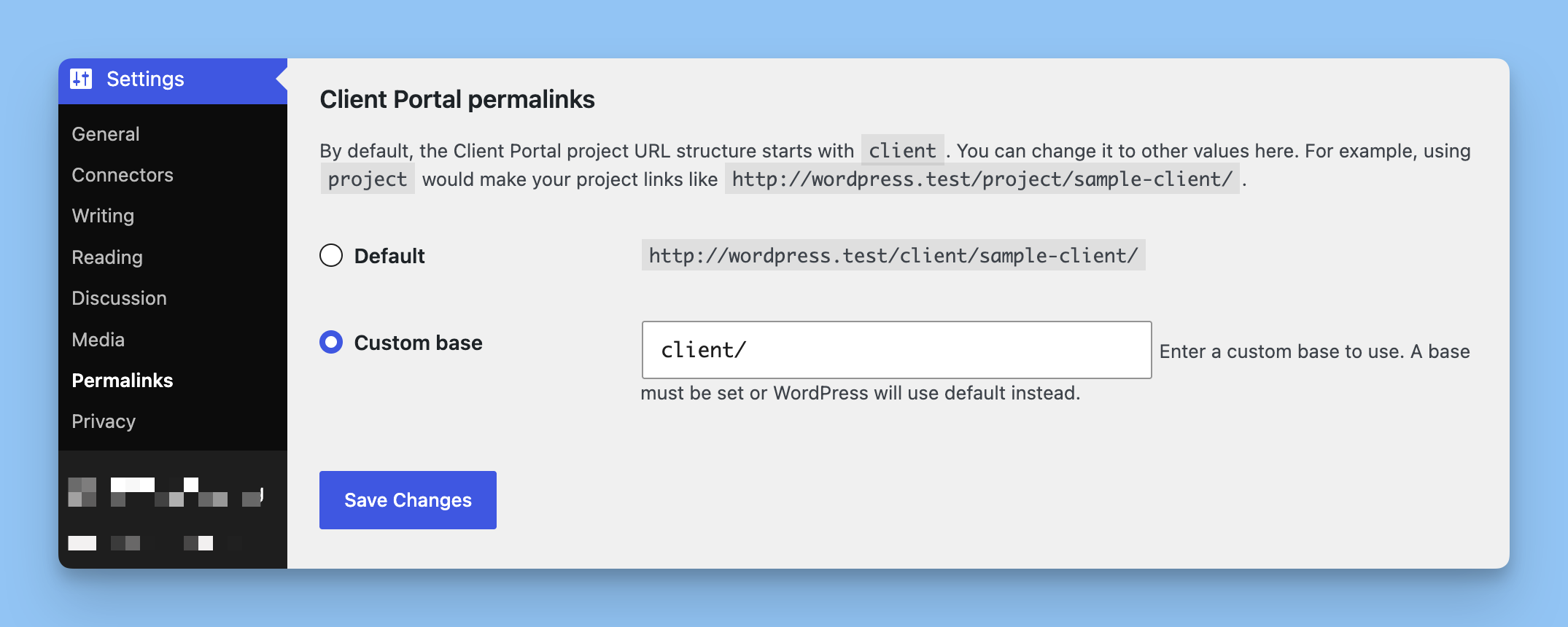
With a custom base of project, portal URLs become yourdomain.com/project/sample-client. This change applies to all portal pages.
Changing the permalink base may require a resave of your permalinks or a visit to Settings > Permalinks if you see 404 errors on portal pages after the change.
How portal URLs look
Client portals are accessed at URLs that follow the pattern yourdomain.com/{base-slug}/{portal-slug}/. With the default client base, a portal is available at a URL like yourdomain.com/client/{portal-slug}/. If you change the base to project, the same portal moves to yourdomain.com/project/{portal-slug}/.
Change a portal page slug
The portal slug is the part that comes after the base slug in the URL, such as /client/portal-slug/. Because portals are a standard WordPress custom post type, you can edit the slug from the WordPress editor.
Edit the portal in WordPress
Open the right sidebar (click the gear icon if it is hidden)
Locate the permalink or URL section and change the slug
Update the portal
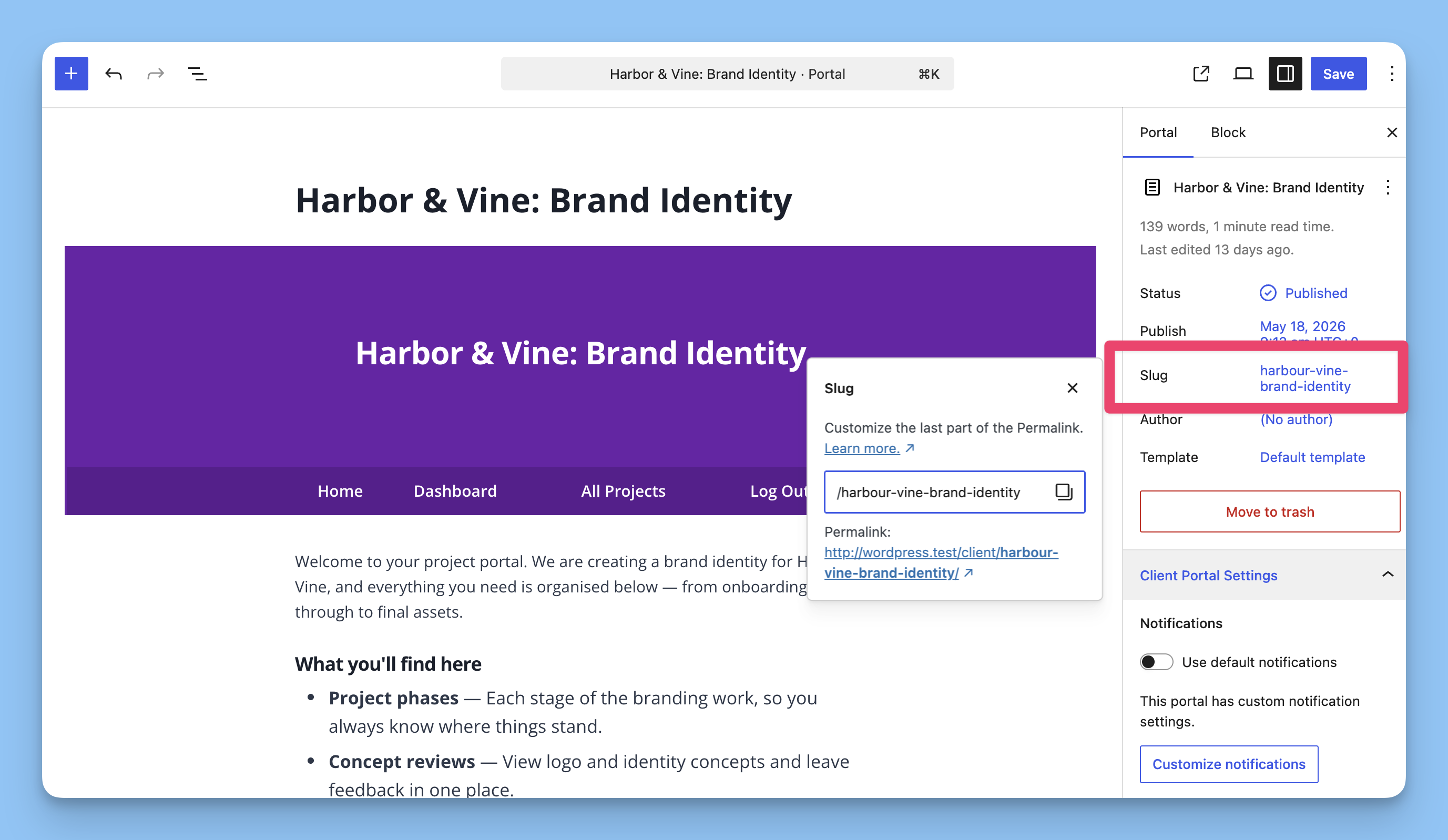
The portal is now accessible at /client/your-new-slug/. If you use a custom base, the URL will use that base instead of client.
Change a content page URL slug
Content pages sit inside a portal at /portal-slug/module/page-slug. You can set a custom slug for each content page in the editor sidebar.
Edit the content page in WordPress
Open the right sidebar (click the gear icon if it is hidden)
Find the Custom URL Slug field in the sidebar panel
Enter your desired slug using lowercase letters, numbers, and hyphens only
Save or update the page
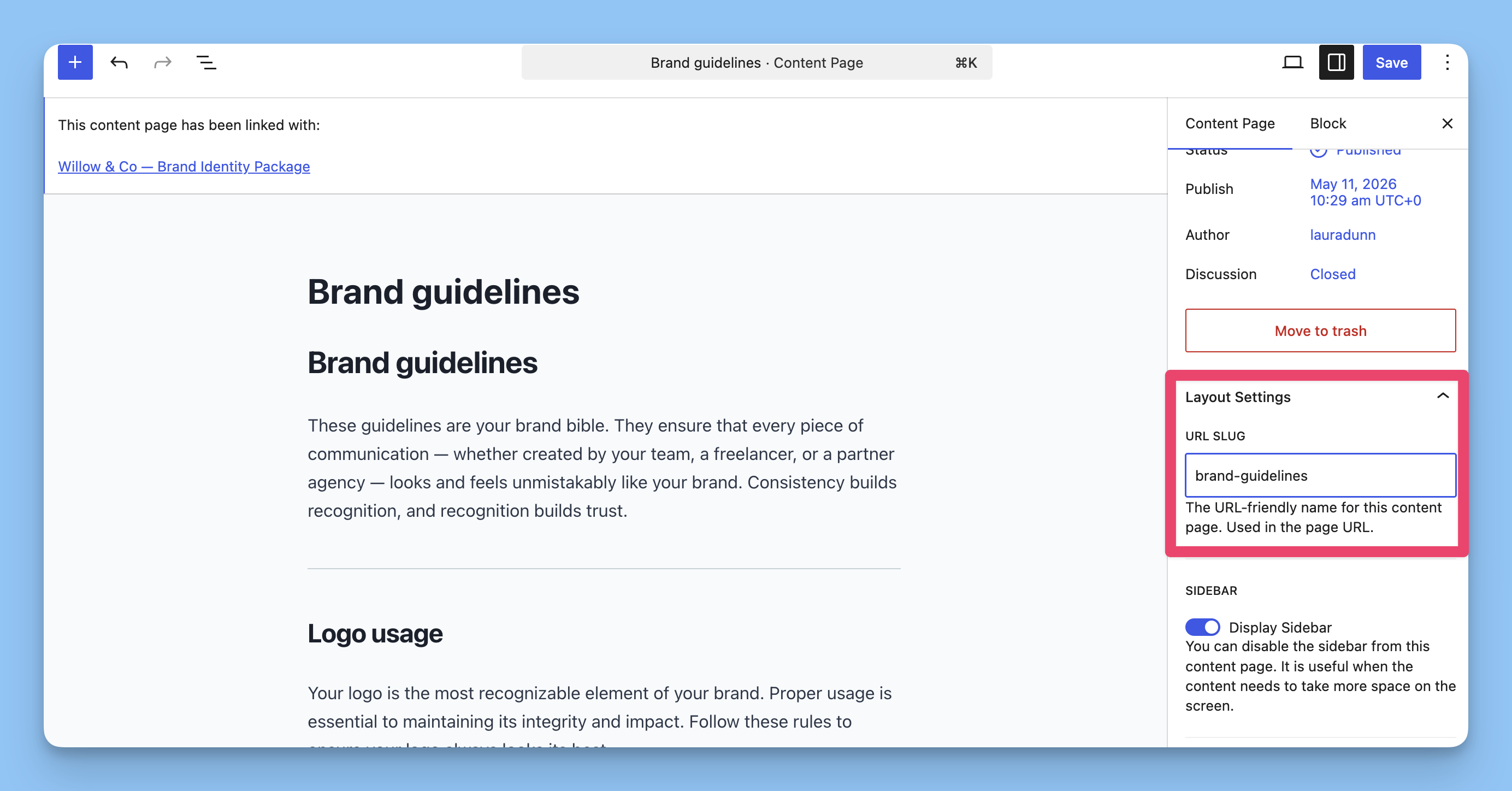
The page is now accessible at /portal-slug/module/your-custom-slug instead of the auto-generated slug. If the field is left blank, the slug is generated from the page title.
Client login page URL
The default client login page is at /client-portal-login. If you want a different login page URL, create a custom WordPress page and add the Client Portal login block. Clients then log in via the URL of that custom page.
Changing the login page is done by creating a new page with the block, not by changing a permalink setting.
If you are using the Classic Editor, add the [client-portal-login] shortcode to the page instead of the block.