
Update multiple portals at once with pattern syncing
What pattern syncing does
Pattern syncing lets you update content across multiple portals simultaneously. When you create a synced pattern from a portal section (like a phase, module, or custom block group), any changes you make to that pattern automatically appear in every portal where it's used.
Watch the video for a walkthrough of the full workflow, from creating a synced pattern to editing and detaching one:
This is perfect for:
Standard onboarding phases that appear in every client portal
Legal disclaimers or terms that need consistent updates
Project milestones that follow the same structure across clients
Company branding sections that should stay identical
Synced patterns use WordPress's built-in pattern system (formerly called reusable blocks). Changes sync automatically—no manual updates needed.
How it works
When you create a synced pattern, WordPress saves it as a reusable template. Every time you insert that pattern into a portal, you're inserting a reference to the original—not a copy. Edit the original pattern once, and the changes propagate to all instances across your site.
This is different from portal templates, which create one-time copies. Templates don't sync changes to portals created from them. Synced patterns inside templates, however, do continue syncing even after the portal is created.
Creating a synced pattern
Step 1: Select the content to save
Open any portal or template in the WordPress editor
Click the List View icon (three horizontal lines) in the toolbar
Select the blocks you want to turn into a pattern—this could be an entire phase, a group of modules, or custom content sections
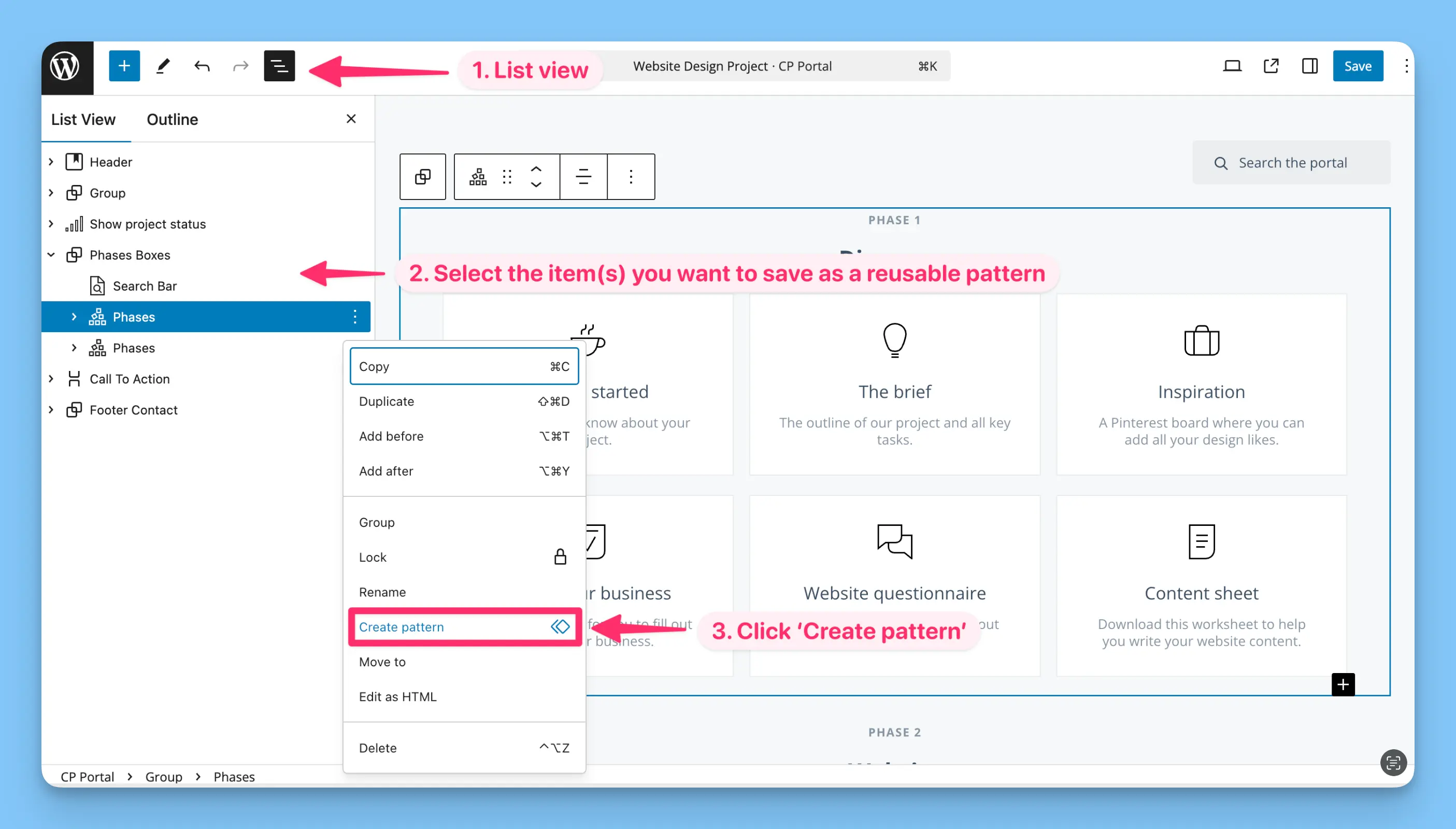
Use List View for precise selection. It shows your portal's structure clearly and lets you select parent containers (like phase groups) instead of individual blocks.
Step 2: Create the pattern
With your content selected, click the three-dot menu in the block toolbar
Choose "Create pattern"
Name your pattern (use descriptive names like "Onboarding Phase - Week 1" or "Legal Footer")
Make sure the "Synced" toggle is turned ON
Select the "Client Portal" category to keep it organized
Click "Create"
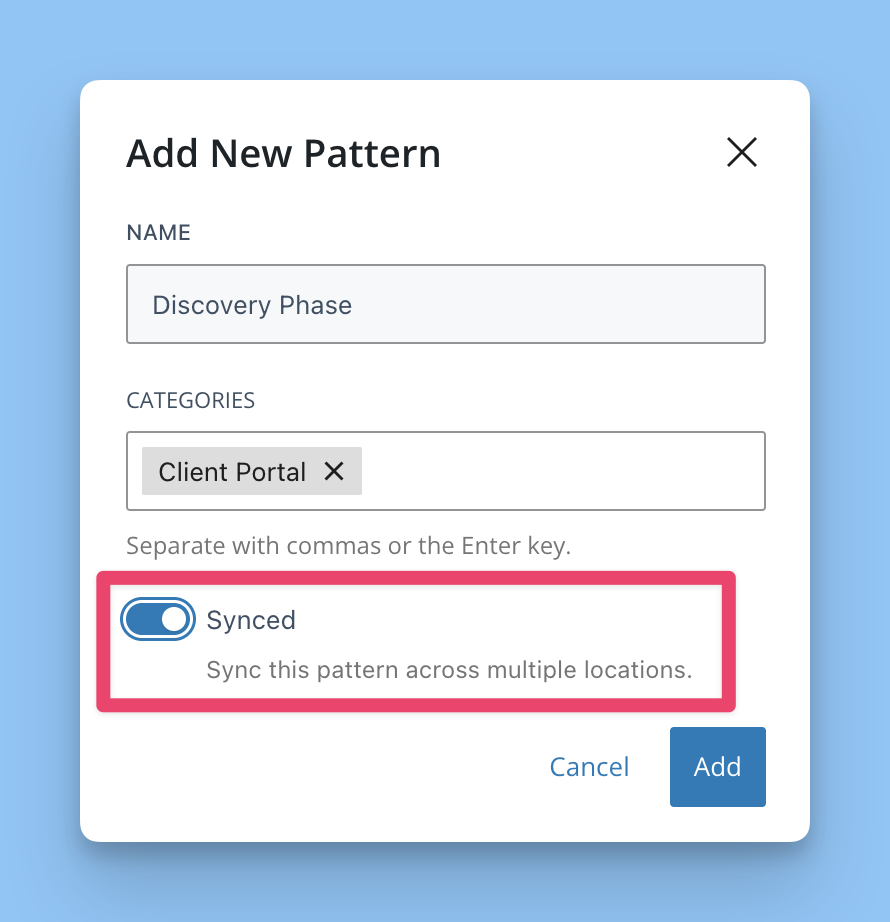
The "Synced" toggle is critical. If it's off, you'll create a regular pattern that won't update across portals when edited.
Using synced patterns in portals
Inserting a synced pattern
Open the portal where you want to add the pattern
Click the block inserter (+ icon) in the toolbar
Go to the "Patterns" tab
Open the "Client Portal" folder
Click on your synced pattern to insert it
The pattern appears with a subtle outline indicating it's synced. You can insert the same pattern into as many portals as you need.
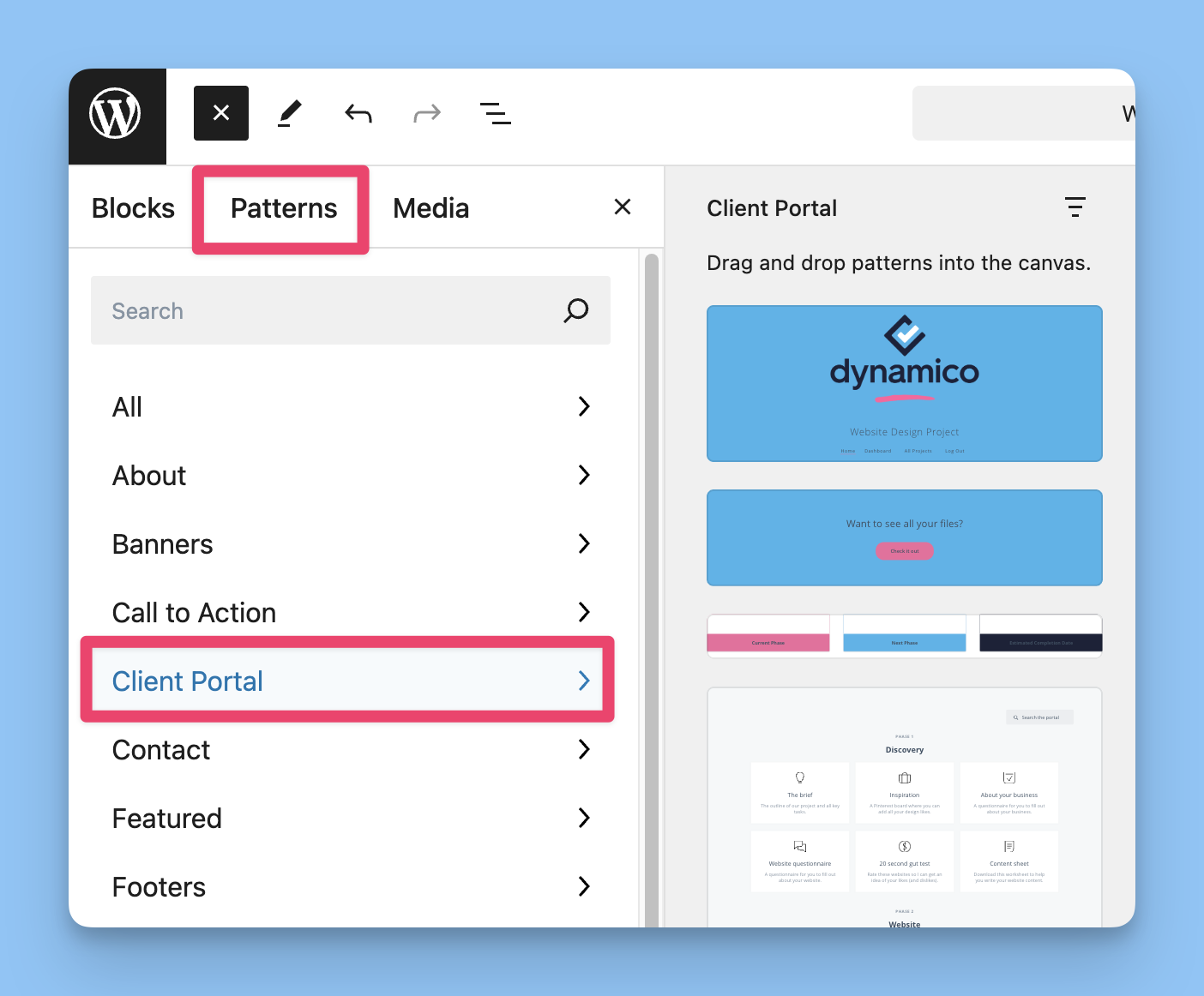
Pre-built patterns
Client Portal includes 6 ready-to-use patterns in the "Client Portal" category:
Header
Call To Action
General Information
Project Status
Phases Boxes
Footer Contact
These are regular (non-synced) patterns by default. To make them sync across portals, insert one, customize it, then save it as a new synced pattern following the steps above.
Updating synced patterns
Once you've created a synced pattern, updating it is straightforward:
Method 1: Edit from any portal
Open a portal that contains the synced pattern
Click on the synced pattern block—you'll see an "Edit Original" button appear
Click "Edit Original" to modify the pattern
Make your changes
Click "Save" in the editor
Your changes now appear in every portal using that pattern.
Method 2: Edit from the Patterns manager
In WordPress admin, go to Appearance > Editor > Patterns
Click the "Client Portal" folder
Find your synced pattern and click to edit it
Make your changes and save
This method is faster if you're updating multiple patterns at once or need to see all your patterns in one place.
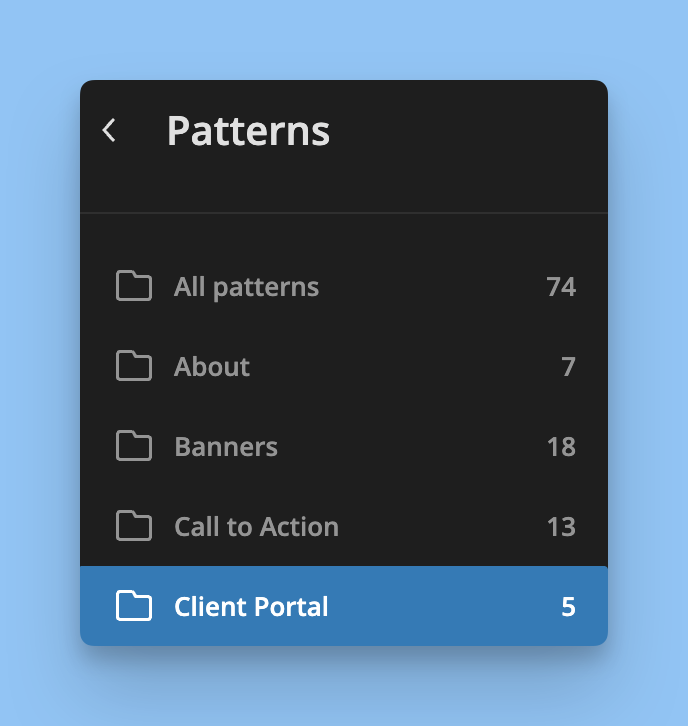
Updates happen instantly. As soon as you save the pattern, it updates across all portals—no need to refresh or manually sync.
When to detach a synced pattern
Sometimes you need to customize a synced pattern for a specific client without affecting other portals. That's when you detach it.
Detaching a pattern
Open the portal with the pattern you want to customize
Click on the synced pattern
In the block toolbar, click the three-dot menu
Select "Detach pattern" (or "Convert to regular blocks")
Make your client-specific changes
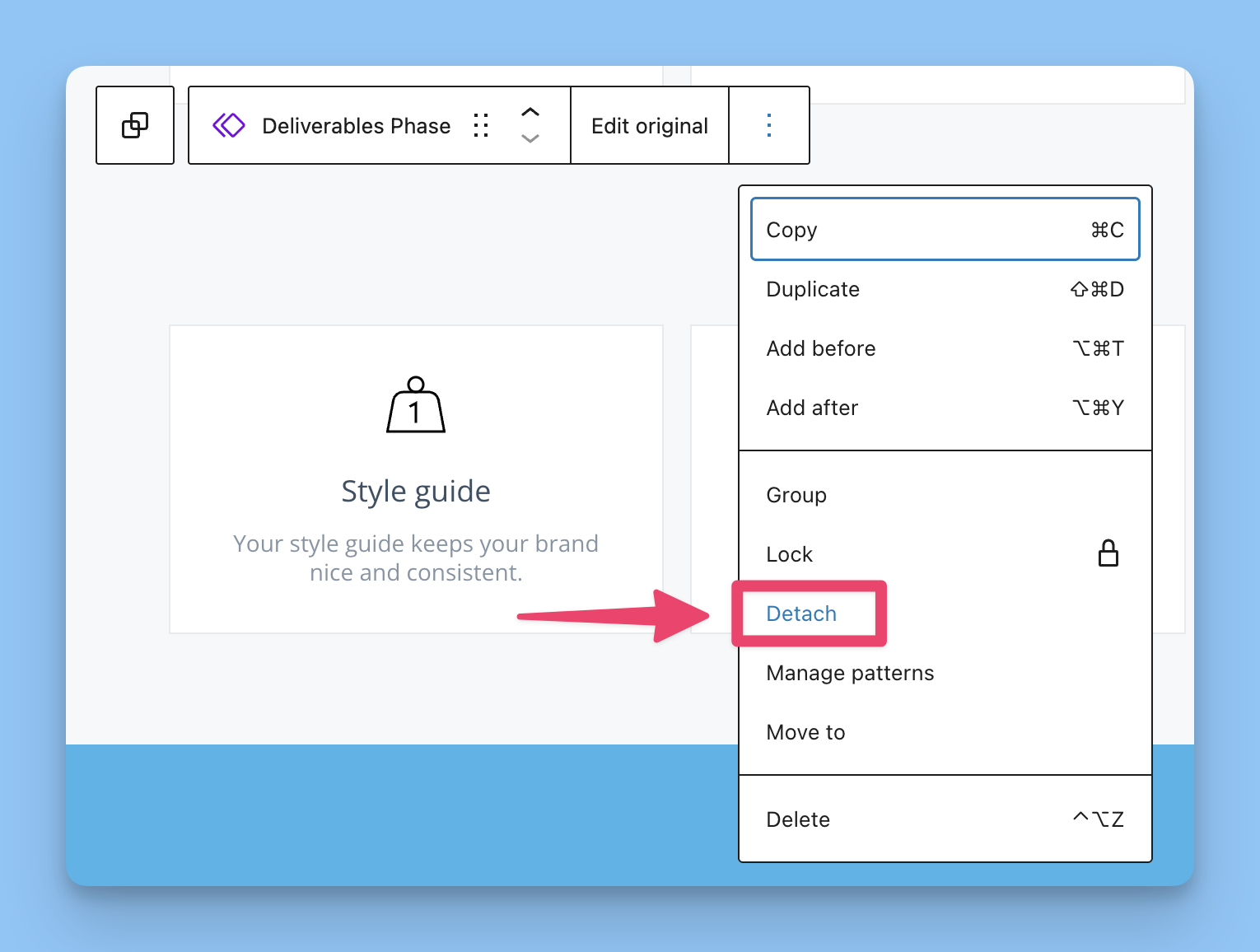
The detached content becomes independent. Future updates to the original synced pattern won't affect this portal, but other portals still receive updates.
Detaching is permanent for that instance. You can't re-sync it later—you'd need to delete the detached blocks and re-insert the synced pattern.
Synced patterns vs. templates
Understanding the difference prevents confusion:
Feature | Synced Patterns | |
|---|---|---|
What they save | Individual sections (phases, modules, groups) | Entire portals |
Update behavior | Changes sync to all instances automatically | Changes don't sync to portals created from them |
Best for | Repeating content that needs consistency | Starting new portals quickly |
Can combine? | Yes—use synced patterns inside templates | Yes—templates can contain synced patterns |
Pro tip: Build templates that include synced patterns. When you create a portal from the template, the synced patterns continue updating even though the template itself doesn't sync.
Troubleshooting
My pattern isn't syncing
Check the "Synced" toggle: Edit the pattern (Appearance > Editor > Patterns > Client Portal) and verify it was created with syncing enabled. If not, create a new synced version.
Custom blocks limitations: Client Portal's custom blocks (like specific portal modules) have reusable functionality disabled. To sync these, select them together in a Group block, then save the group as a synced pattern.
I can't find my synced pattern
Go to Appearance > Editor > Patterns and check if it's in the "Client Portal" category
If it's in a different category, you can still use it—just look in the Patterns tab under that category name
Make sure you're on WordPress 5.8 or later (Gutenberg is required for pattern syncing)
Changes aren't appearing in a portal
Verify the portal actually contains the synced pattern, not a detached version or manual copy
Refresh the portal edit page—browsers sometimes cache the editor interface
Check if someone detached the pattern in that specific portal
Best practices
Name patterns clearly: Use names like "Phase 1 - Discovery" or "Standard Legal Footer" so you know what they contain 6 months from now
Start with templates, enhance with patterns: Create a portal template for your typical project structure, then insert synced patterns for the sections that need ongoing updates
Don't over-sync: Only sync content that truly needs consistency across portals. Client-specific details should stay independent
Document which patterns are synced: Keep a list (even just in a doc) of your active synced patterns and what they're used for, especially on teams where multiple people manage portals
Test before deploying: Create a test portal to verify pattern changes look correct before they go live to all clients
Related resources
Creating portal templates - Learn how templates and patterns work together
WordPress synced patterns documentation - Technical details on how syncing works