
Embed a Google Doc in a content page
Embed a Google Doc into a content page so clients can read it without leaving the portal. Publish the doc to the web and paste the generated iframe into a WordPress Custom HTML block — that's the supported way to embed a Google Doc. The published embed is read-only and updates when you change the doc.
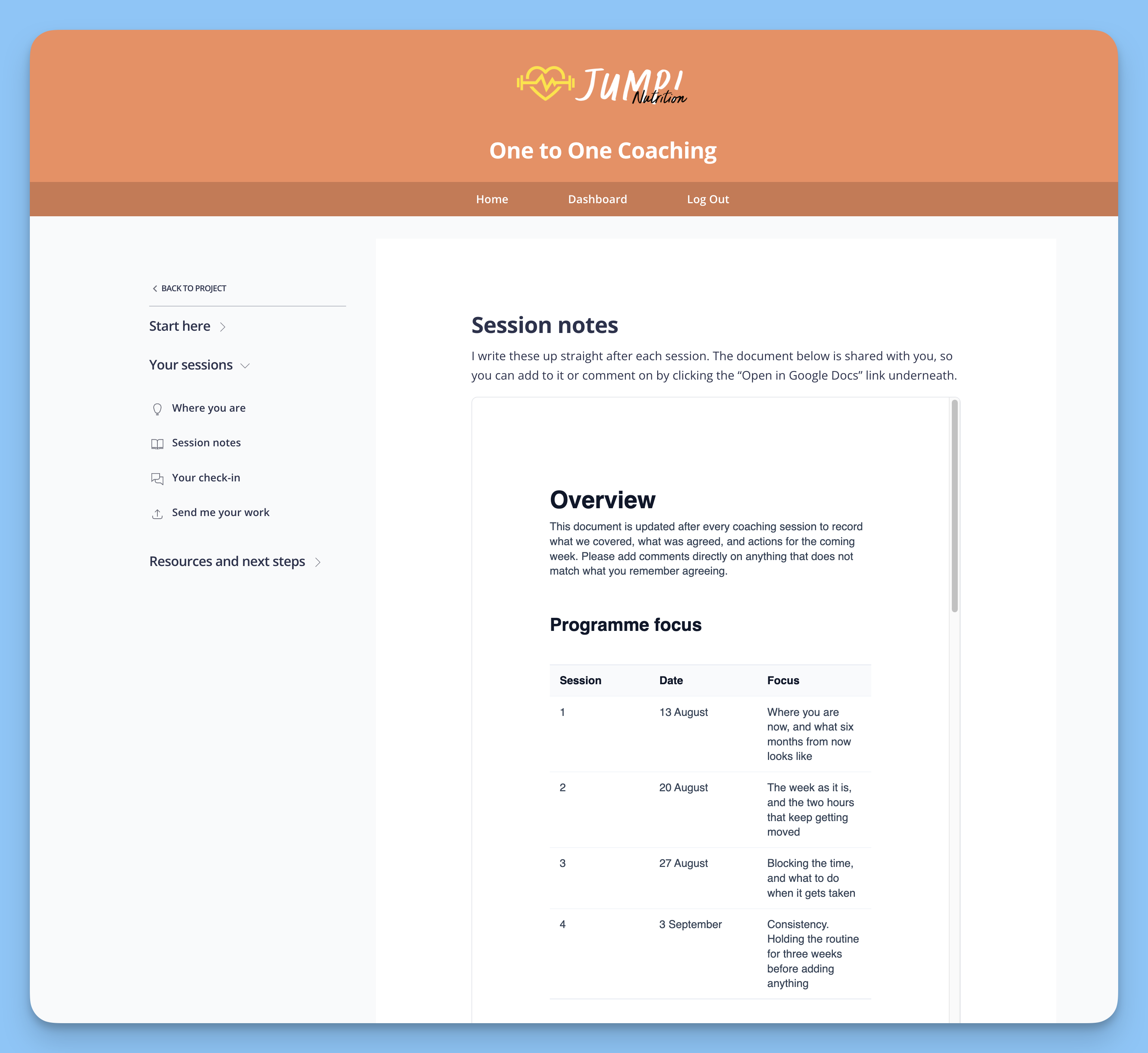
A bare iframe renders as a small box with scrollbars. The CSS below gives the iframe a real size and a border so it sits in the content page like the rest of the content.
About the Custom HTML block
The embed goes into a WordPress Custom HTML block. In WordPress 7.0 and later, the block shows an Edit HTML button that opens a modal with three tabs: HTML, CSS and JavaScript.
The CSS you enter in the CSS tab applies to the whole page, not just this block. Keep the class names like .cp-gdoc specific so they don't style other content on the page.
For how to create a content page and add a Custom HTML block, see Using content pages.
Publish the doc in Google Docs
Publishing creates the embed URL that Google allows to be shown in an iframe. The published view is read-only — clients can't comment in it or edit it.
Open the doc and go to File → Share → Publish to web.
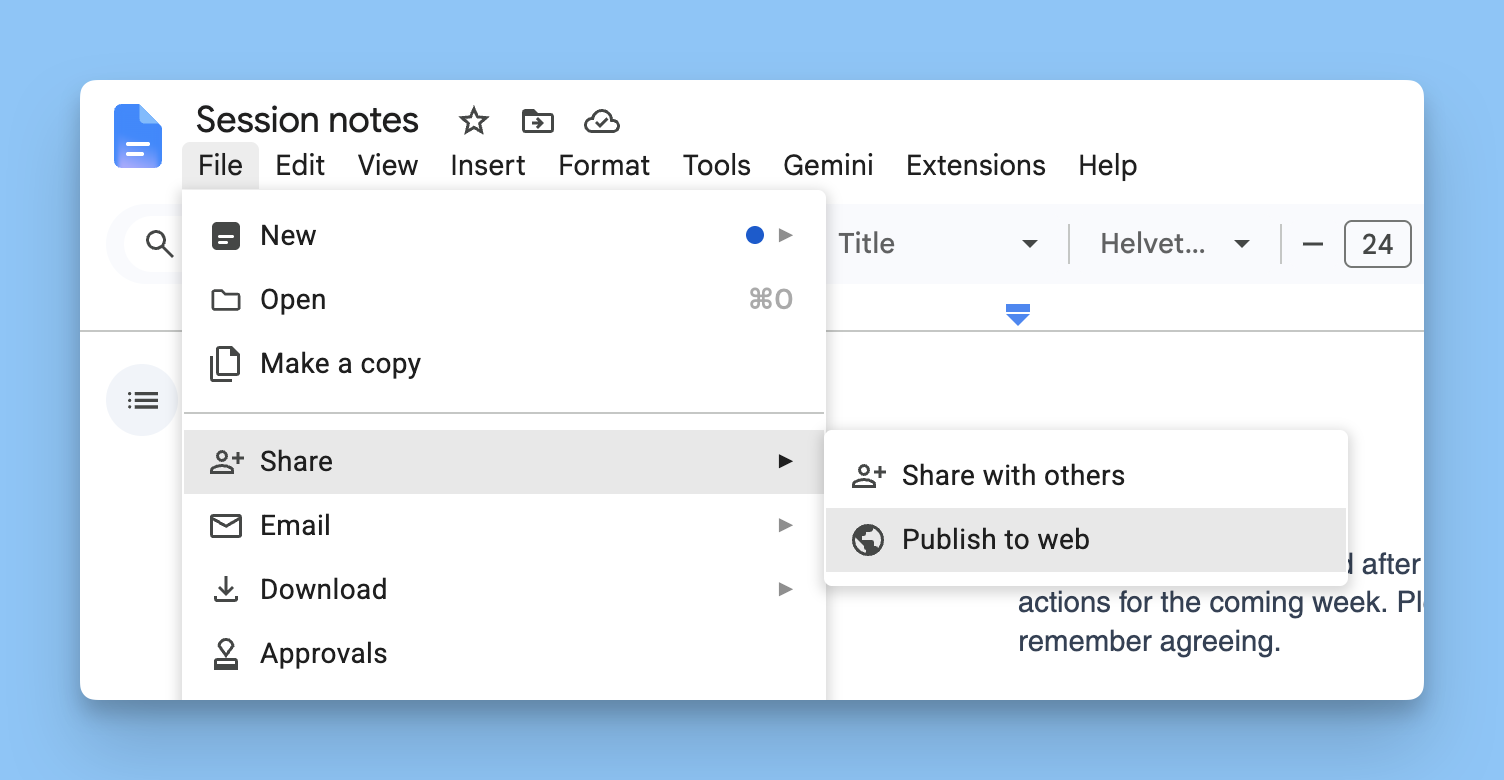
On the Embed tab, click Publish, then confirm.
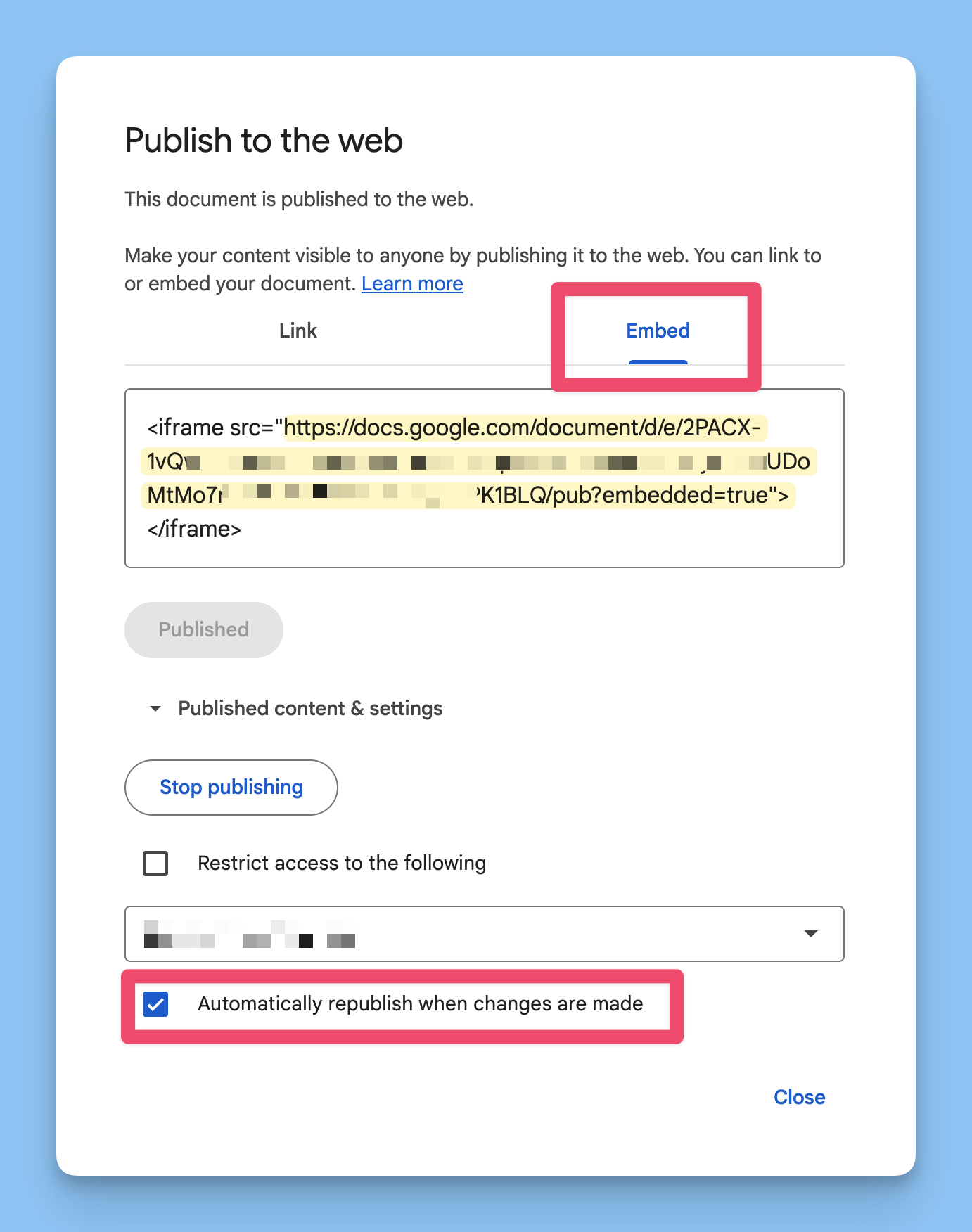
Copy the code Google gives you. It looks like this, and the long URL inside
srcis the one you need:<iframe src="https://docs.google.com/document/d/e/.../pub?embedded=true"></iframe>Under Published content and settings, make sure Automatically republish when changes are made is ticked, or the portal keeps showing the old version.
Add the embed to the content page
Open the content page in the WordPress block editor.
Add a Custom HTML block and click Edit HTML.
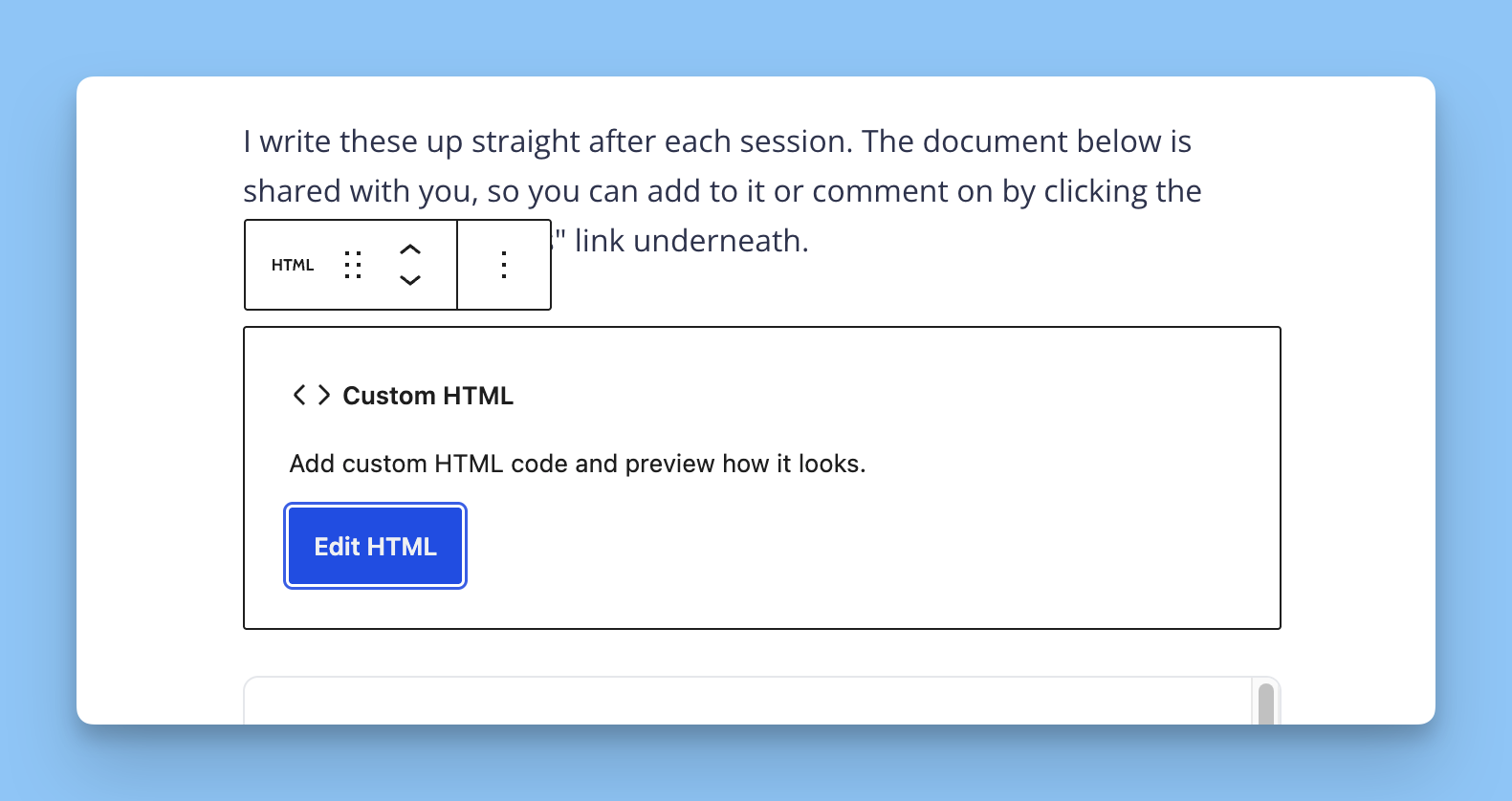
In the HTML tab, paste this, replacing both URLs with the one from Google:
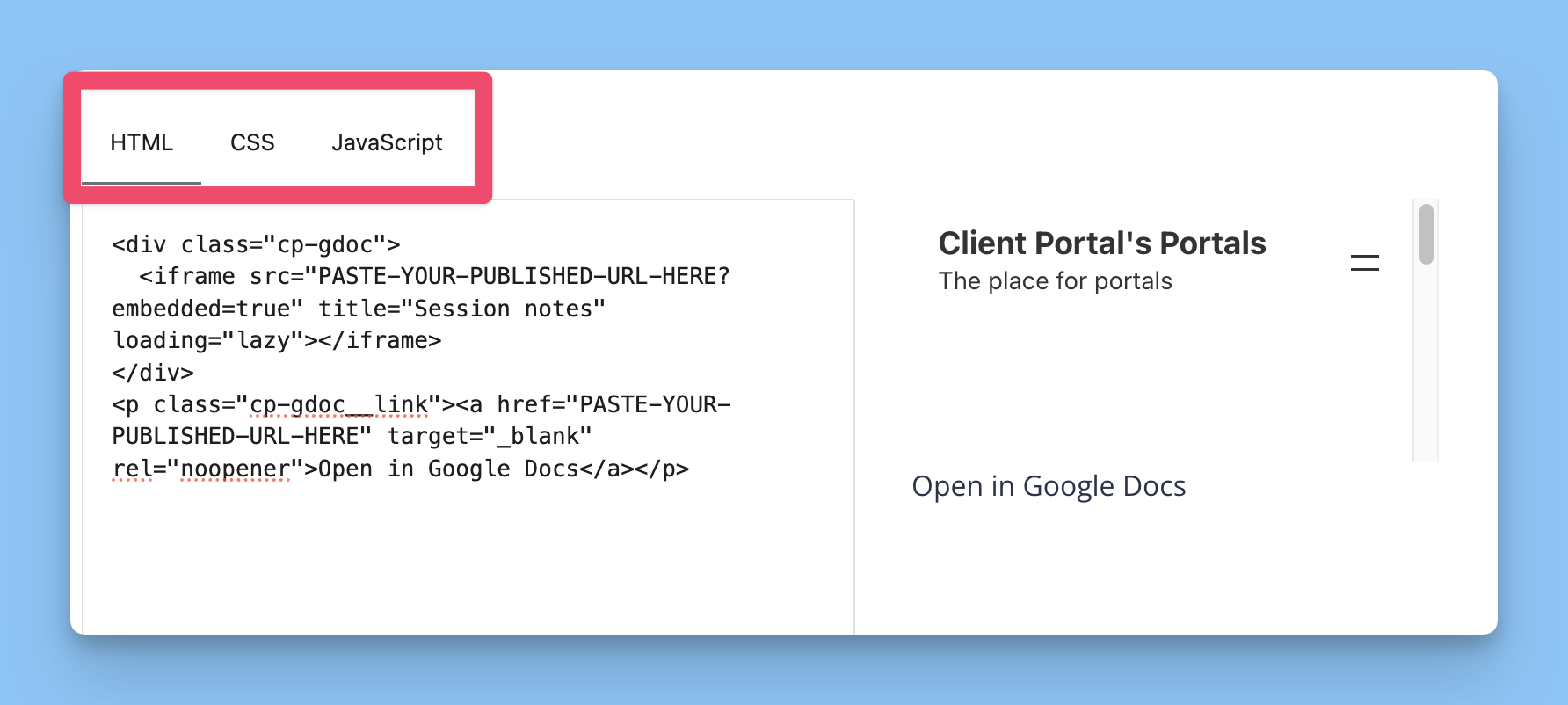
<div class="cp-gdoc">
  <iframe src="PASTE-YOUR-PUBLISHED-URL-HERE?embedded=true" title="Session notes" loading="lazy"></iframe>
</div>
<p class="cp-gdoc__link"><a href="PASTE-YOUR-PUBLISHED-URL-HERE" target="_blank" rel="noopener">Open in Google Docs</a></p>
In the CSS tab, paste this:
.cp-gdoc {
  border: 1px solid #e5e7eb;
  border-radius: 8px;
  overflow: hidden;
  background: #fff;
}
.cp-gdoc iframe {
  display: block;
  width: 100%;
  height: 80vh;
  min-height: 600px;
  border: 0;
}
.cp-gdoc__link {
  margin-top: 0.75rem;
  font-size: 0.9em;
}
Leave the JavaScript tab empty. Close the modal and update the page.
What each part does
The
.cp-gdocdiv gives the embed its border, rounded corners and white background.width: 100%makes the iframe fill the content column.height: 80vhmakes it about as tall as the screen.The link below the embed opens the doc in Google Docs, which is useful because the published view is read-only.
You can change 80vh to a different height and adjust the border colour in #e5e7eb.
If there's a big empty band above the first heading, reduce the doc's top margin in File → Page setup, or switch the doc to pageless mode.
Fonts. With Publish to web, the font you chose in Google Docs doesn't come through unless it's installed on the reader's computer. Google names the font in the page but doesn't load it, so Google fonts like Open Sans, Lato and Montserrat fall back to a serif font. Use a default system font such as Arial, Helvetica or Verdana for the whole document, then republish. After changing the font it can take a few minutes for the published version to update, and the browser may show a cached copy until the page is hard refreshed.
Also works for
Google Sheets and Google Slides publish the same way, and the same HTML and CSS apply.