
How the menu works in Client Portal
Client Portal uses WordPress's Navigation block with custom menu links to help clients move between their dashboard, projects, and logout. The menu appears in your portal header and updates automatically based on how many projects a client can access.
The menu only appears to logged-in clients with the correct permissions. Visitors who are not logged in will not see any navigation links.
Client Portal uses one shared navigation menu across all portals. Any change you make to the menu appears on every portal.
What the menu includes
Client Portal's default menu includes four navigation items:
Home link — Standard WordPress link with a customizable destination
Dashboard link — Takes clients to their project dashboard
All Projects link — Shows the full list of projects they can access
Logout link — Logs clients out and returns them to the login page
The All Projects link hides automatically when a client only has access to one project.
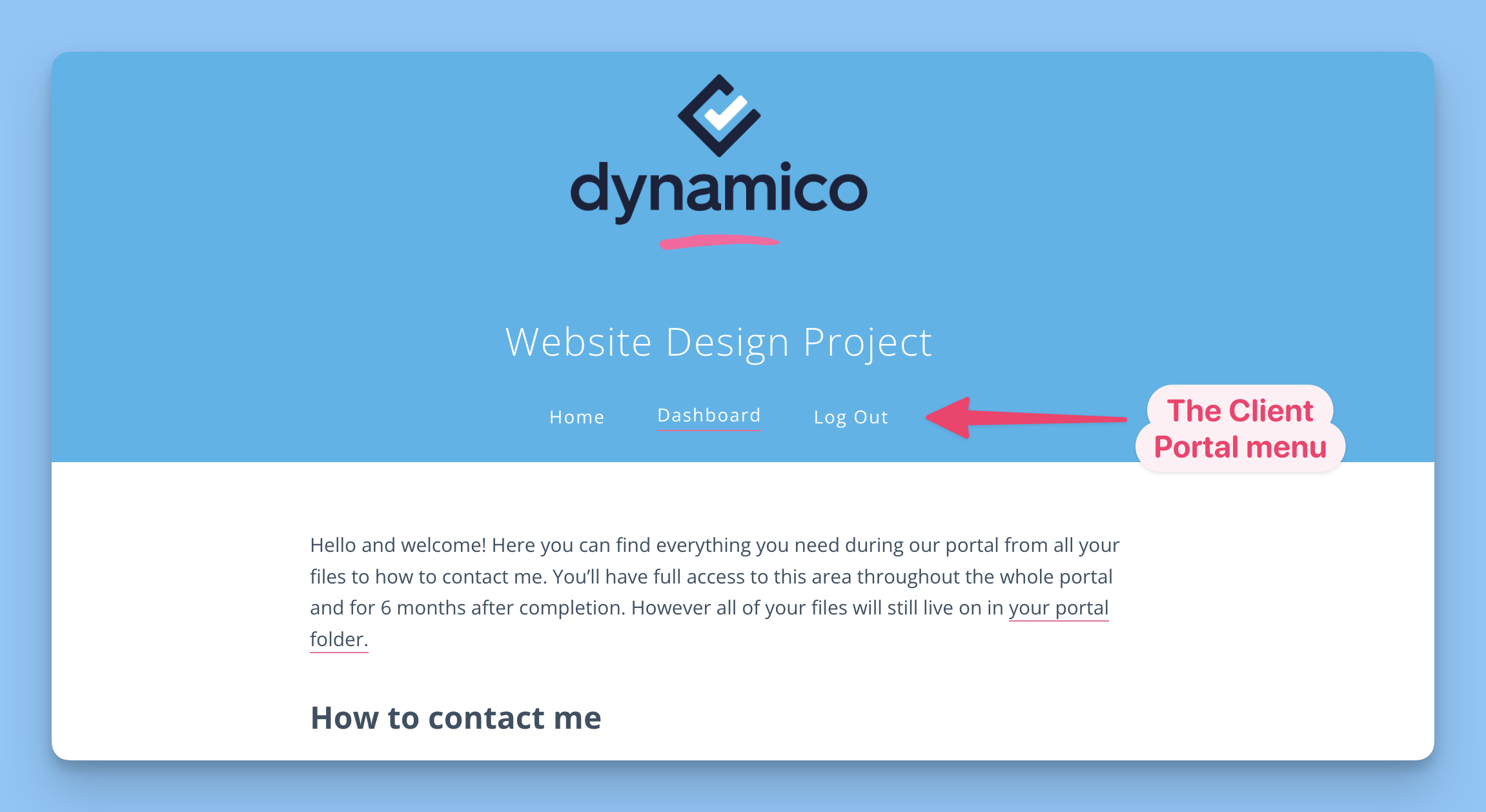
How the menu works across your portals
When you activate Client Portal, it creates a single WordPress navigation post named Client Portal Menu. That navigation is shared across all of your portals.
Custom links appear on all portals
Label changes affect all portals
Removing a menu item removes it everywhere
If you need different menus for different portals, you need custom development. The built-in menu is global.
How to edit the menu (Block template only)
Menu customization depends on which portal template you use.
Two ways to edit the menu
If you use the Block (Five) template, you can edit the menu in two places.
Option 1: From Appearance > Editor > Navigation
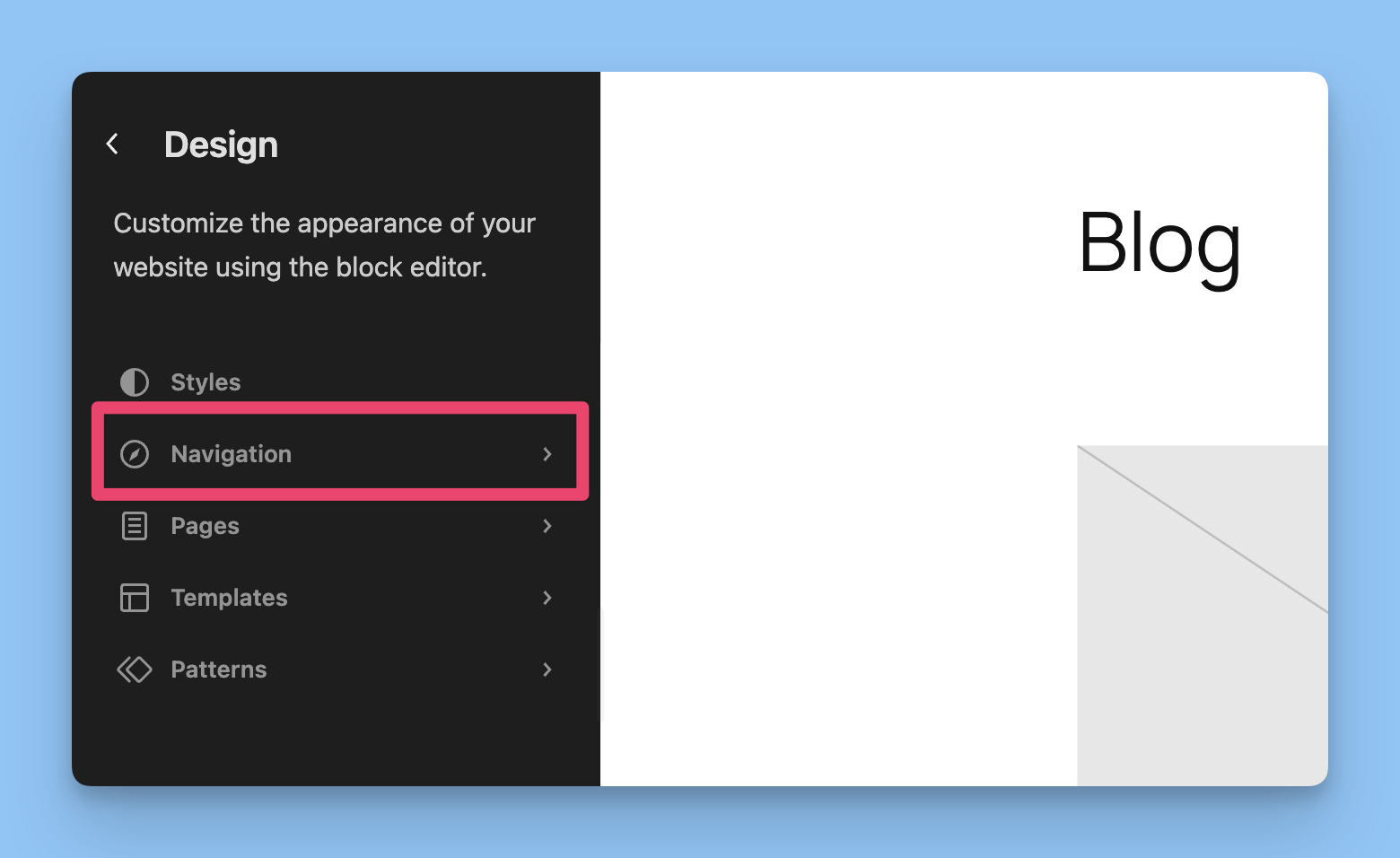
Go to WordPress Admin > Appearance > Editor > Navigation.
Select Client Portal Menu.
Edit the navigation:
Click a link to change its label
Add links with the + button
Drag items to reorder them
Remove items you do not need
Save your changes.
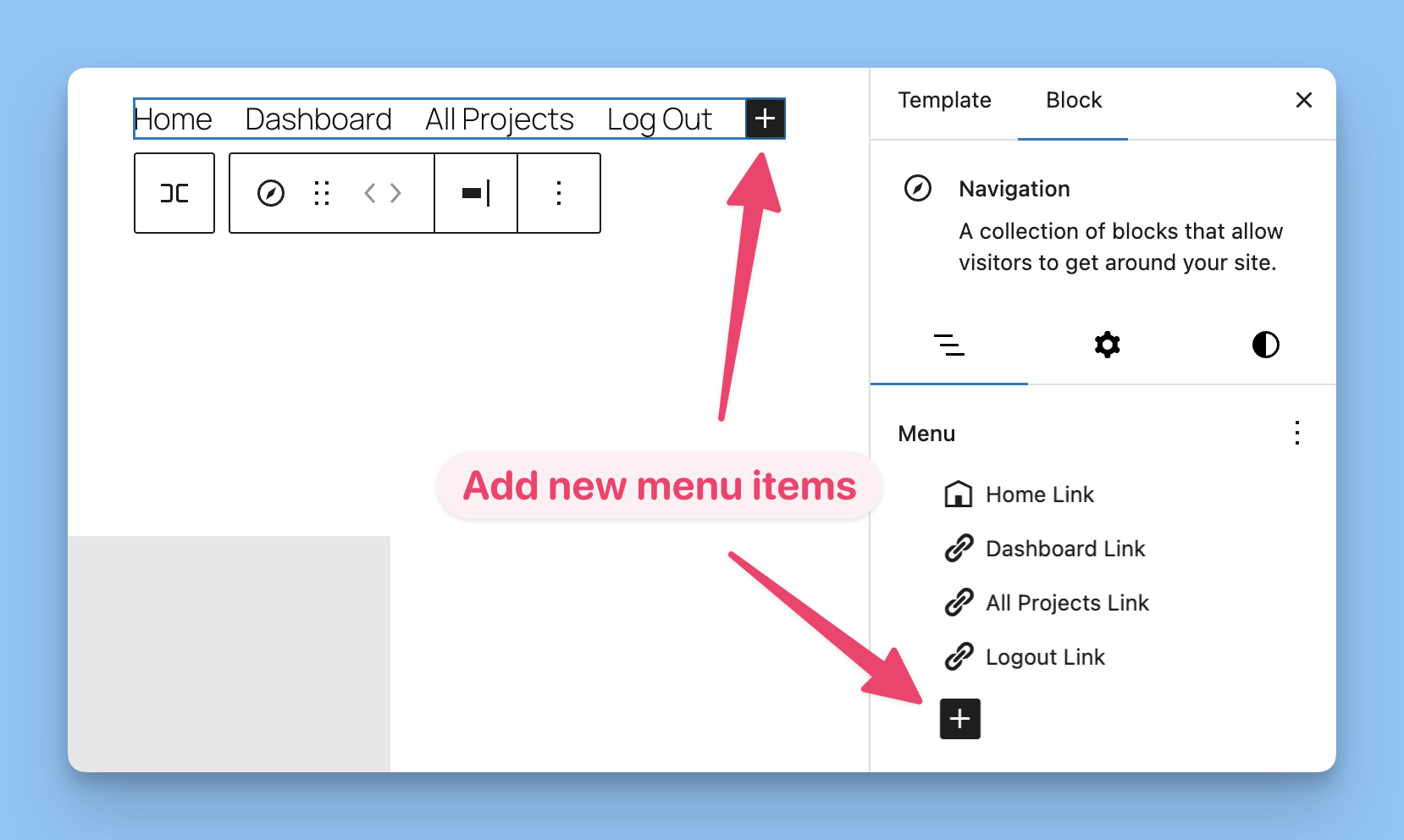
Option 2: From within a portal preview
You can also edit the menu while viewing a portal in the WordPress admin. Click any menu item to edit it.
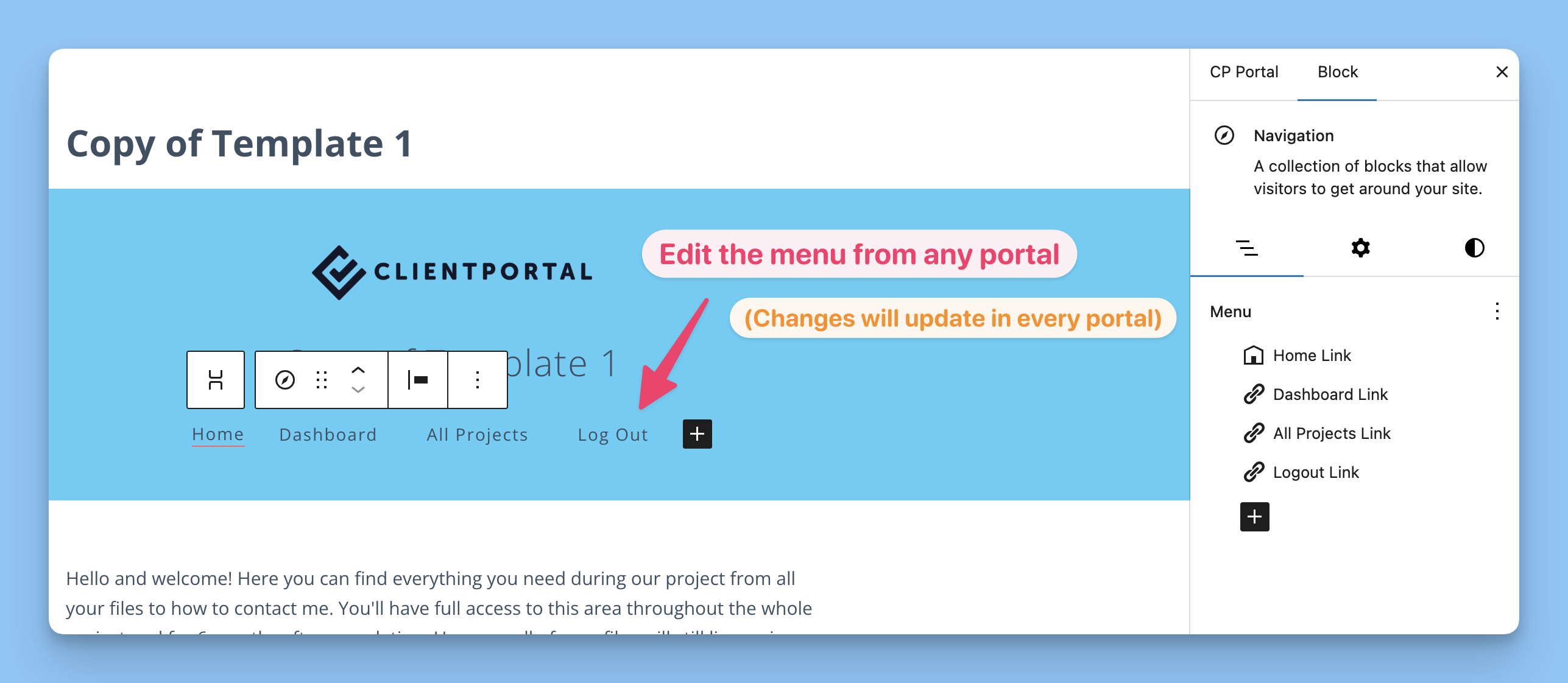
When you save from a portal preview, WordPress shows an Are you ready to save? dialog. Keep the Client Portal Menu checkbox selected so WordPress saves the shared menu changes.
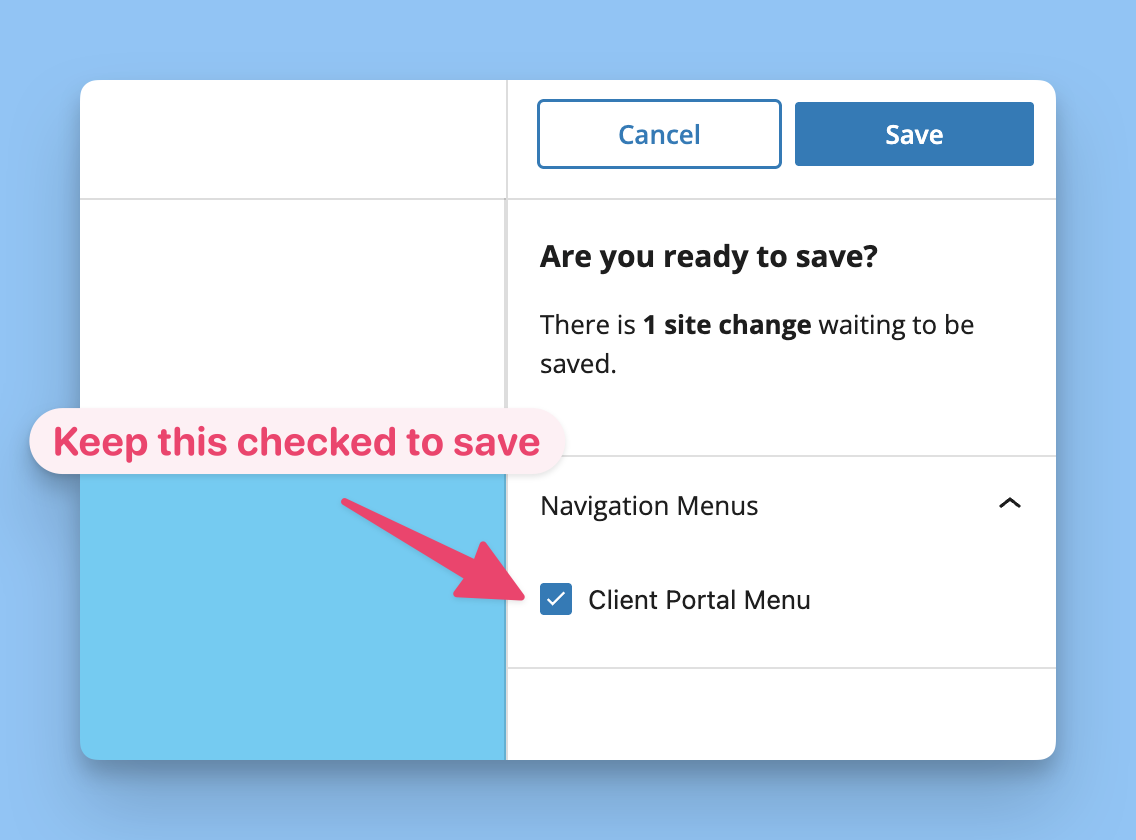
WordPress treats menu edits as site-wide changes. Saving the menu from any portal updates all portals.
Most people find Appearance > Editor > Navigation easier because it is clear that the menu is shared.
How to remove the menu
If you want to remove the header menu from the Block template, delete the Navigation block.
Open a portal in the WordPress editor or go to Appearance > Editor.
Click the menu so the Navigation block is selected.
Open the block options menu with the three-dot icon.
Click Delete.
Save your changes.
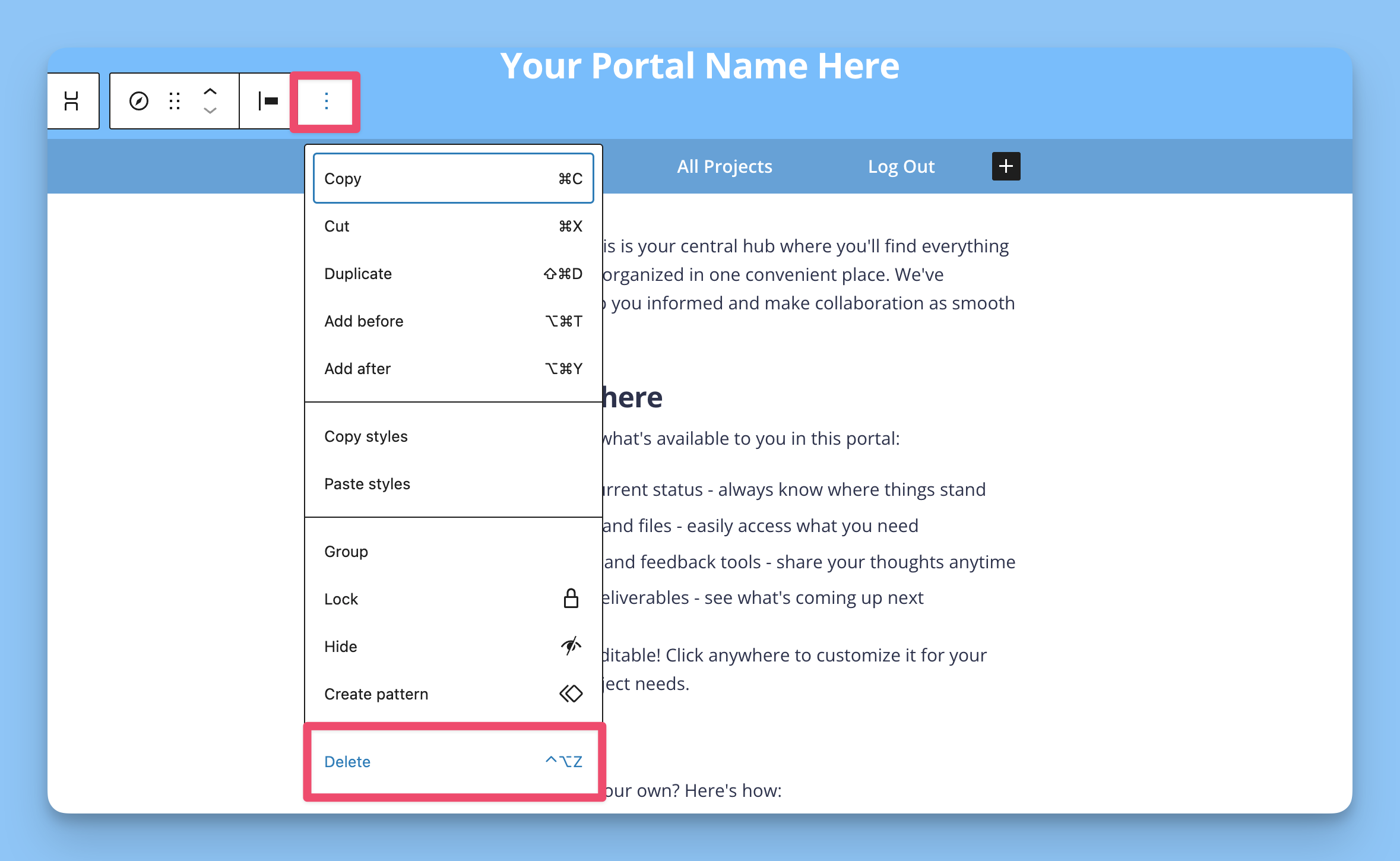
This removes the Navigation block from the portal or template you are editing. If you want to restore the default shared menu itself after it was deleted from WordPress, reactivate Client Portal.
How to add the menu back
If you deleted the Navigation block, you can add it back from your portals.
Open the same portal in the WordPress editor.
Hover where you want the menu to appear.
Search for Navigation.
Insert the Navigation block.
Select Client Portal Menu if WordPress asks which navigation to use.
Save your changes.
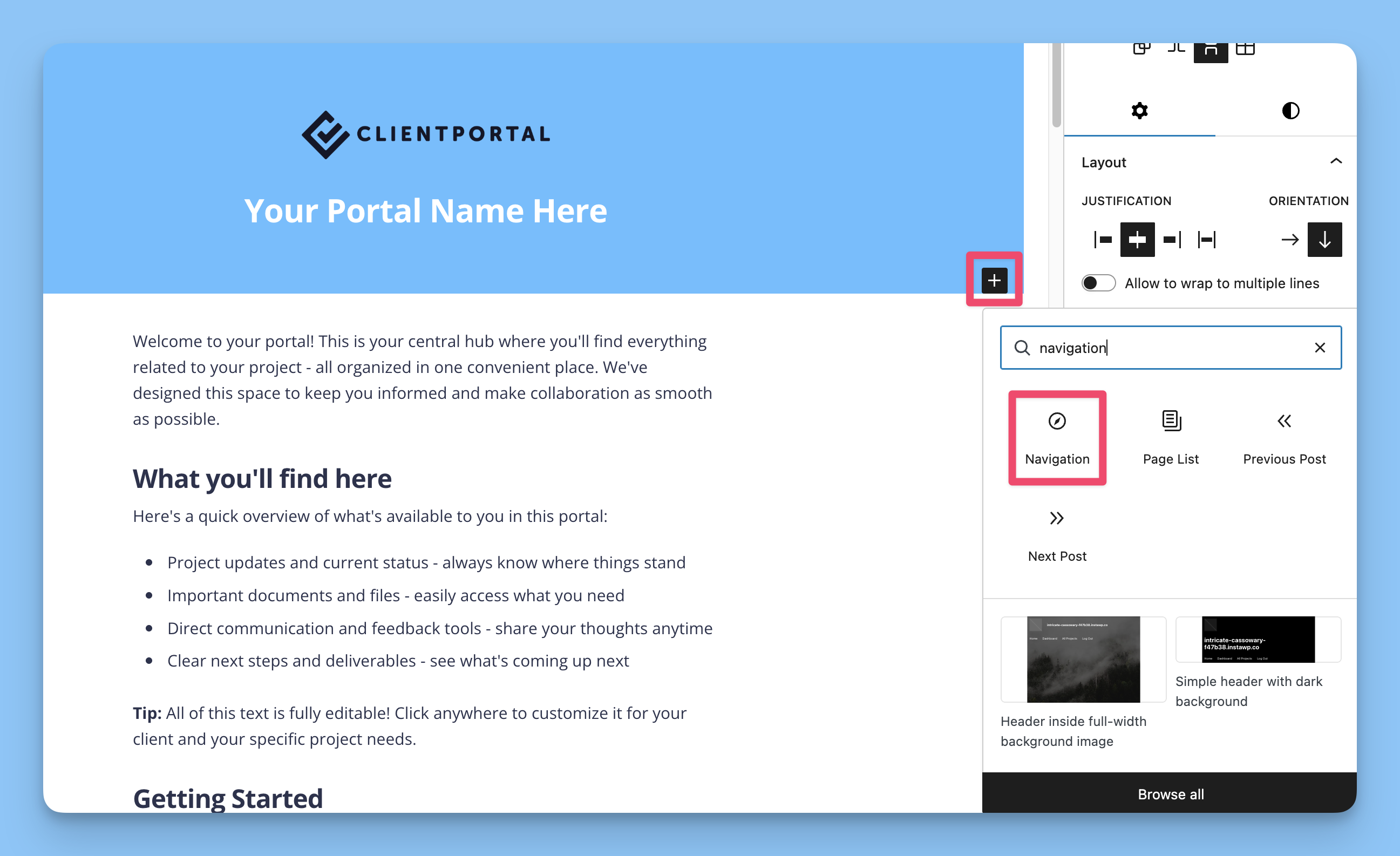
If the menu does not appear right away, confirm that the inserted block is using the existing Client Portal Menu navigation instead of a new empty menu.
If WordPress reports that the menu was deleted or is unavailable, reactivate Client Portal to recreate the default navigation post automatically.
Classic templates (Tailwind/Default)
If you use the Classic templates (Tailwind or Default), the menu is hardcoded in PHP and cannot be customized from the WordPress admin.
To change the menu on a Classic template, you need to edit the PHP files directly or switch to the Block (Five) template.
Customizing menu labels (Block template)
For Block template users, changing menu labels is straightforward:
Go to Appearance > Editor > Navigation > Client Portal Menu.
Click the menu link you want to edit.
Update the label text.
Save your changes.
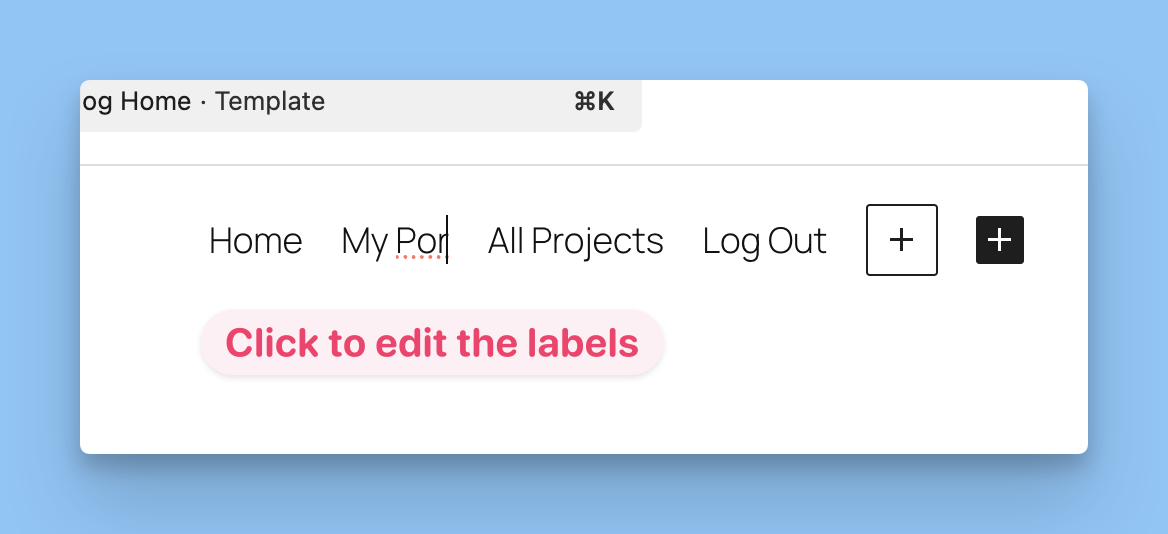
The active page gets a current class automatically, so you can style it with custom CSS if needed. For more advanced styling, see How to customize your portals with custom CSS.
Menu behavior for clients
When clients view their portal, the menu works like this:
Home link — Goes to the URL you configured
Dashboard link — Opens the current project dashboard
All Projects link — Opens
/client/and shows all accessible portals when the client has more than one portalLogout link — Logs the client out
Content pages sidebar navigation
If you use content pages within a portal, Client Portal also generates a sidebar navigation menu on those pages. This sidebar is separate from the header menu and appears automatically for the content pages attached to that project.
The sidebar shows all content pages in the project so clients can move between sections like onboarding steps, resources, or deliverables.
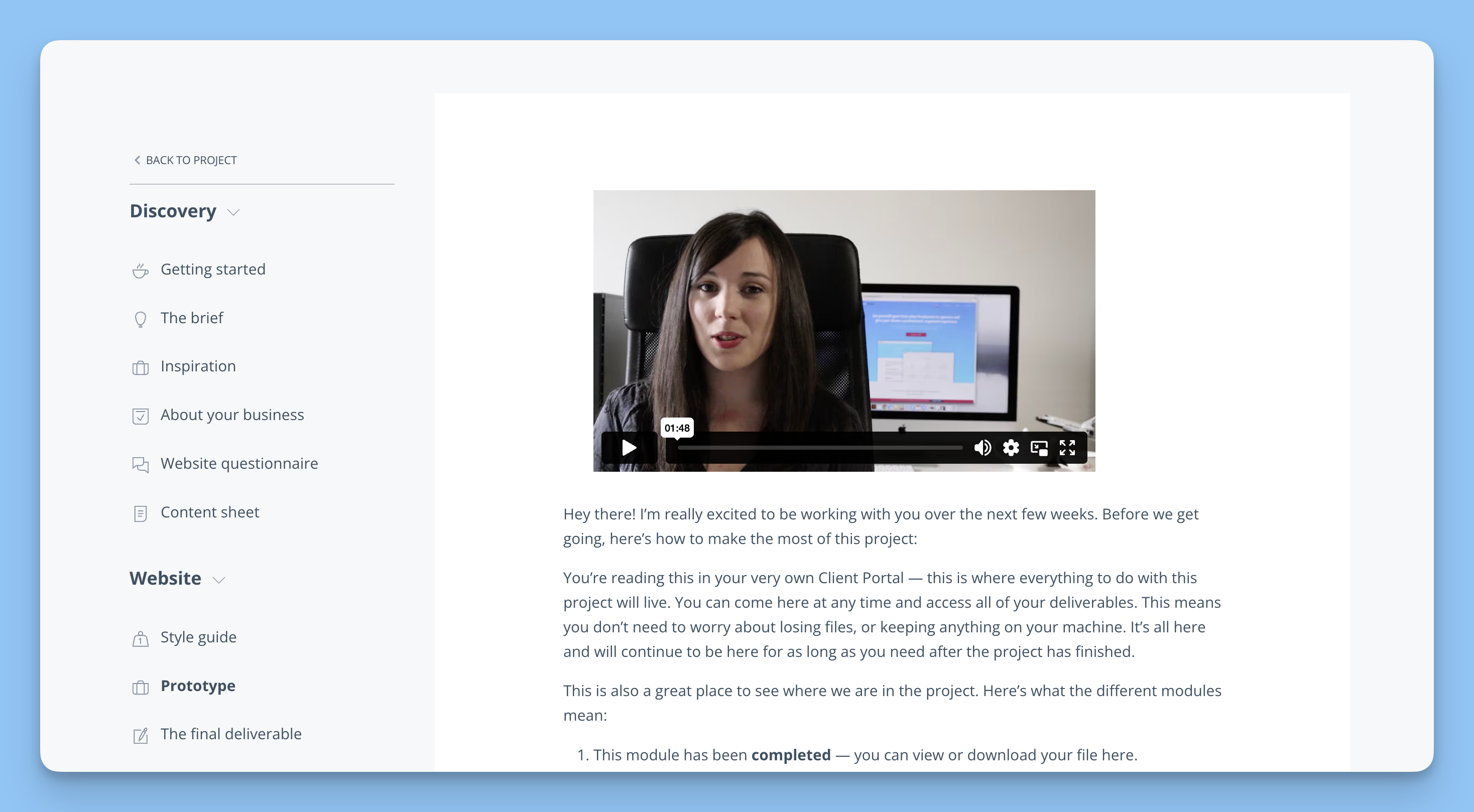
For more details on how content pages work, see Using content pages.
Troubleshooting menu issues
Menu links not showing up
If the menu is not visible to clients, check these common causes:
User not logged in — The menu only appears to authenticated clients with the correct role
Single project access — The All Projects link hides automatically when a client only has one project
Template issue — Confirm your portal template is rendering the navigation correctly
Navigation menu deleted or unavailable
If WordPress shows Navigation Menu deleted/unavailable:
Deactivate Client Portal.
Reactivate Client Portal.
The plugin recreates the default navigation automatically.
This usually happens when the WordPress navigation post was deleted. Reactivating the plugin restores it.
Sidebar navigation missing on content pages
If content pages do not show the sidebar navigation:
Check your theme for template overrides that hide the sidebar
Temporarily switch to a default WordPress theme to test
Review your theme CSS for rules that hide navigation elements
Mobile menu styling issues
If the menu looks wrong on mobile devices:
Test with the default portal template to isolate the issue
Review any custom CSS that affects mobile breakpoints
Use custom CSS to adjust spacing or responsive behavior if needed
Need advanced styling help? See How to customize your portals with custom CSS.
Menu integration with portal templates
The menu renders differently based on your template:
Block template (Five) — Uses the shared Navigation block from Appearance > Editor
Classic templates (Tailwind/Default) — Uses hardcoded PHP navigation in the header
If you are still setting up your portals, see Setting up your first portal for the full workflow.