
Embed Google Drive, Dropbox, OneDrive or Box files in a content page
Client Portal has no built-in way to embed files from Google Drive, Dropbox, OneDrive or Box. The way to do it is a third-party plugin family called WP Cloud Plugins: Use-your-Drive (Google Drive), Out-of-the-Box (Dropbox), Share-one-Drive (OneDrive & SharePoint) and Lets-Box (Box). The plugins are paid, they are made by WP Cloud Plugins rather than by us, and they work well inside Client Portal content pages.
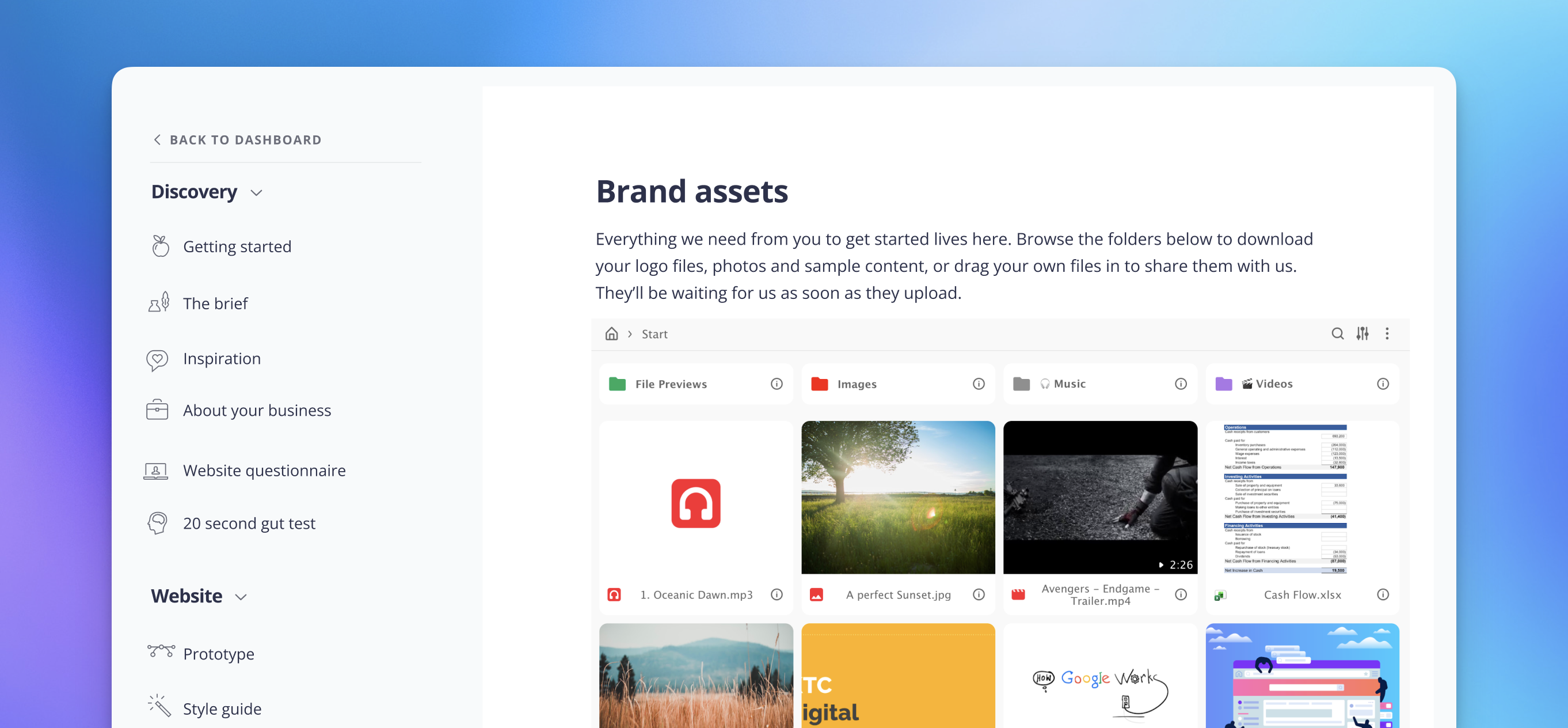
This is what WP Cloud Plugins looks like in a Client Portal content page.
Why embed from cloud storage instead of uploading
Client Portal's own file modules store files on your WordPress site, and that is the right choice for most portals. Embedding from cloud storage earns its keep in three situations:
Your files already live there. If your working files sit in Google Drive or Dropbox, embedding shows them in the portal without uploading a second copy to your website.
You manage them from the cloud service. The original file stays in your Drive or Dropbox. When you update it there, the embedded version in the portal reflects the change, so you don't maintain two copies or resend files to clients.
One plugin covers all clients. You connect your cloud account once, then choose a different starting folder per content page, so each portal can show its own slice of the same storage.
Before you start
WP Cloud Plugins is a paid third-party product, not a Client Portal feature. New purchases go through wpcloudplugins.com, and there is one plugin per provider, so buy only the one for your cloud service.
The plugin for your provider (Use-your-Drive, Out-of-the-Box, Share-one-Drive or Lets-Box) installed and active on your WordPress site, with your cloud account connected through the plugin's Add Account flow.
A content page to place the module in. Create one from Client Portal → Content Pages → Add New, or follow Using content pages.
Pick the right module
All four plugins share the same modules and configurator, so the steps after this are the same whichever one you installed. Each module fits a different job:
File Browser: let clients browse a cloud folder and, when configured, preview, download and upload files. Choose the starting folder with the Top Folder setting.
Embed: show a single document, spreadsheet or presentation inline. The file stays in cloud storage and changes are reflected on the page.
Gallery: display a cloud folder's images as a gallery that updates when the folder's images change.
List or Button: a compact file list, or a direct download link for a single file.
Upload Box: collect files from clients into a cloud folder (for example deliverables or intake documents). This one sends files into storage; it does not display files that are already there.
Add the module to a content page
You place the module in the content page from the WordPress block editor.
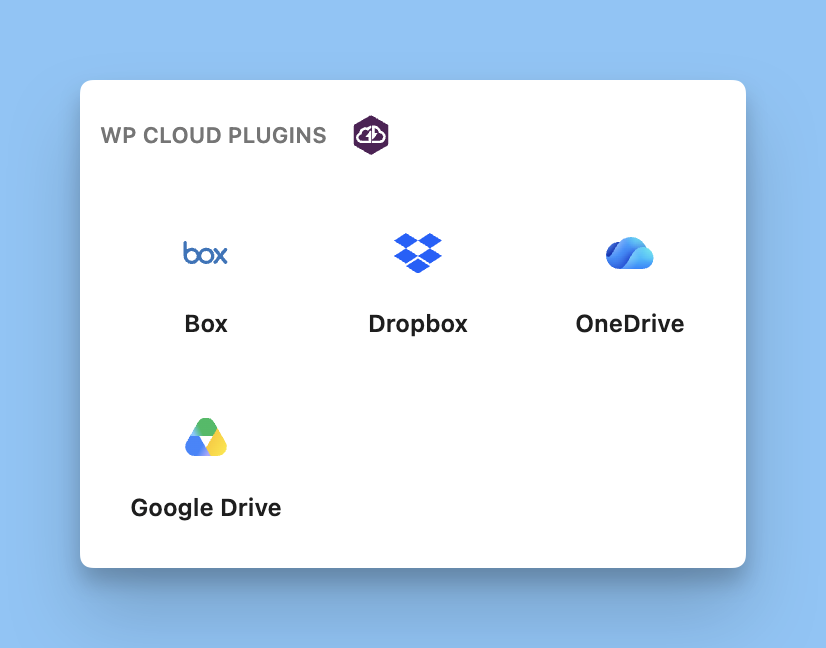
How you select the block in the sidebar of a content page.
Open the content page in the WordPress block editor.
In the block inserter, find the WP Cloud Plugin block (the inserter also finds it by searching for the provider name, such as "Google", "OneDrive", "Dropbox" or "Box").
Select or add a module, then click Configure.
In the configurator, set the content options such as Top Folder and Use one account, and the access options: Who can see this module, Show login screen, and Protect with password with a Password if you want one.
Save the module and publish or preview the content page.
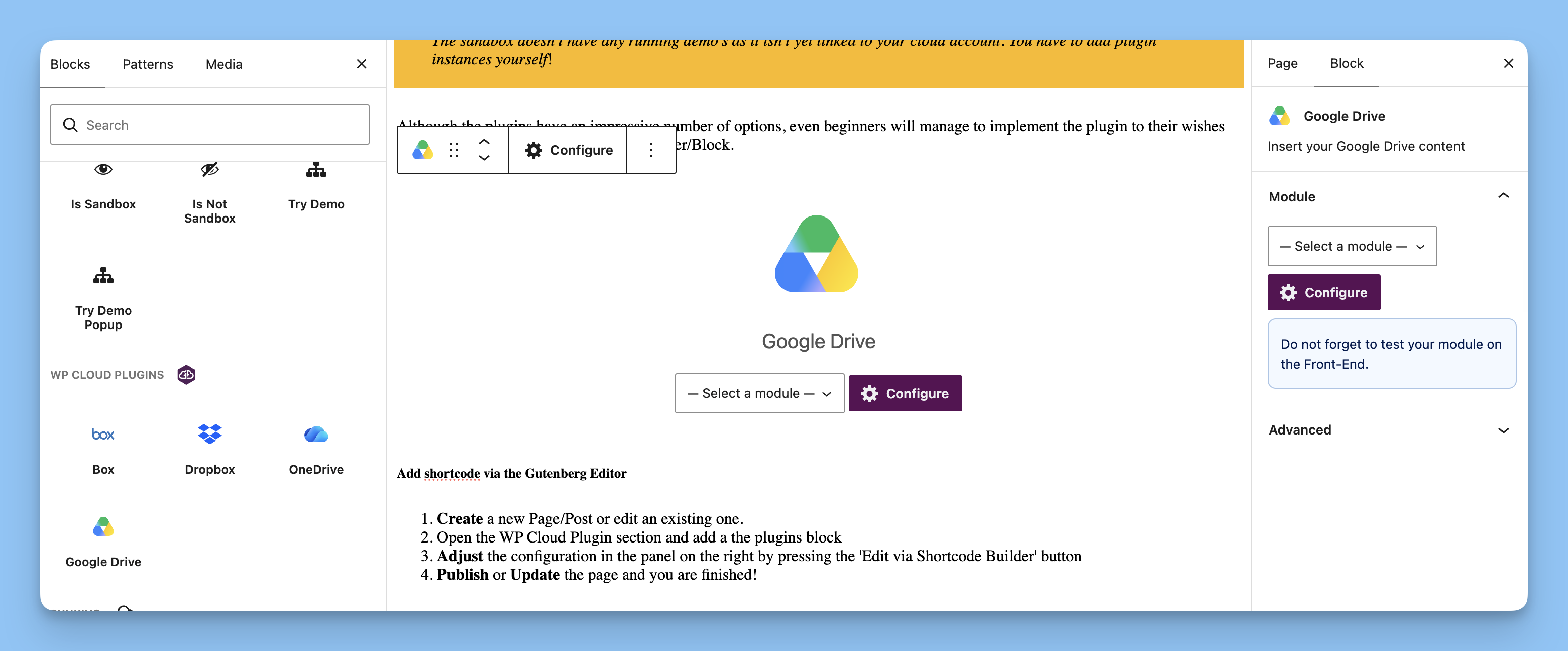
What you see once the block is on the content page: choose a module, then click Configure.
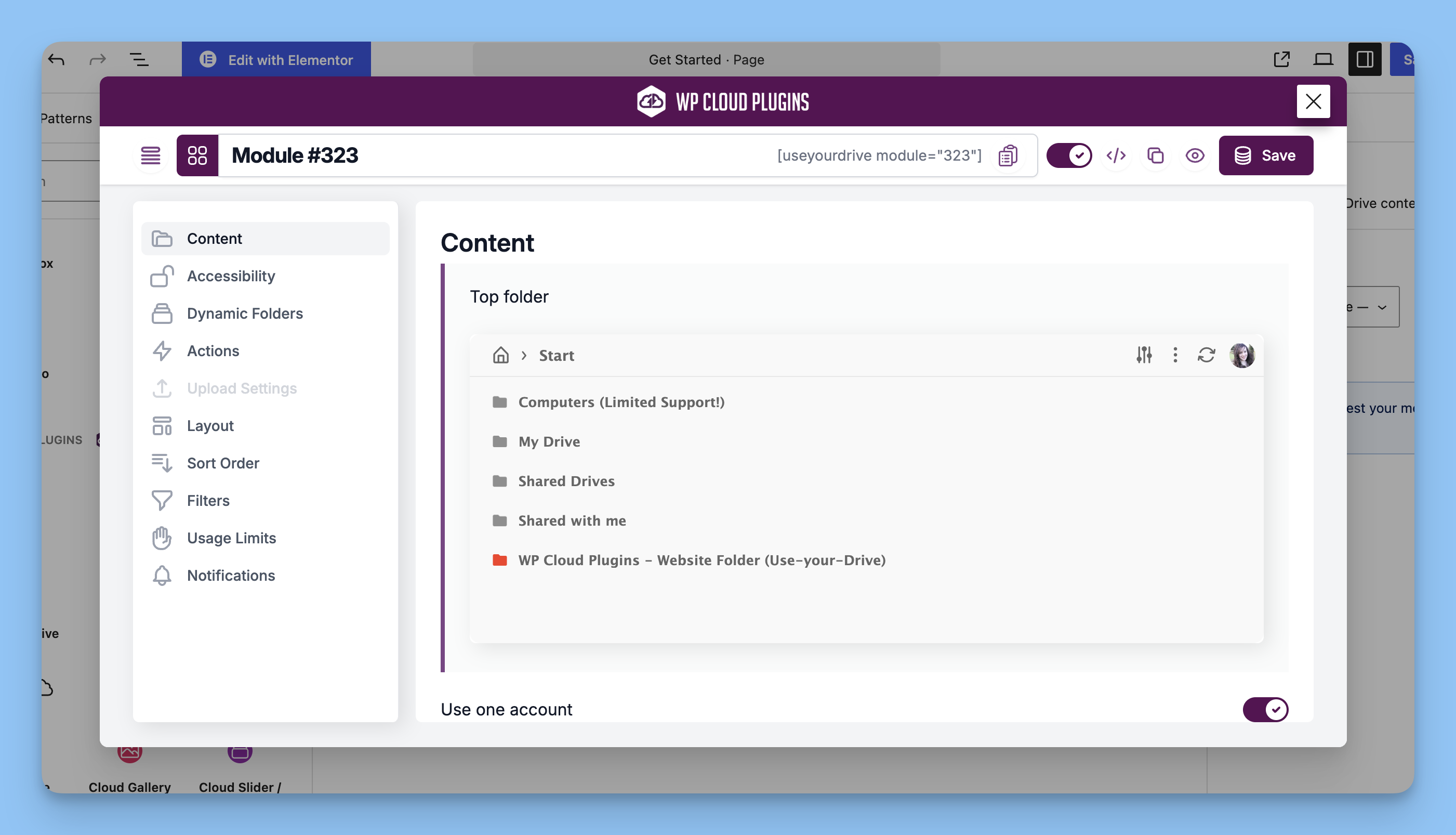
The configurator's Content settings, where you pick the Top folder clients start from and decide which part of your cloud storage the module shares.
If you prefer a shortcode, open the plugin's Module Manager, copy the raw shortcode it generates for your module, and paste it into the content page. Copy the shortcode from the Module Manager rather than writing it by hand: the exact shortcode text is generated for your module and account.
Keep cloud files and private files separate
A content page inside a portal is login-protected, but files shown through a WP Cloud Plugins module are served by the plugin and your cloud provider, with the module's own access settings. They are not handled by Client Portal's Private Files download protection, which applies to files uploaded through the portal's own file modules. Set the module's access options (Who can see this module, password protection) to match how private the content is, and check your provider's sharing settings for anything you embed. For the portal's own file storage, see Private files vs regular files: which should you use?
Alternative: iframe embeds without the plugin
For Google Docs and Sheets, you can skip the plugin and embed a published copy of the document with an iframe instead. See Embed a Google Doc in a content page and Using Google Sheets with Client Portal. The plugin route keeps the original file in your Drive and adds folder browsing, galleries and upload boxes, which the plain iframe method does not.